Overview
The test console answers exactly as a customer would be answered, using your knowledge and rules. It is the fastest way to find a gap before a customer does.
What you will achieve
- Ask the assistant a question.
- Read its reply.
- Start over with a new chat.
Who this guide is for
Anyone setting up or checking the assistant.
Before you start
- Some knowledge in the knowledge base, so the assistant has something to answer from.
Ask a question
Step 1: Open the test console
Select Try your assistant on the AI Assistant page, or Try a conversation on Getting started.
Step 2: Start with a suggested question
Select one of the questions under Start with one of these 1, for example What are your opening hours?. You can also tap the microphone 2 to send a voice message; it is transcribed like your customers' voice notes.
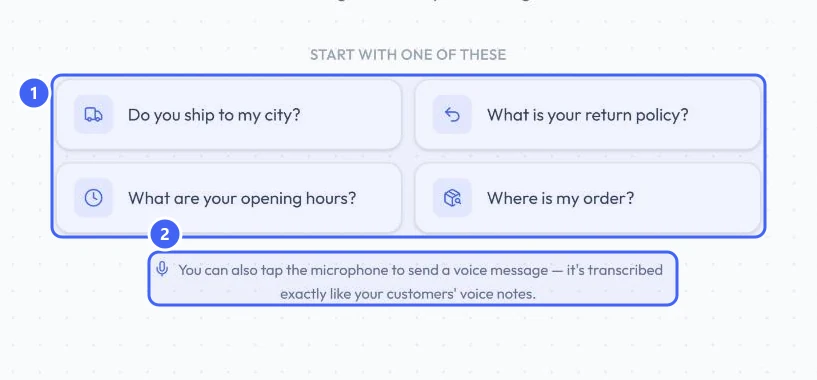 Open full size
Try your assistant.
- 1Suggested questions
- 2Voice messages
Step 3: Or type your own
Type in Message your assistant... 1 and press Enter, or select send 3. Shift + Enter starts a new line. The microphone 2 records a voice message.
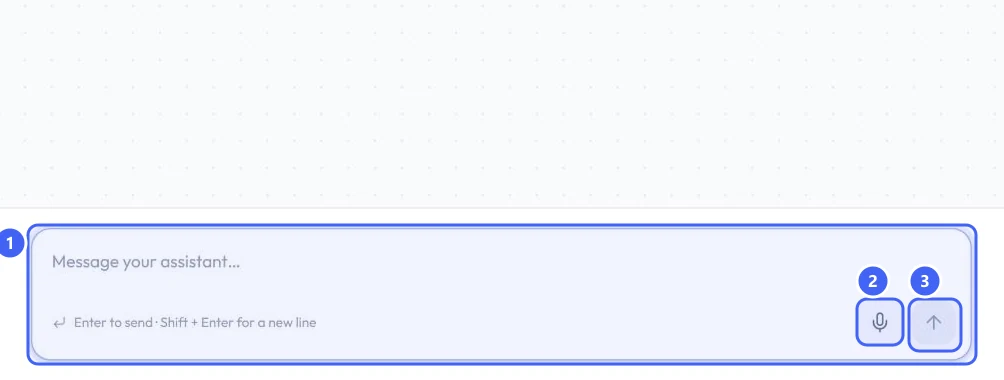 Open full size
The message box.
- 1Message box
- 2Microphone
- 3Send
Read the reply
Step 4: Check the answer
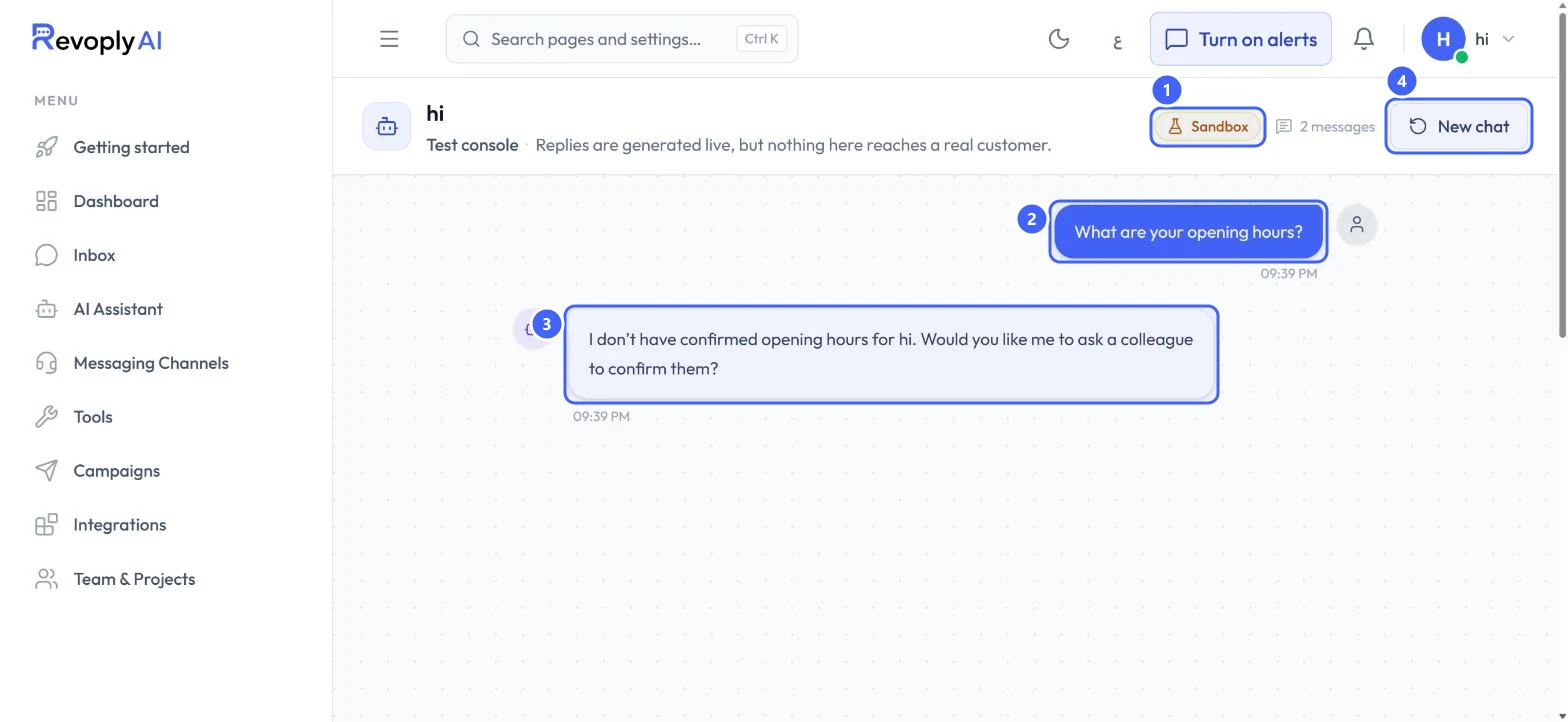
Your question 2 and the assistant's reply 3 appear like a chat. The Sandbox badge 1 reminds you that nothing here reaches a real customer. Select New chat 4 to start over.
 Open full size
A test question and the assistant's reply.
- 1Sandbox
- 2Your question
- 3The assistant's reply
- 4New chat
In this example the knowledge base has no opening hours, so the assistant says so and offers to ask a colleague. Add the hours to your company profile or knowledge base and ask again.
Expected result
You have seen how the assistant answers a real question, and you know what to add if an answer is missing.
Troubleshooting
The assistant answers that it does not know.
The fact is missing from your knowledge base or company profile. Add it, save, and ask again.
Still stuck?
A real person answers every message. Tell us the page you were on and what you saw.