Overview
The assistant answers from your knowledge base and nothing else. Opening hours, delivery areas, prices, return policy: if it is not here, the assistant says it does not know.
What you will achieve
- Add your business facts in the text editor.
- Read the character counter.
- Know what belongs in the knowledge base and what does not.
Who this guide is for
Owners and admins who know the business details.
Before you start
- The facts you want the assistant to know, written as plain text.
Open the knowledge base
Step 1: Go to AI Assistant
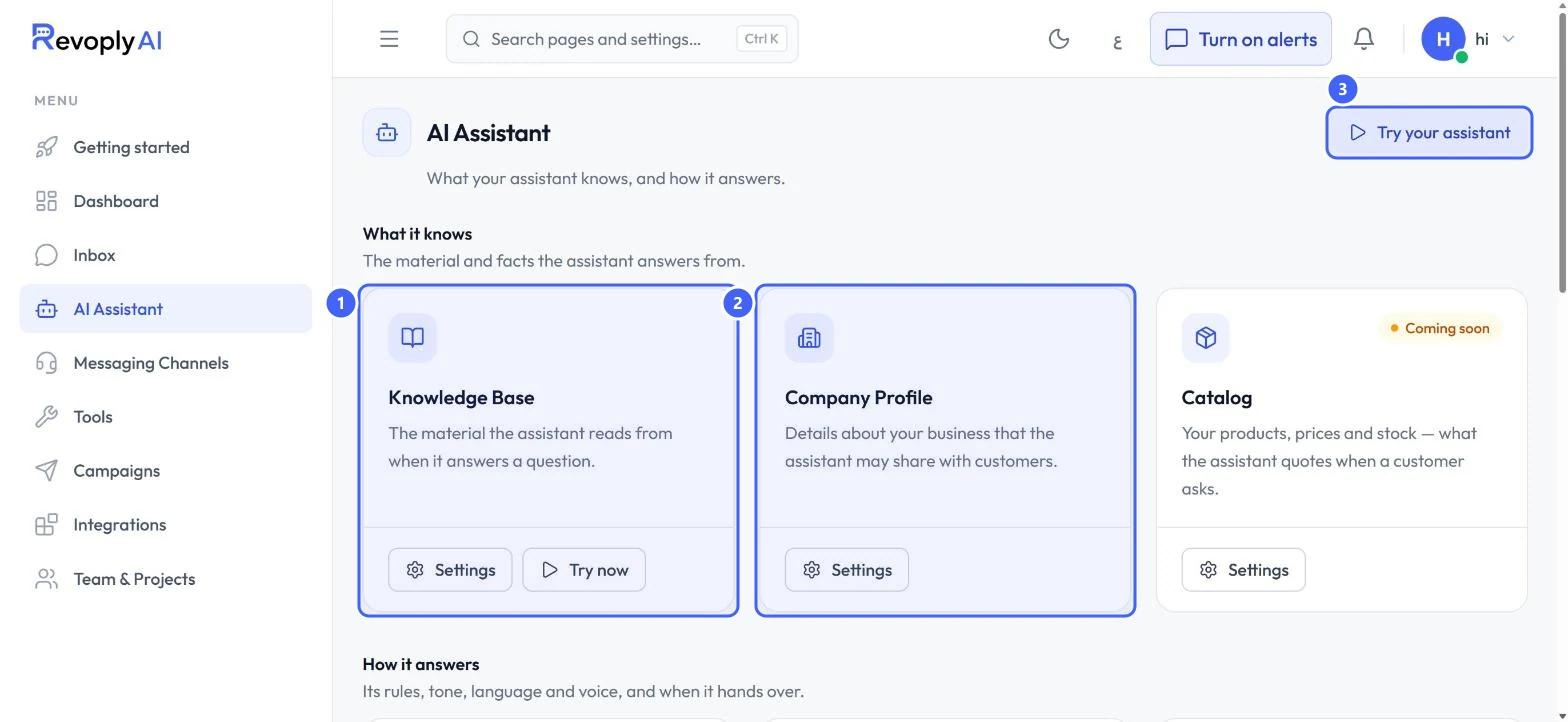
Select AI Assistant in the menu. The page groups everything the assistant knows under What it knows. Select Settings on Knowledge Base 1. Try your assistant 3 opens the test console.
 Open full size
AI Assistant, What it knows.
- 1Knowledge Base
- 2Company Profile
- 3Try your assistant
Write your facts
Step 2: Use the Text editor
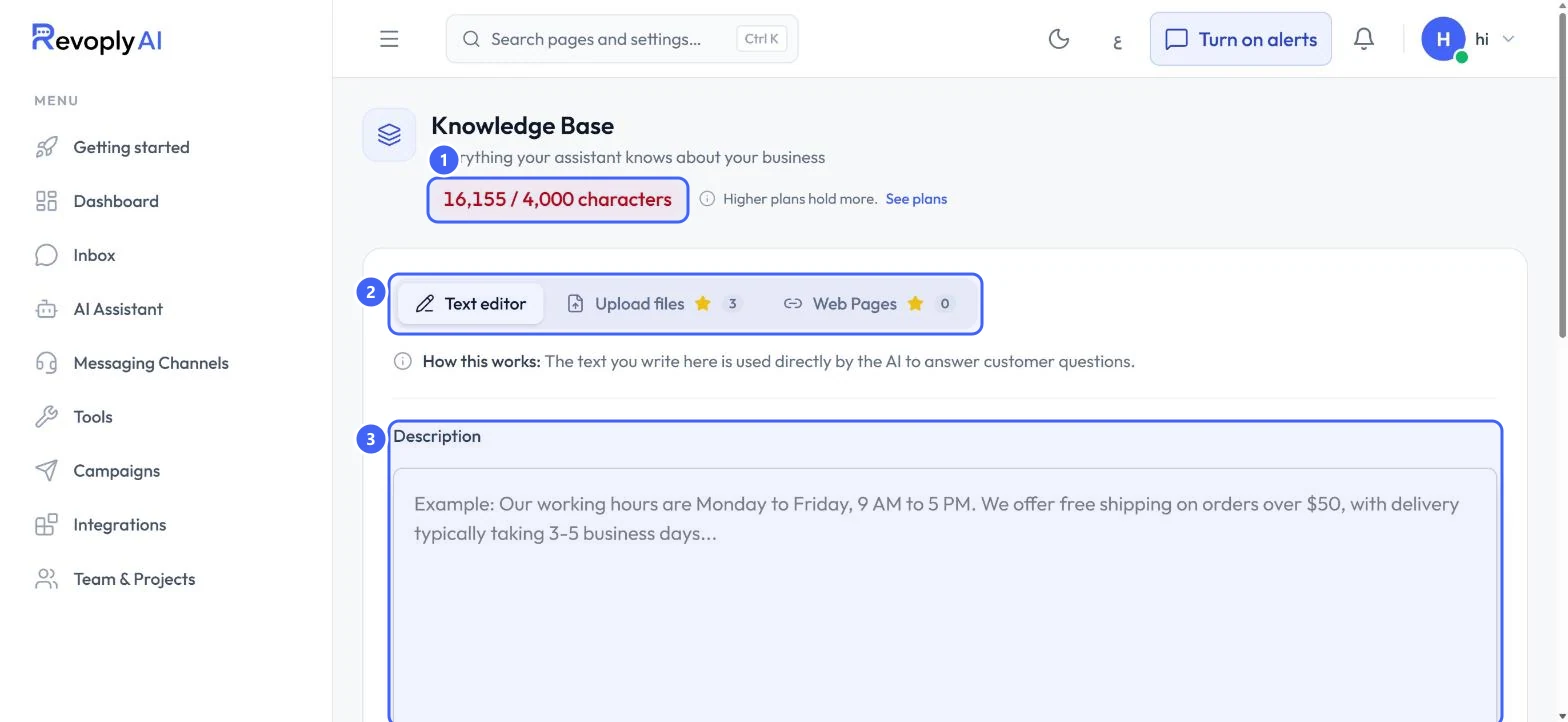
Keep the Text editor tab 2 selected and write your facts in Description 3. Plain sentences work best, for example: Our working hours are Monday to Friday, 9 AM to 5 PM.
 Open full size
The knowledge base text editor.
- 1Characters used out of your plan's limit
- 2Text editor, Upload files, Web Pages
- 3Description
Step 3: Watch the counter
The counter at the top 1 shows how many characters your knowledge uses out of your plan's limit. It covers everything the assistant knows, not only this box. Higher plans hold more.
Step 4: Save
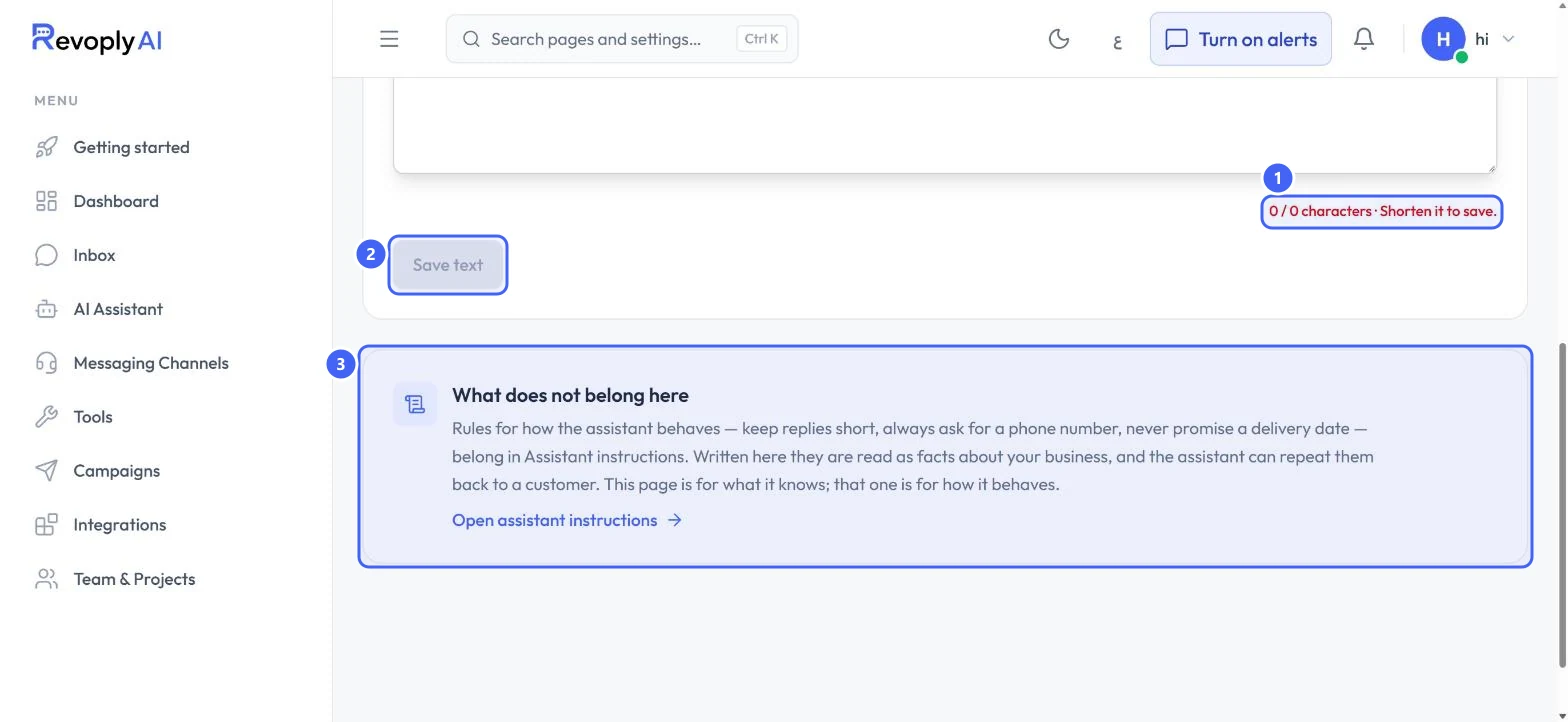
Select Save text 2. The note under the box 1 turns red and tells you to shorten the text when it is over the limit, and Save text stays unavailable until it fits.
 Open full size
Save text, and the note that explains what does not belong here.
- 1Length note
- 2Save text
- 3What does not belong here
Keep rules out of the knowledge base
Step 5: Facts here, behaviour in Assistant instructions
Rules such as keep replies short or always ask for a phone number belong in Assistant instructions. Written in the knowledge base they are read as facts, and the assistant can repeat them to a customer. Use Open assistant instructions (3 in the picture above) to go there.
Files and web pages
These two tabs are on the Pro and Business plans. On the Free and Starter plans they show Available on Pro; add the same information through the text editor instead.
Step 6: Upload a file
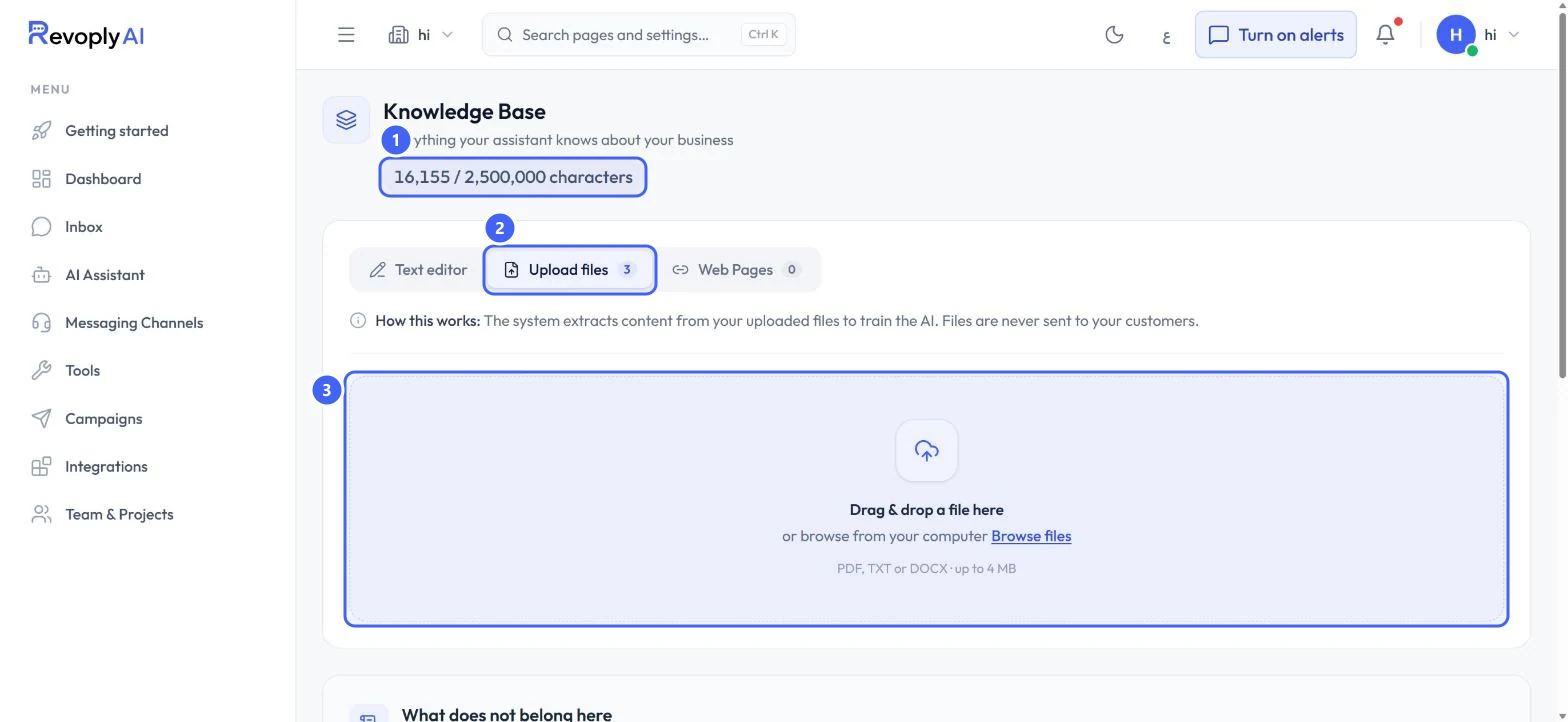
Open the Upload files tab 2. Drag a file onto the box 3 or select Browse files: PDF, TXT or DOCX, up to 4 MB each. The system extracts the text to train the assistant; the file itself is never sent to a customer. What it extracts counts towards the characters at the top 1.
 Open full size
Upload files on the Business plan.
- 1Characters used out of your plan's limit
- 2Upload files
- 3Drop a file here
Step 7: Check that each file is Ready
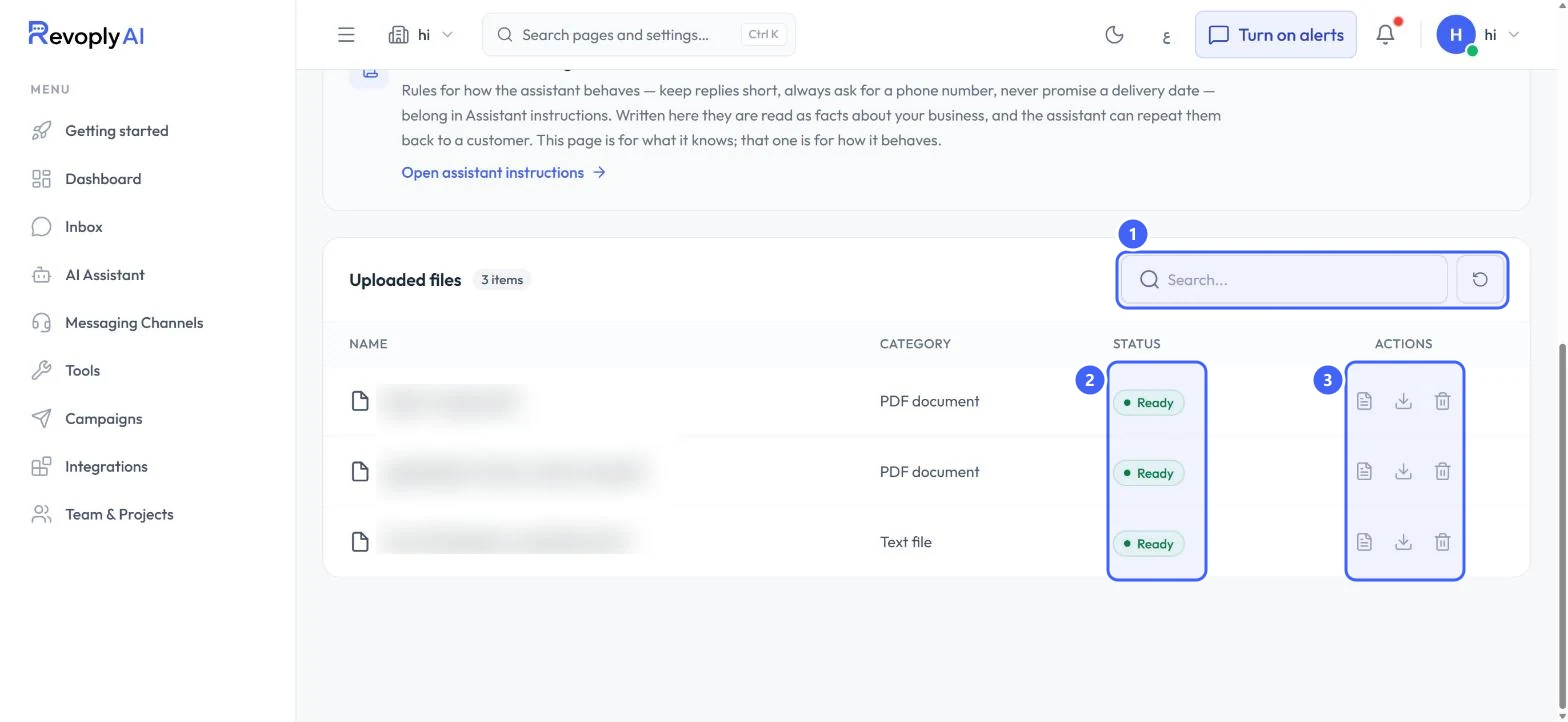
Your files are listed under Uploaded files. Search the list 1. A file the assistant can use shows Ready 2. The buttons on the right of each row 3 show what was extracted, download the file, or delete it.
 Open full size
Uploaded files. File names are blurred.
- 1Search
- 2Status
- 3View, download, delete
Deleting a file takes its content out of what the assistant knows straight away.
Step 8: Add web pages
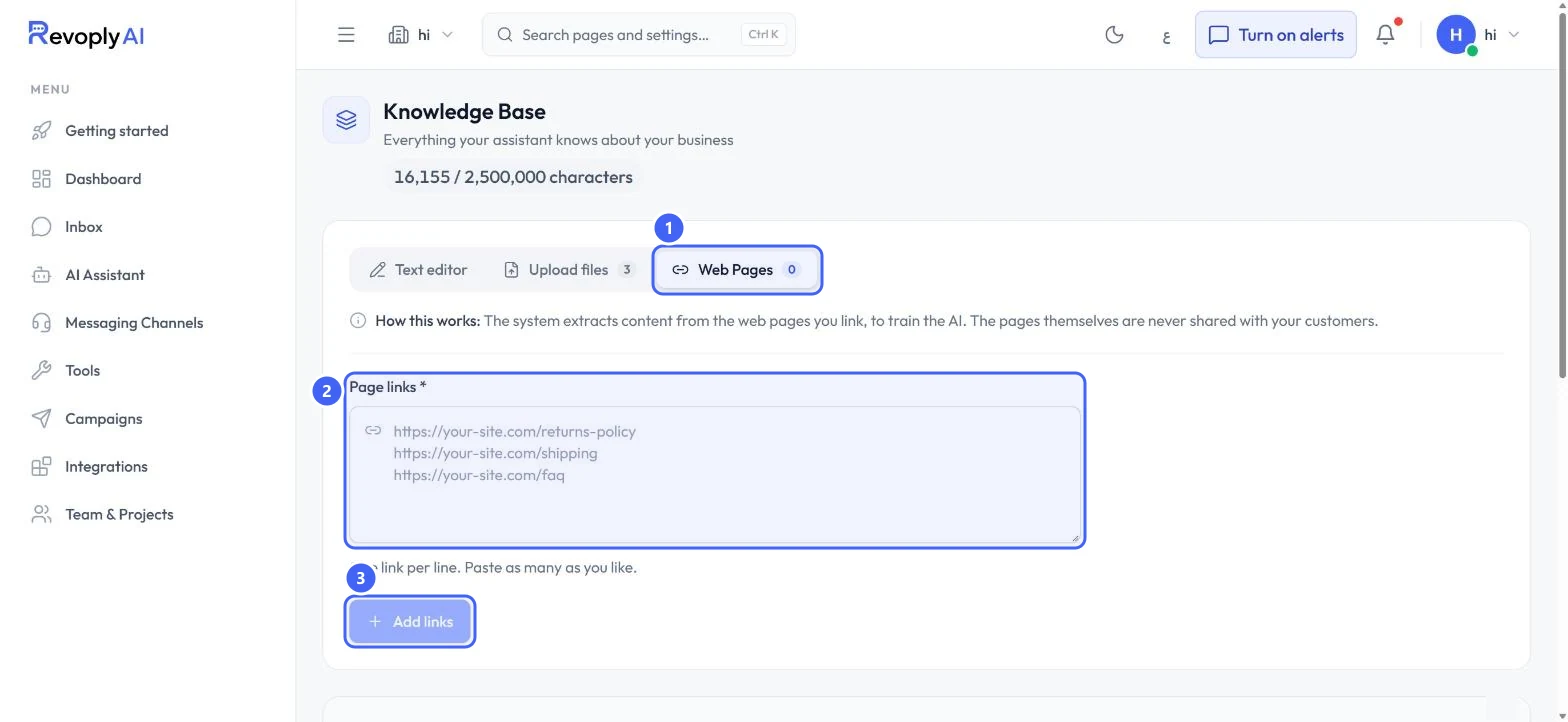
Open Web Pages 1. Paste the links in Page links 2, one per line, as many as you like, then select Add links 3. The system reads each page's content; the pages are never shared with your customers. Added pages appear under Added pages once processed.
 Open full size
Web Pages on the Business plan.
- 1Web Pages
- 2Page links
- 3Add links
Expected result
Your facts are saved. Ask the test console a question they answer, and the reply should use them.
Troubleshooting
Save text is greyed out and the counter is red.
Your knowledge is over the plan's limit. The counter covers all your knowledge, so it can be over the limit even when the text box is short. Shorten the text, or move to a plan that holds more.
The assistant still says it does not know.
Check that the fact is written plainly in the knowledge base and saved, then ask again in the test console with the words a customer would use.
Still stuck?
A real person answers every message. Tell us the page you were on and what you saw.