Overview
The company profile holds the details the assistant can share when a customer needs them: how to reach you, where you are, and when you are open.
What you will achieve
- Add your social links, phone and company name.
- Add your address.
- Set your working hours, special dates and extra information.
Who this guide is for
Owners and admins.
Before you start
- Your business contact details and opening hours.
Open the profile
Step 1: Open Company Profile
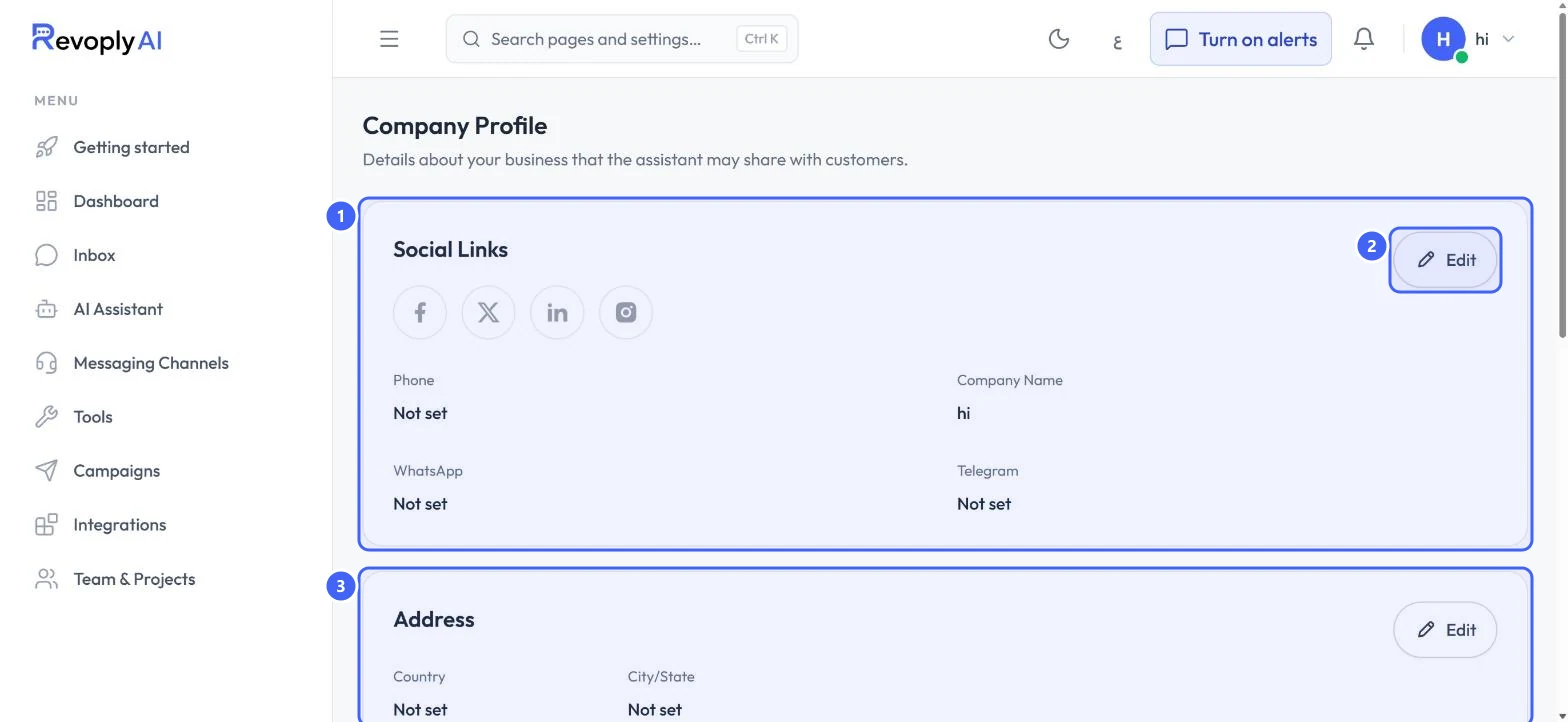
In AI Assistant, select Settings on Company Profile. Each section, for example Social Links 1, has its own Edit button 2. Address 3 follows below.
 Open full size
The Company Profile page.
- 1Social Links
- 2Edit
- 3Address
Contact details and address
Step 2: Social links, phone and company name
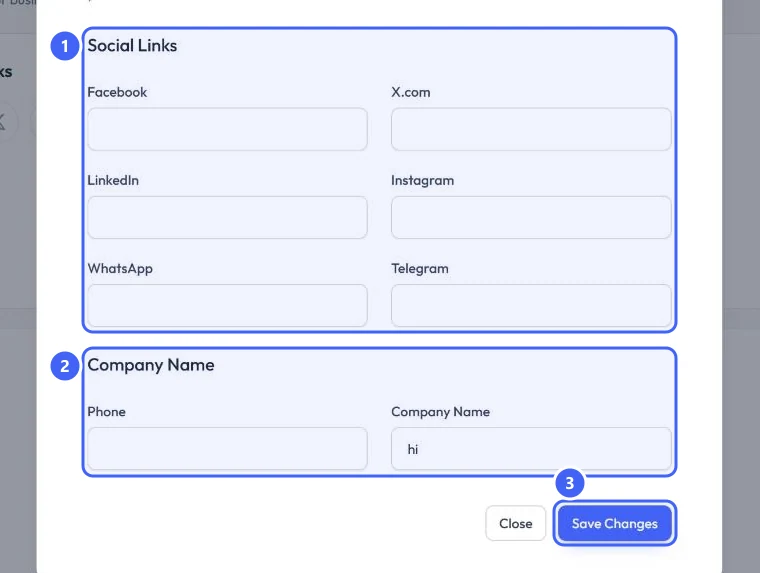
Select Edit on Social Links. Fill in the links you use 1: Facebook, X.com, LinkedIn, Instagram, WhatsApp and Telegram. Then your Phone and Company Name 2. Select Save Changes 3.
 Open full size
Edit Company Information.
- 1Social links
- 2Phone and Company Name
- 3Save Changes
Step 3: Address
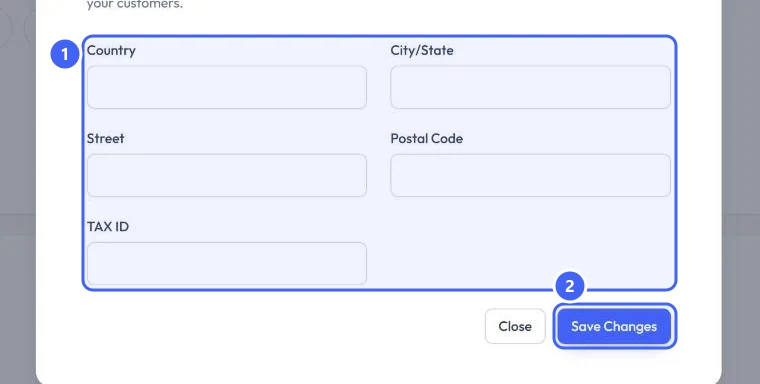
Select Edit on Address and fill in Country, City/State, Street, Postal Code and TAX ID 1. Select Save Changes 2.
 Open full size
Edit Address.
- 1Address fields
- 2Save Changes
Working hours
Step 4: Check the timezone
In the Working Hours section, check the Timezone. Your hours are read in this timezone, and so is everything RevoplyAI sends or schedules for you.
Step 5: Set the days you are open
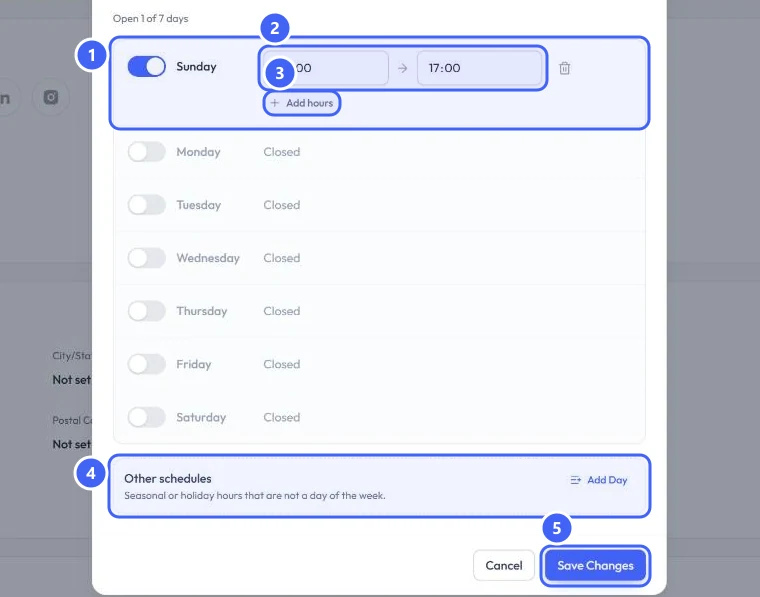
Select Edit on Working Hours. Switch on each day you are open 1 and set its opening and closing time 2. Use Add hours 3 for a second period on the same day, for example a lunch break.
 Open full size
Working Hours, with Sunday switched on.
- 1A day switched on
- 2Opening and closing time
- 3Add hours
- 4Other schedules
- 5Save Changes
Step 6: Add holidays and special dates
Under Other schedules 4, select Add Day for seasonal or holiday hours that are not a day of the week. Select Save Changes 5.
Additional information
Step 7: Add anything else customers ask about
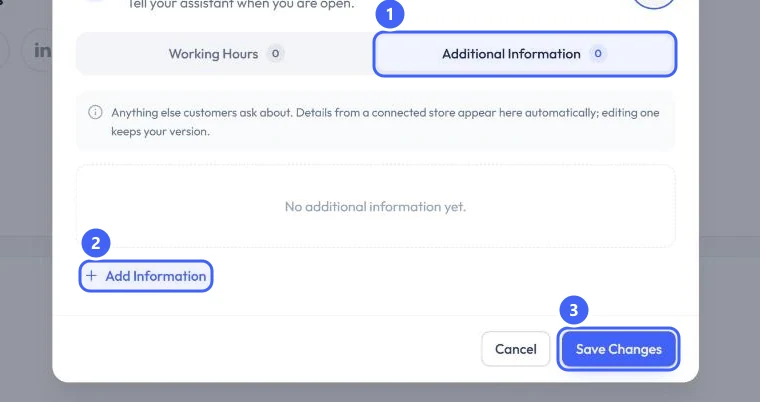
In the same dialog, open the Additional Information tab 1 and select Add Information 2. Details from a connected store appear here automatically, and editing one keeps your version. Select Save Changes 3.
 Open full size
Additional Information.
- 1Additional Information
- 2Add Information
- 3Save Changes
Expected result
Each section shows what you entered instead of Not set, and the assistant can share these details with customers.
Troubleshooting
My changes disappeared.
Each dialog saves only when you select Save Changes. Closing it with Close, Cancel or the X discards what you typed.
The assistant gives the wrong hours.
Check the Timezone in Working Hours. The hours are read in that timezone.
Still stuck?
A real person answers every message. Tell us the page you were on and what you saw.