Overview
Account Settings holds the details that are yours alone: how RevoplyAI reaches you, your name, your own hours for taking conversations, and the language you read RevoplyAI in.
What you will achieve
- Choose the language of account emails.
- Update your name, role and phone.
- Set your own hours and your dashboard language.
Who this guide is for
Everyone on the team.
Before you start
- You are signed in.
How we reach you
Step 1: Open Account Settings
Open your account menu at the top and select Account Settings.
Step 2: Choose the language of account emails
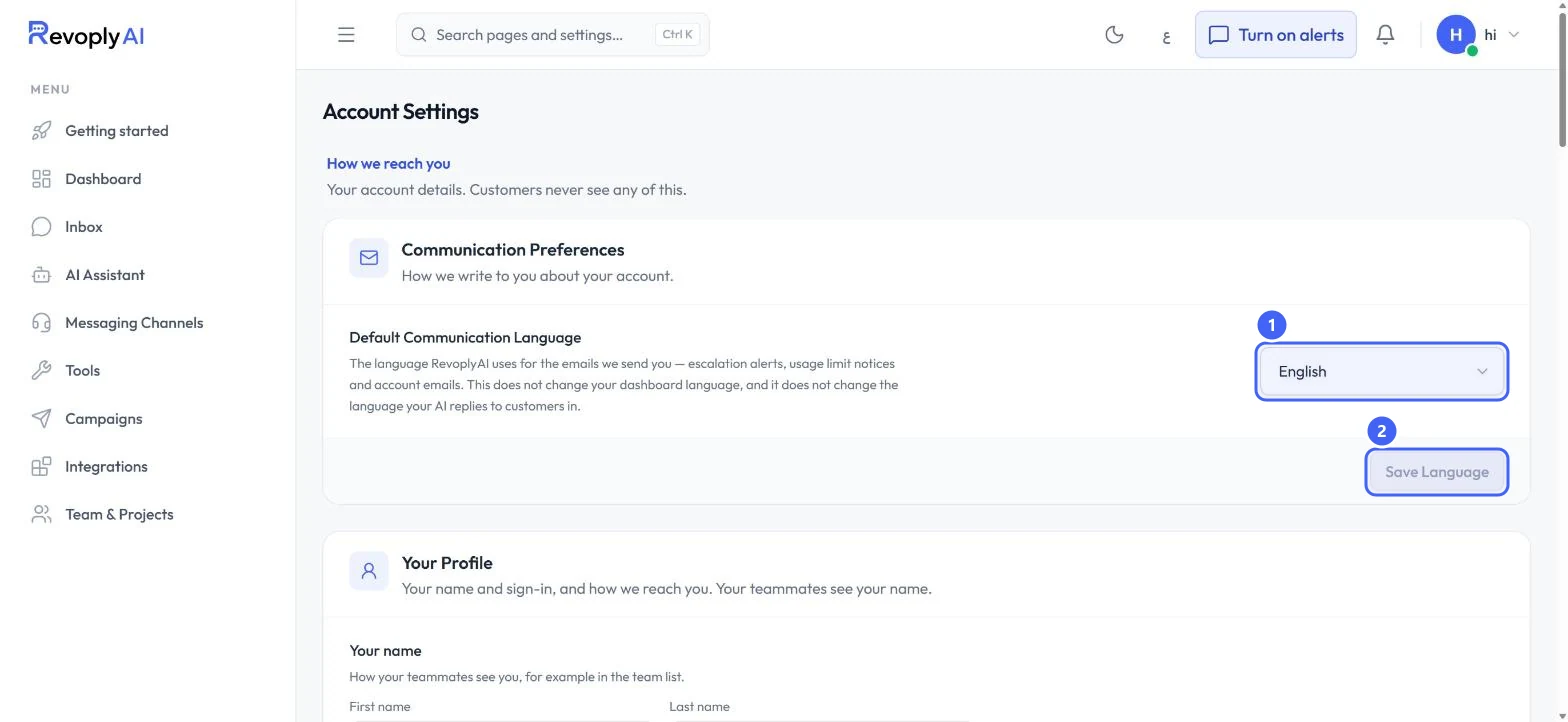
Default Communication Language 1 is the language of the emails RevoplyAI sends you, such as escalation alerts and usage limit notices. It does not change your dashboard language or the language the assistant replies in. Select Save Language 2.
 Open full size
Communication Preferences.
- 1Default Communication Language
- 2Save Language
Step 3: Update your profile
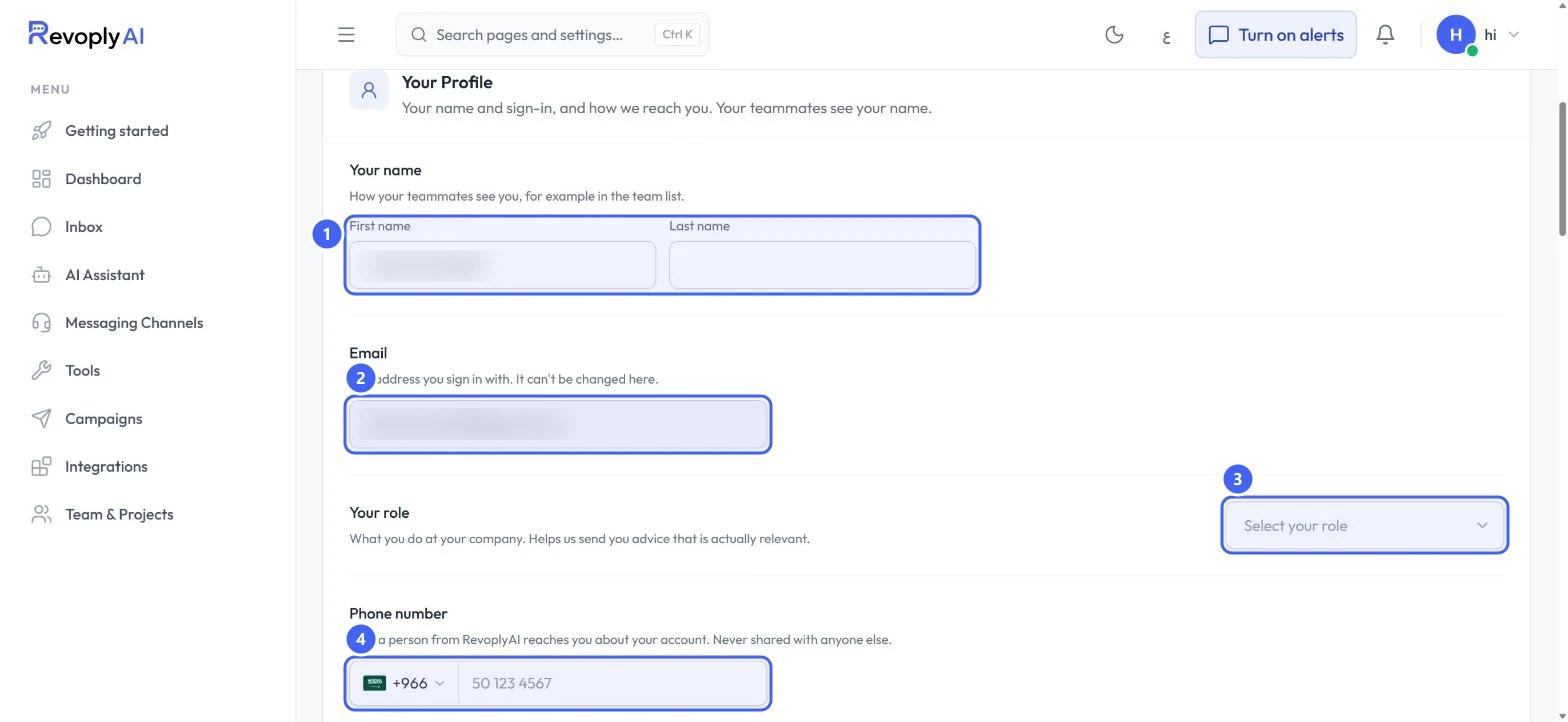
Under Your Profile, set your first and last name 1; teammates see it. Your Email 2 is the address you sign in with and cannot be changed here. Choose Your role 3 and add a Phone number 4. Select Save Your Details at the bottom of the section.
 Open full size
Your Profile. The name and email are blurred.
- 1Your name
- 2Email
- 3Your role
- 4Phone number
To change your password, select Email me a reset link in the same section.
Your hours and language
Step 4: Set when you take conversations
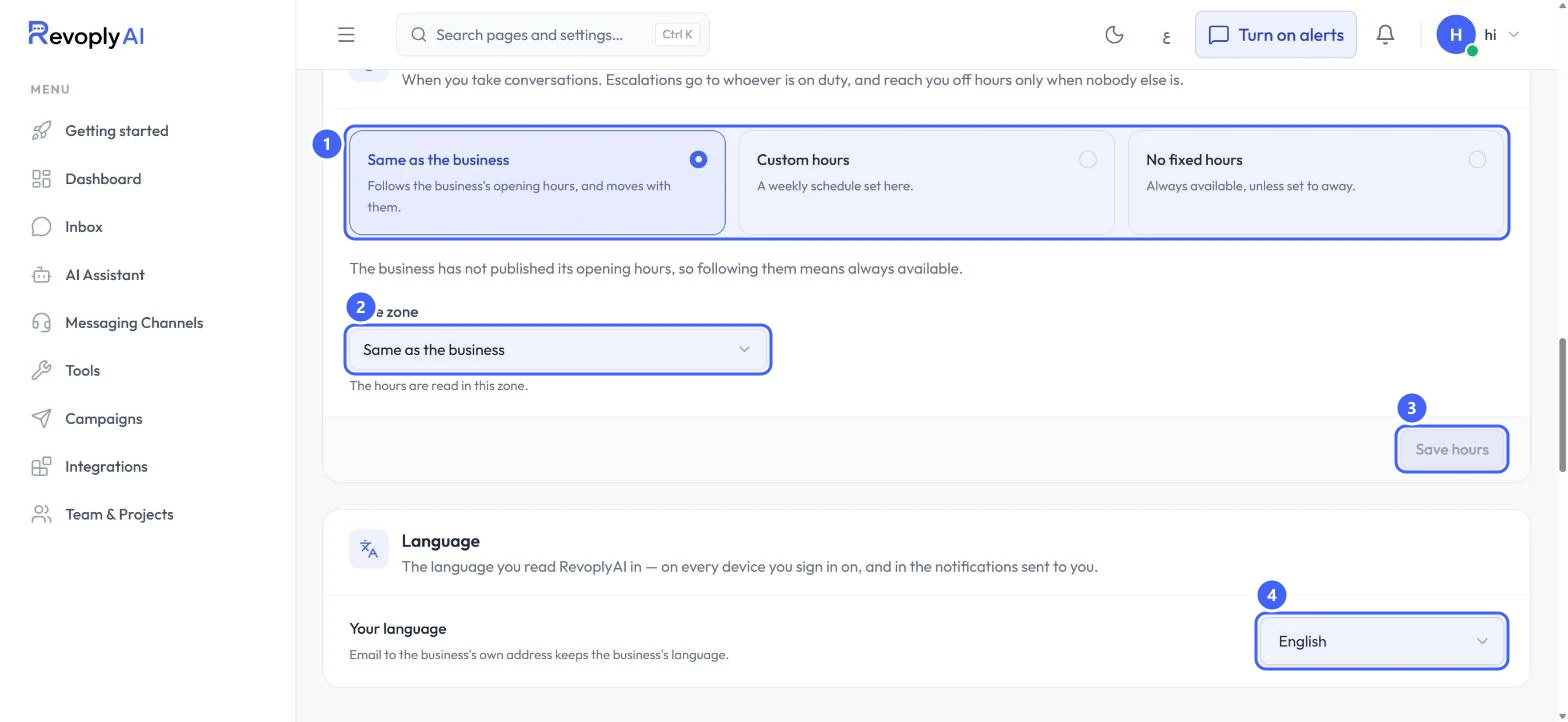
Under Working hours 1, choose Same as the business, Custom hours or No fixed hours. Escalations go to whoever is on duty, and reach you off hours only when nobody else is. Check the Time zone 2 and select Save hours 3.
 Open full size
Your hours and language.
- 1Working hours
- 2Time zone
- 3Save hours
- 4Your language
Step 5: Pick your dashboard language
Your language 4 is the language you read RevoplyAI in, on every device you sign in on, and in the notifications sent to you.
Expected result
Your details, hours and languages are saved, and teammates see your name in the team list.
Troubleshooting
I want to sign in with a different email.
The sign-in email cannot be changed in Account Settings. Contact support from the Support page.
Still stuck?
A real person answers every message. Tell us the page you were on and what you saw.