Overview
The dashboard looks the same on every page: a menu down the side and a bar along the top. Knowing these two saves time on every task.
What you will achieve
- Know what each menu item opens.
- Find any page or setting with search.
- Change the language and theme, and reach your account.
Who this guide is for
Everyone who uses the dashboard.
Before you start
- You are signed in.
The menu and the top bar
Step 1: Use the menu
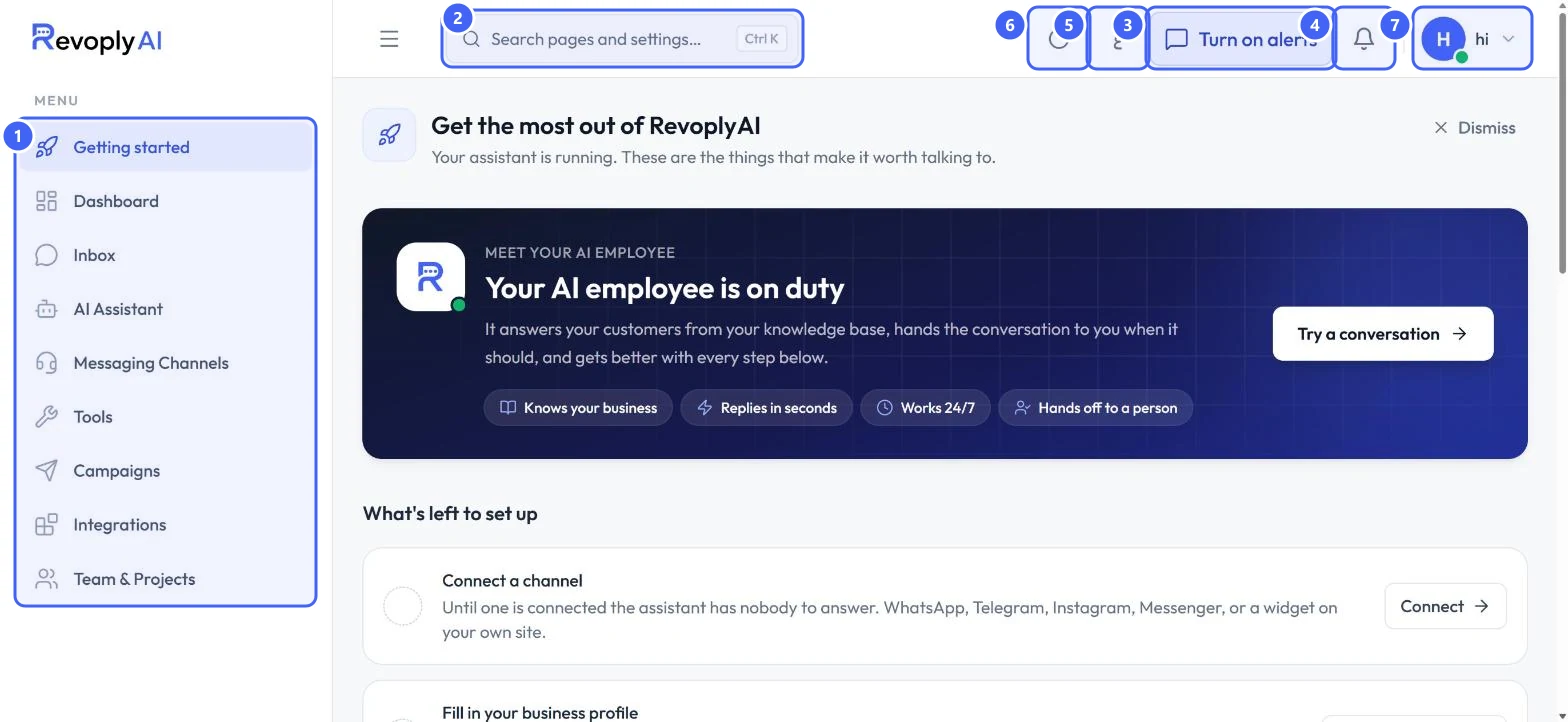
The menu 1 lists the main areas: Getting started, Dashboard, Inbox, AI Assistant, Messaging Channels, Tools, Campaigns, Integrations and Team & Projects. Support sits at the bottom of the menu.
 Open full size
The menu and the top bar.
- 1The menu
- 2Search pages and settings
- 3Turn on alerts
- 4Notifications
- 5Language
- 6Dark mode
- 7Your account menu
Owners and admins see the full menu. An agent sees the pages an agent works in, such as the inbox and contacts.
Step 2: Turn on message alerts
Select Turn on alerts 3 so a customer waiting for a person reaches you, instead of sitting unread. The bell 4 lists your notifications.
Step 3: Switch language or theme
The language button 5 switches the dashboard between English and Arabic. The moon 6 switches dark mode on and off.
Search for any page or setting
Step 4: Open search
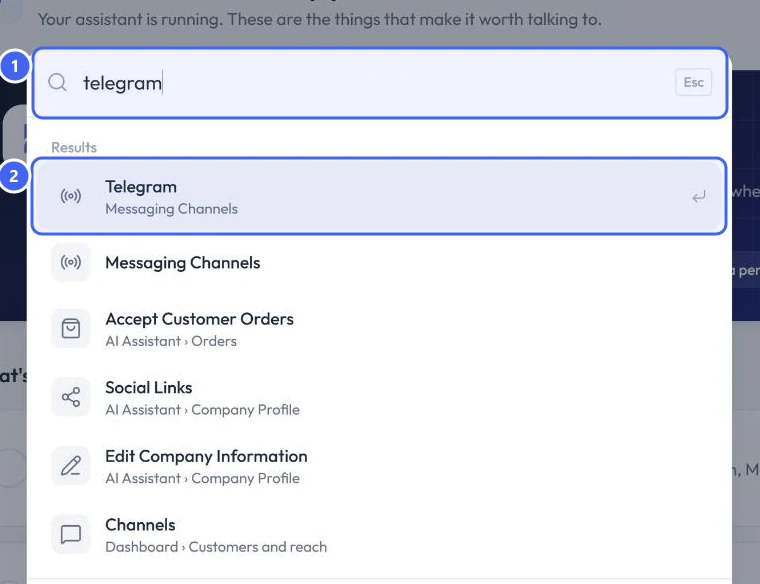
Select Search pages and settings 2 or press Ctrl K. Start typing, for example telegram.
Step 5: Open a result
Each result shows where it lives, for example Messaging Channels. Use the arrow keys to move and press Enter to open it, or select it with the mouse.
 Open full size
Search finds pages and individual settings.
- 1What you typed
- 2The first result
Your account menu
Step 6: Open the account menu
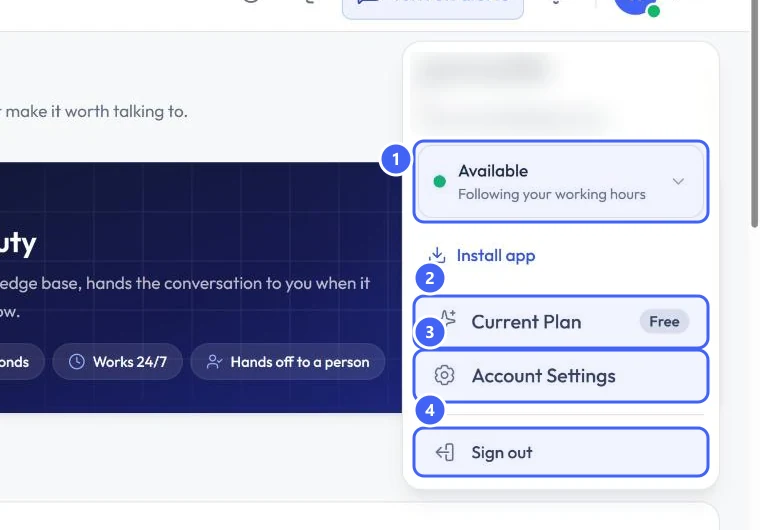
Select your name in the top corner 7. The menu shows your availability 1, your Current Plan 2, Account Settings 3 and Sign out 4.
 Open full size
The account menu. Your name and email appear at the top.
- 1Availability
- 2Current Plan
- 3Account Settings
- 4Sign out
Your availability decides whether handovers reach you. Set it to away when you step out, and set your hours in Account Settings.
Expected result
You can reach any area from the menu or from search, and you know where your account and alerts live.
Troubleshooting
The menu is hidden.
Select the three-line button next to the search to show the menu again.
Still stuck?
A real person answers every message. Tell us the page you were on and what you saw.