Overview
Notifications come in two groups. Just for you covers what reaches your own devices, and every teammate sets it for themselves. For the whole business covers what the business is told on its own email and WhatsApp.
What you will achieve
- Open notification settings.
- Choose your own pushes and emails.
- Choose what the business is told.
Who this guide is for
Everyone on the team, for their own settings. Owners and admins, for the business.
Before you start
- You are signed in.
Just for you
Step 1: Open Notifications
Open your account menu, select Account Settings, and under Notifications and team select Open on Notifications.
Step 2: Your conversations
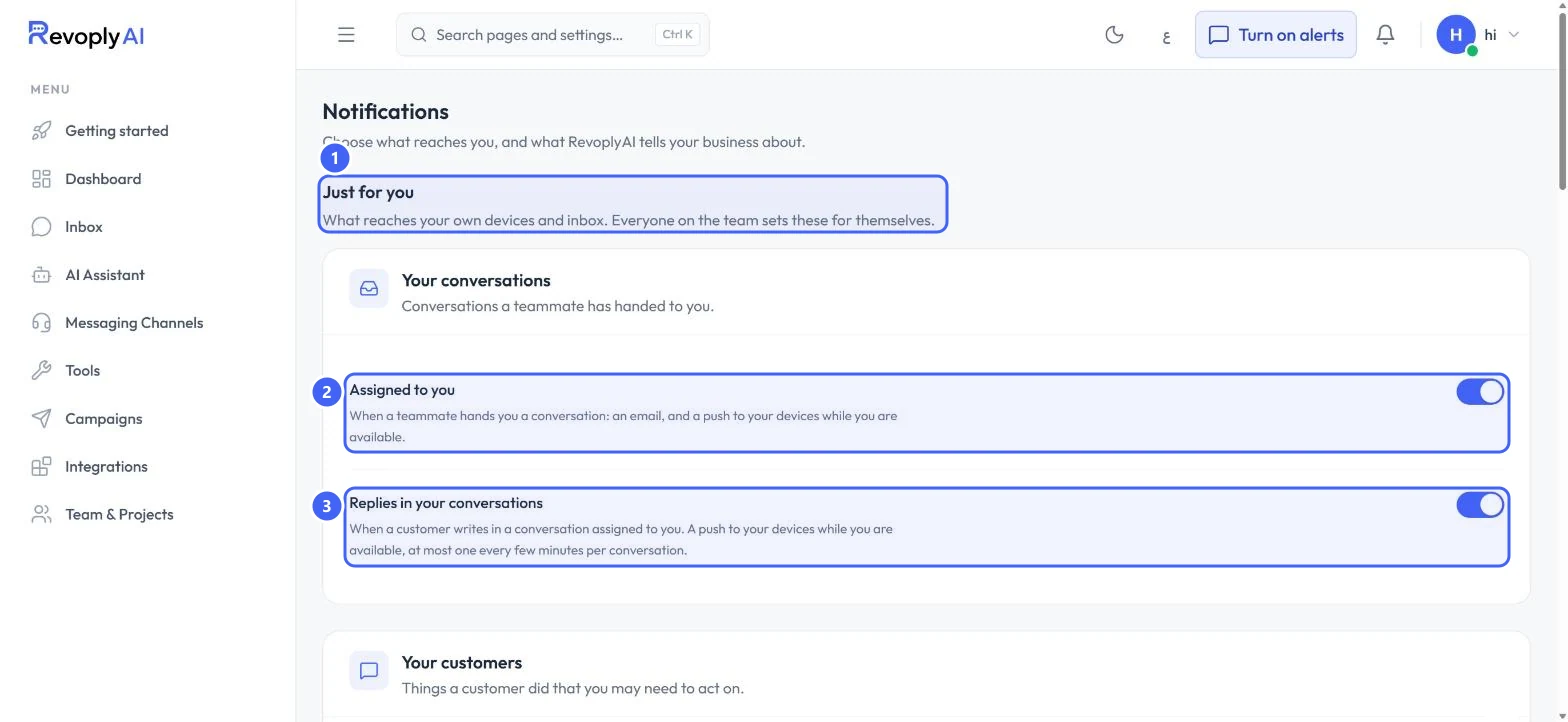
Under Just for you 1, Assigned to you 2 sends an email and a push when a teammate hands you a conversation. Replies in your conversations 3 sends a push when a customer writes in a conversation assigned to you, at most one every few minutes per conversation.
 Open full size
Just for you, Your conversations.
- 1Just for you
- 2Assigned to you
- 3Replies in your conversations
Step 3: Your customers
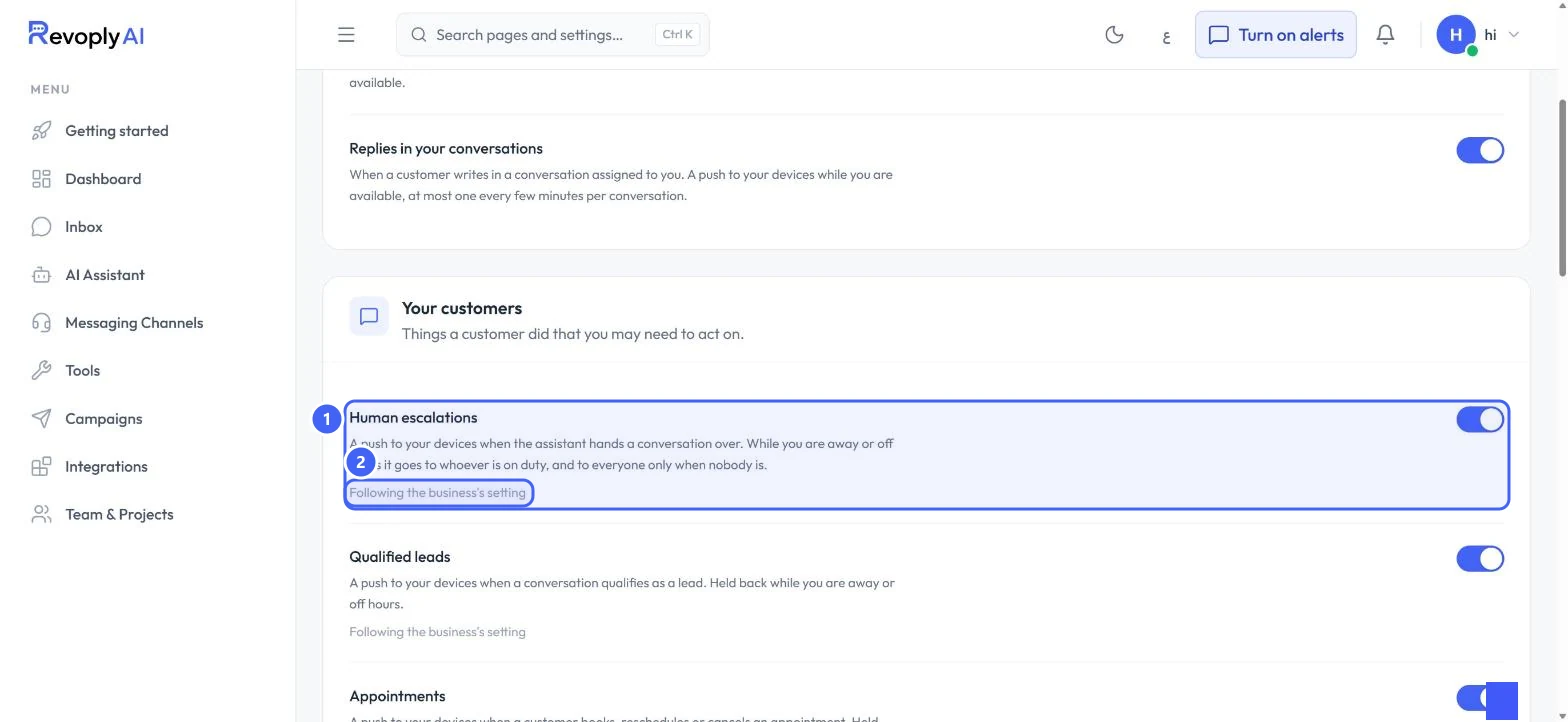
Human escalations 1 pushes to your devices when the assistant hands a conversation over. While you are away or off hours it goes to whoever is on duty. Qualified leads, appointments and orders follow. Items marked Following the business's setting 2 use the business choice until you change them.
 Open full size
Your customers.
- 1Human escalations
- 2Following the business's setting
For the whole business
Step 4: What the business is told
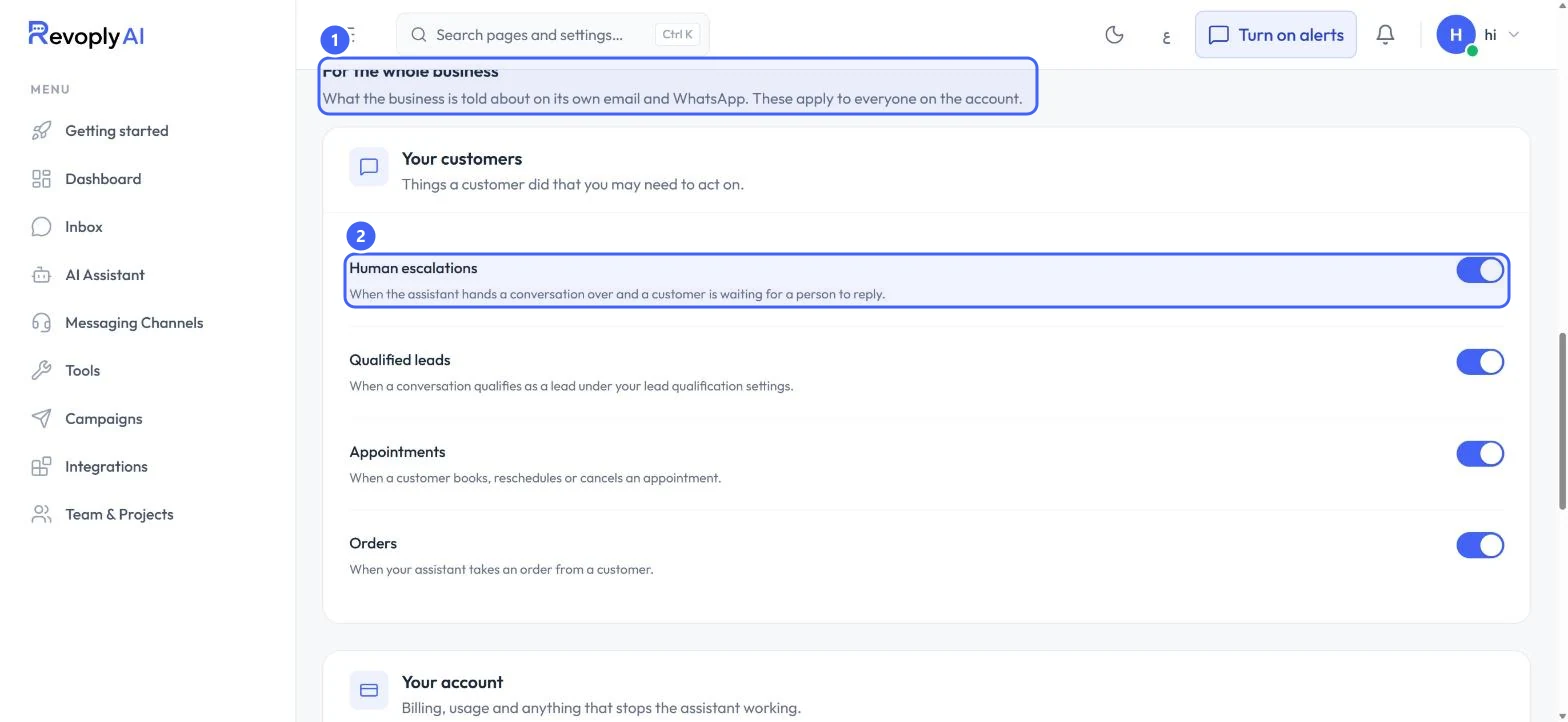
For the whole business 1 applies to everyone on the account. It covers your customers, such as Human escalations 2 and orders, and your account: billing and payments, usage limits and integration health.
 Open full size
For the whole business.
- 1For the whole business
- 2Human escalations
Keep Usage limits on so the business hears when the plan's usage is running low or has run out.
Expected result
Pushes and emails reach the right people, and nobody misses a customer who is waiting.
Troubleshooting
I do not get any push notifications.
Select Turn on alerts in the top bar and allow notifications in your browser. On iPhone, install the app from Getting started: it is the only way notifications arrive there.
Still stuck?
A real person answers every message. Tell us the page you were on and what you saw.