Overview
Every conversation from every connected channel lands in one inbox. The assistant answers on its own, and you can step in at any moment: the assistant stands down until you hand the conversation back.
What you will achieve
- Find and filter conversations.
- Read a conversation and the customer's details.
- Take over from the assistant, and assign a conversation.
Who this guide is for
Everyone who answers customers, owners, admins and agents alike.
Before you start
- At least one connected channel, so customers can write in.
Find a conversation
Step 1: Open the inbox
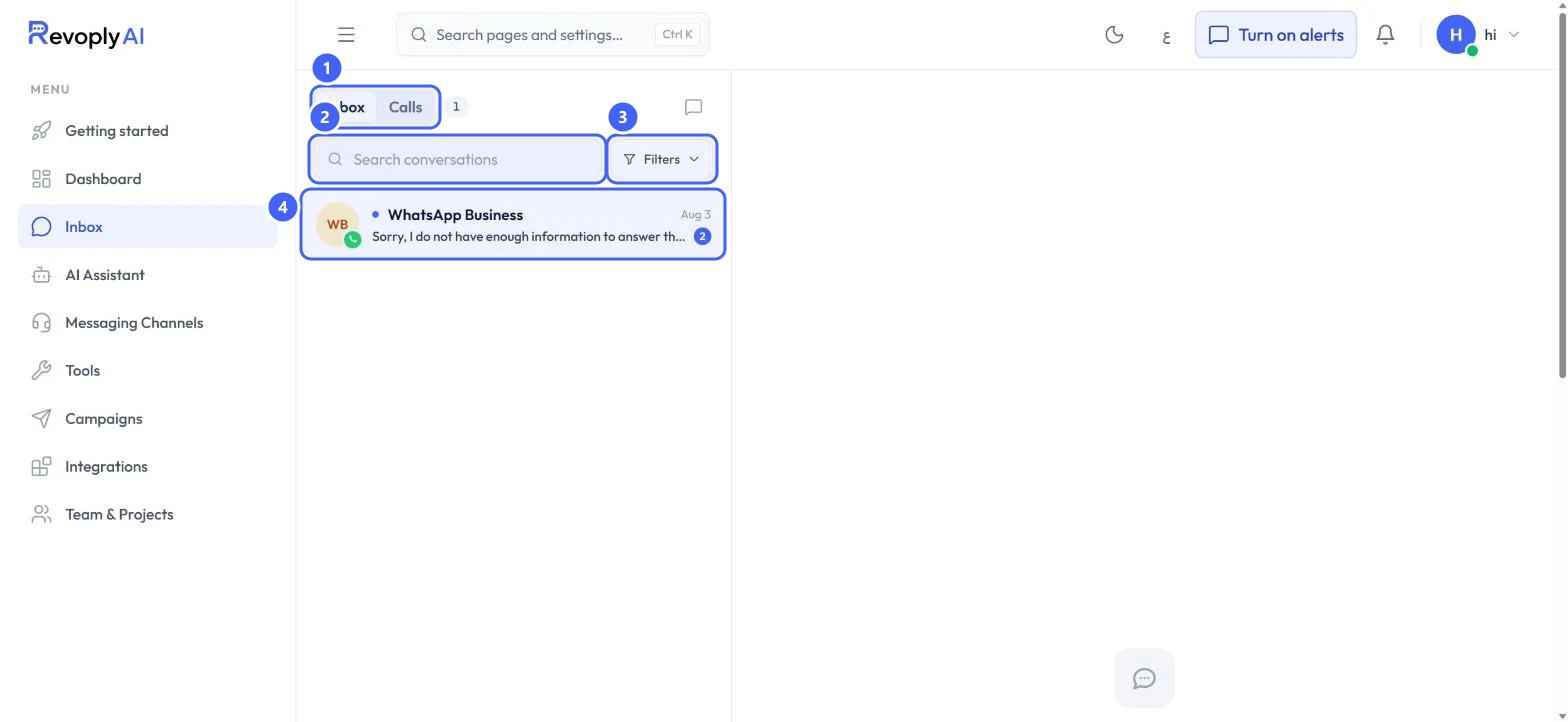
Select Inbox in the menu. Inbox and Calls 1 switch between chats and calls. Use Search conversations 2 to find a customer, or Filters 3 to narrow the list. Select a conversation 4 to open it.
 Open full size
The conversation list.
- 1Inbox and Calls
- 2Search conversations
- 3Filters
- 4A conversation
Step 2: Filter the list
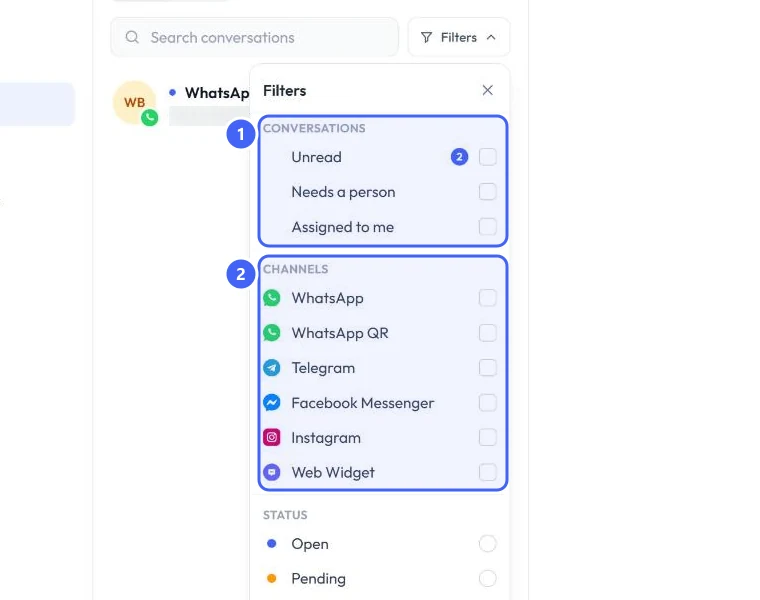
Under Conversations 1, show only Unread, Needs a person or Assigned to me. Under Channels 2, pick WhatsApp, WhatsApp QR, Telegram, Facebook Messenger, Instagram or Web Widget. You can also filter by status.
 Open full size
Filters.
- 1Conversations
- 2Channels
Needs a person is the list to check first: these are the conversations the assistant handed to your team.
Work a conversation
Step 3: Read the conversation and the customer
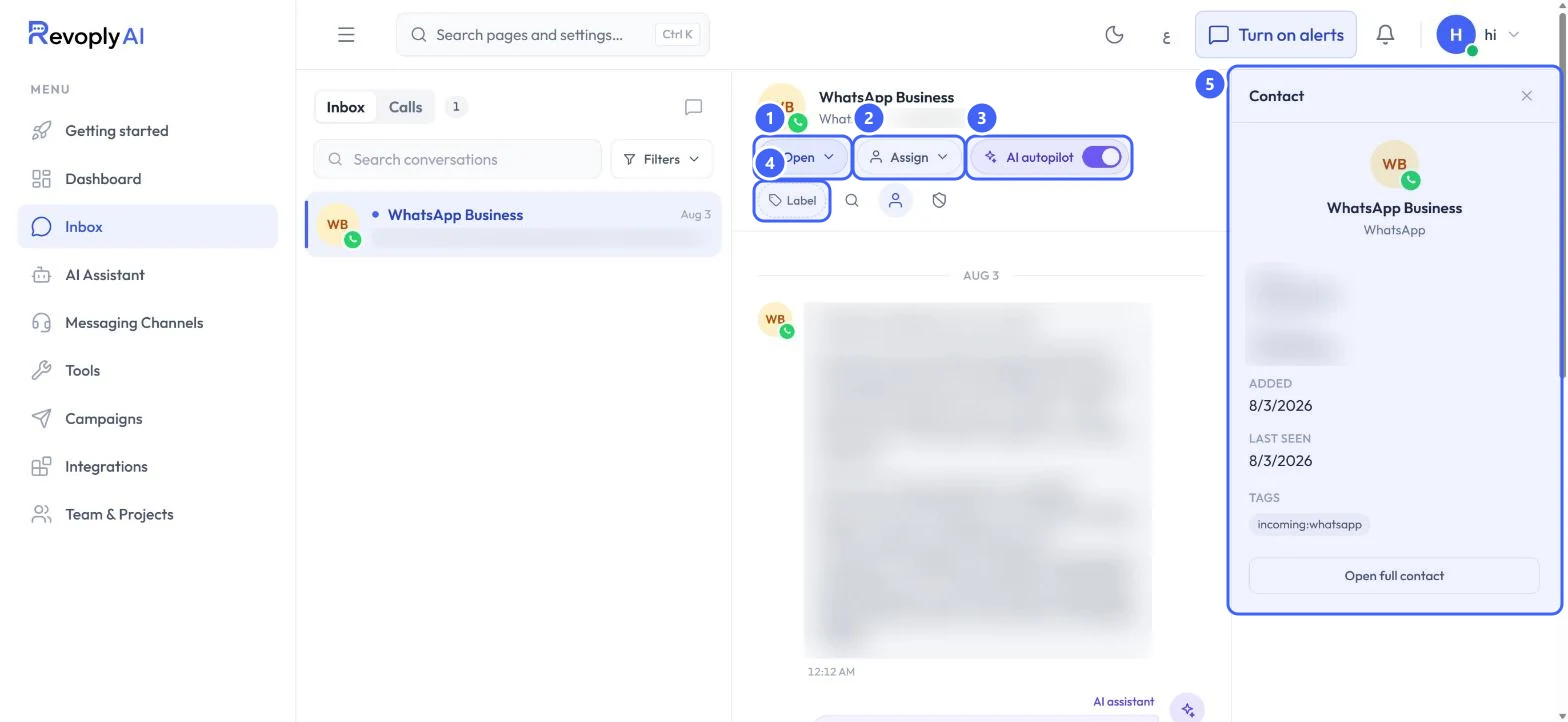
The top of the conversation shows its status 1, who it is assigned to 2, whether AI autopilot answers it 3, and its labels 4. The Contact panel 5 shows the customer's channel, when they were added and last seen, and their tags.
 Open full size
An open conversation. Message contents and numbers are blurred.
- 1Status
- 2Assign
- 3AI autopilot
- 4Label
- 5Contact
Step 4: Take over from the assistant
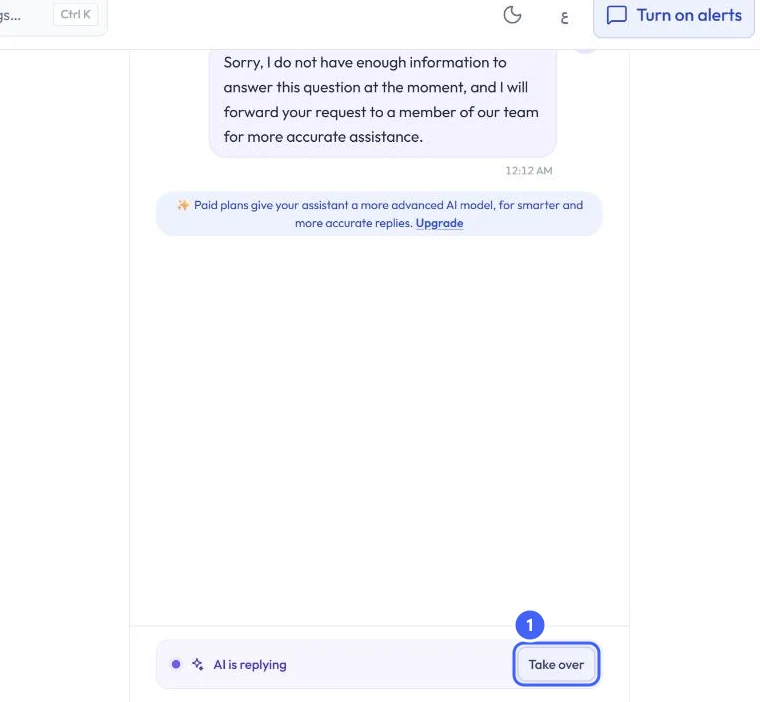
While the assistant answers, the bottom of the conversation says AI is replying. Select Take over 1 to answer the customer yourself. The assistant stands down until you hand it back.
 Open full size
Take over, at the bottom of the conversation.
- 1Take over
If you set a takeover greeting in Handover settings, the reply box starts with it. It is not sent until you send it.
Step 5: Assign the conversation
Use Assign to hand the conversation to a teammate. They are told it is theirs, by email and by a push to their devices while they are available.
Expected result
You can find any conversation, see who is handling it, and reply yourself whenever a person should.
Troubleshooting
The inbox is empty.
Conversations arrive once a channel is connected and a customer writes in. Messages from the test console do not appear here.
I missed a conversation that needed me.
Turn on alerts from the top bar, and keep Human escalations on in your notification settings.
Still stuck?
A real person answers every message. Tell us the page you were on and what you saw.