Overview
Contacts lists everyone you can reach on WhatsApp, Telegram and email. Customers who write to you are added here, and you can create contacts yourself.
What you will achieve
- Open Contacts.
- Search and filter the list.
- Create, tag and export contacts.
Who this guide is for
Owners and admins, and agents, who see Contacts in their own menu.
Before you start
- You are signed in.
Open Contacts
Step 1: Go to Campaigns and open Contacts
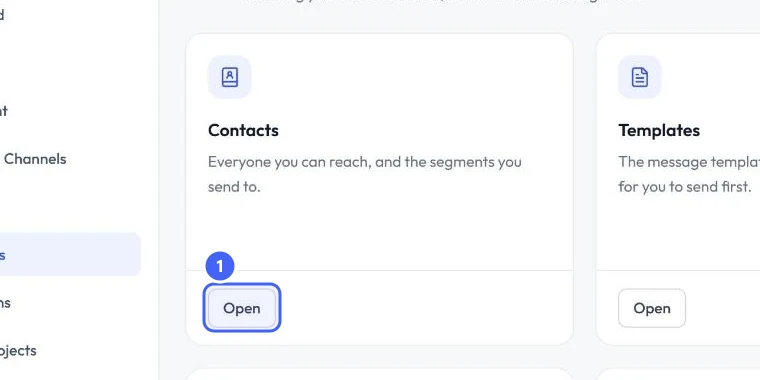
Owners and admins reach contacts from Campaigns: select Open 1 on the Contacts card. Agents have Contacts in their menu.
 Open full size
The Contacts card on Campaigns.
- 1Open
Work with the list
Step 2: Search, filter and act
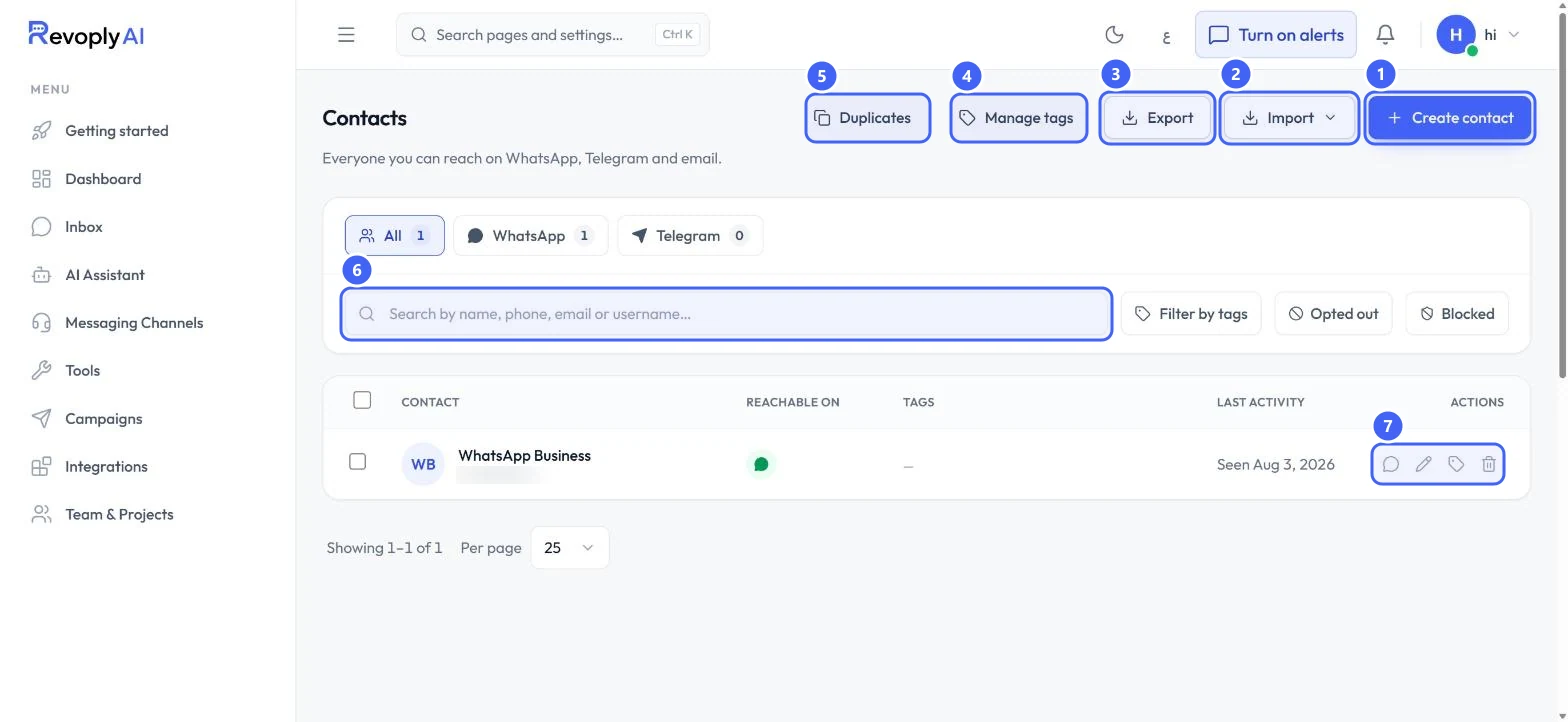
Create contact 1 adds someone by hand. Import 2 and Export 3 bring contacts in and take them out. Manage tags 4 and Duplicates 5 keep the list tidy. Use the search box 6 and the filters for tags, opted-out and blocked contacts. Each row has quick actions 7: open the chat, edit, tag or delete.
 Open full size
Contacts. Phone numbers are blurred.
- 1Create contact
- 2Import
- 3Export
- 4Manage tags
- 5Duplicates
- 6Search
- 7Row actions
Step 3: Know the import options
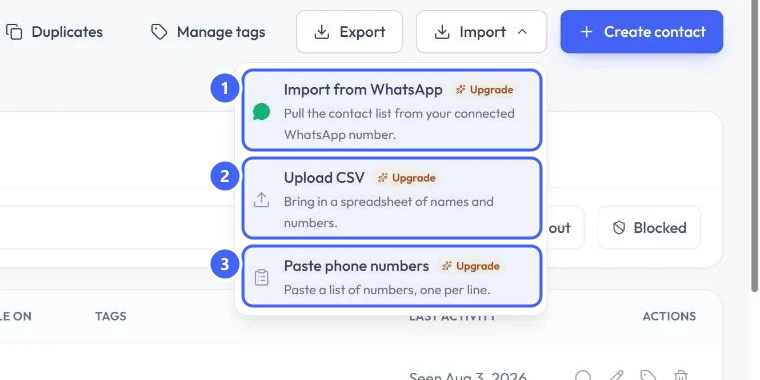
Import offers Import from WhatsApp 1, Upload CSV 2 and Paste phone numbers 3. On the Free plan each shows Upgrade: importing is on the paid plans.
 Open full size
The Import menu.
- 1Import from WhatsApp
- 2Upload CSV
- 3Paste phone numbers
Expected result
You can find any contact, filter the list the way you need, and keep it tidy with tags.
Troubleshooting
I do not see Contacts in the menu.
For owners and admins it is a card on the Campaigns page. Only agents see it in the menu.
Still stuck?
A real person answers every message. Tell us the page you were on and what you saw.