Overview
On the Business plan the assistant can answer voice calls. Voice settings decide how it sounds; the Calls tab in the inbox shows every call and what was said.
Voice is marked BETA in the dashboard. Read a few calls back before you rely on it.
What you will achieve
- Write the call greeting.
- Pick the languages and the voice.
- Turn call answering on for a channel.
- Read calls back.
Who this guide is for
Owners and admins on the Business plan.
Before you start
- The Business plan.
- A channel that takes calls. On the test account only the web widget was listed, and it was not set up.
What callers hear
Step 1: Write the greeting
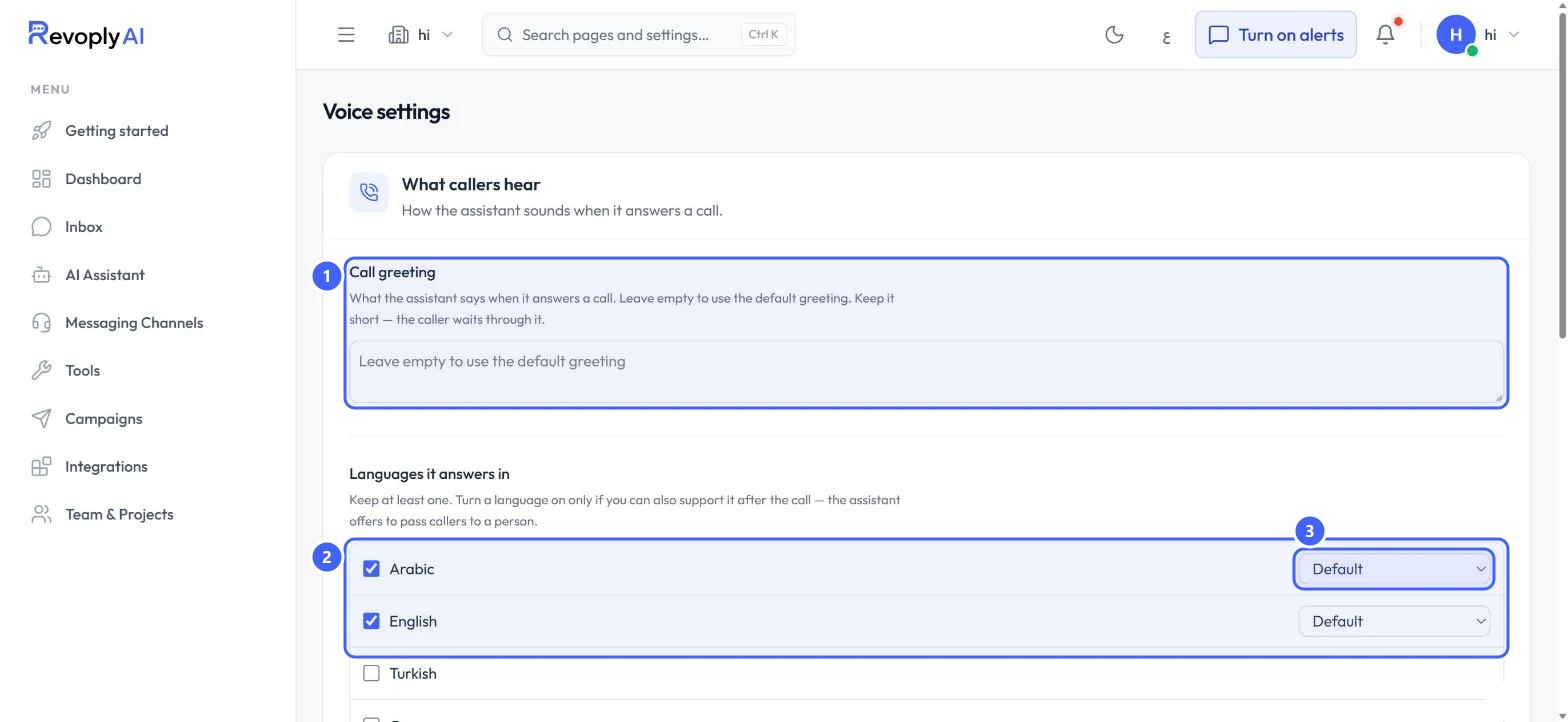
Call greeting 1 is what the assistant says when it answers. Leave it empty to use the default greeting, and keep it short: the caller waits through it.
 Open full size
Call greeting and languages.
- 1Call greeting
- 2Languages it answers in
- 3Dialect or accent
Step 2: Choose the languages
Under Languages it answers in 2, tick each language: Arabic, English, Turkish or German. Keep at least one. Arabic and English each have a menu 3: Arabic offers Saudi, Gulf, Egyptian, Levantine, Moroccan and Modern Standard; English offers American and British.
Turn a language on only if your team can also support it after the call: the assistant offers to pass callers to a person.
Step 3: Pick the voice
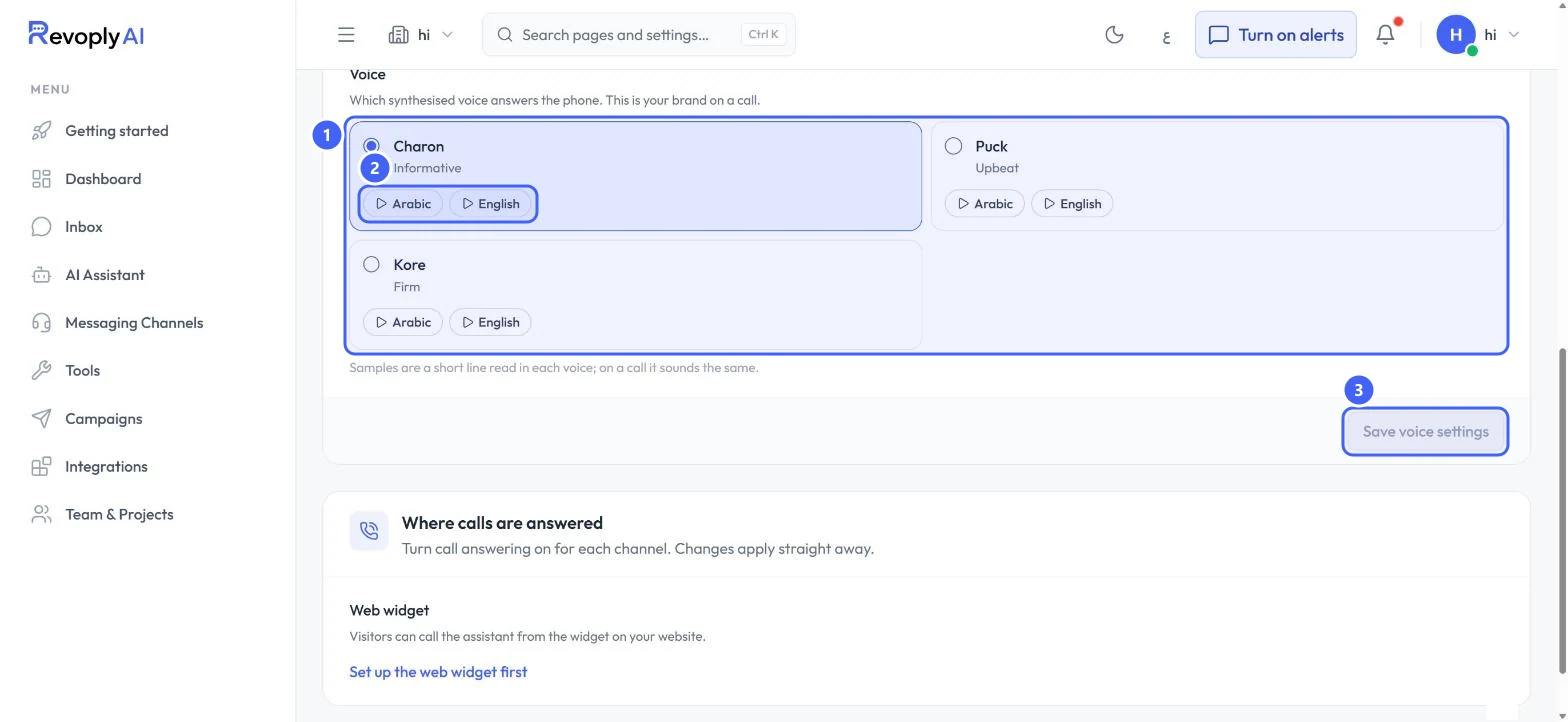
Under Voice 1, choose Charon (informative), Puck (upbeat) or Kore (firm). Play the Arabic or English sample 2 to hear each one; on a call it sounds the same. Select Save voice settings 3.
 Open full size
The three voices, each with a sample in Arabic and English.
- 1Voices
- 2Samples
- 3Save voice settings
Where calls are answered
Step 4: Turn calls on per channel
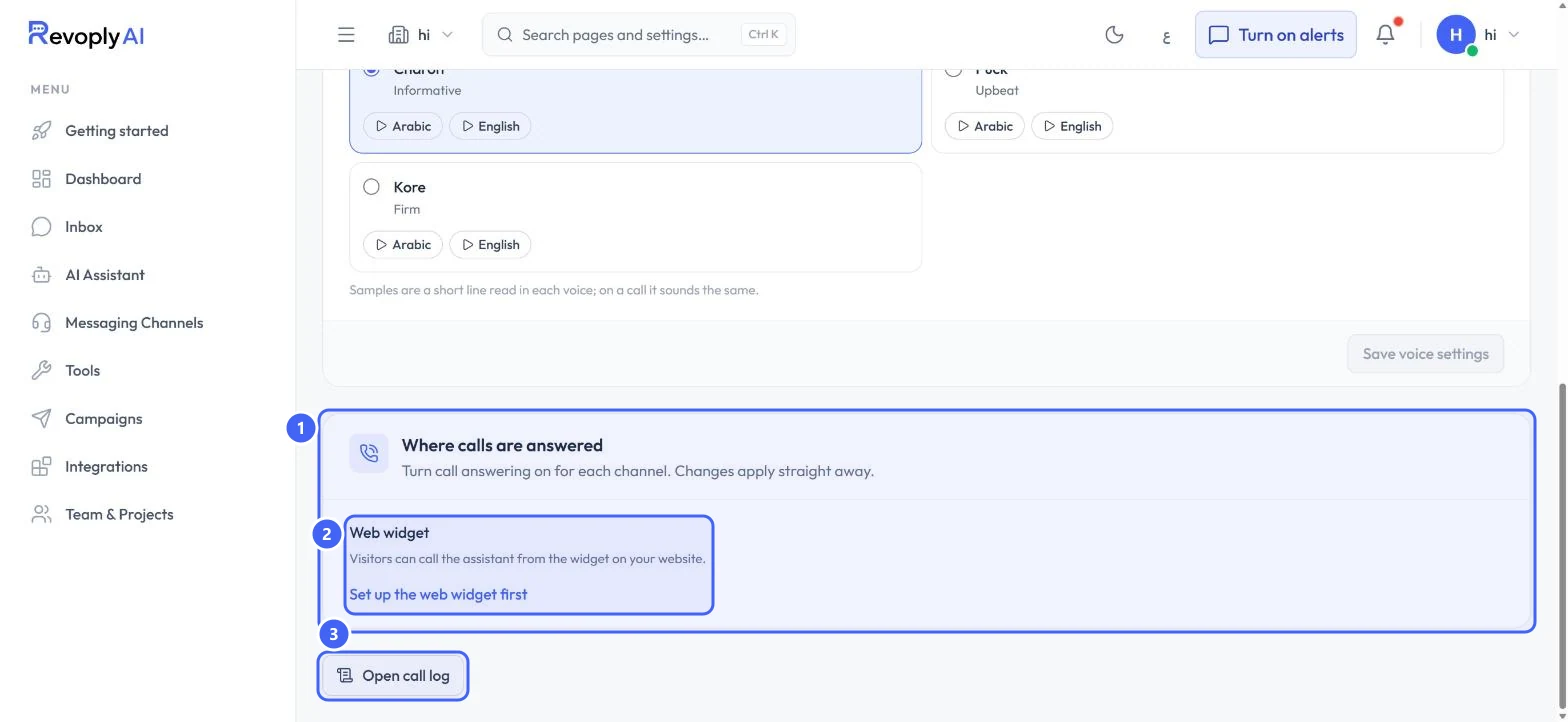
Where calls are answered 1 lists each channel that can take calls, with its own switch. Changes apply straight away. On the test account only the Web widget 2 was listed, with Set up the web widget first: visitors can call the assistant from the widget on your website once it is installed.
 Open full size
Where calls are answered, and the call log button.
- 1Where calls are answered
- 2Web widget
- 3Open call log
Read calls back
Step 5: Open the Calls tab
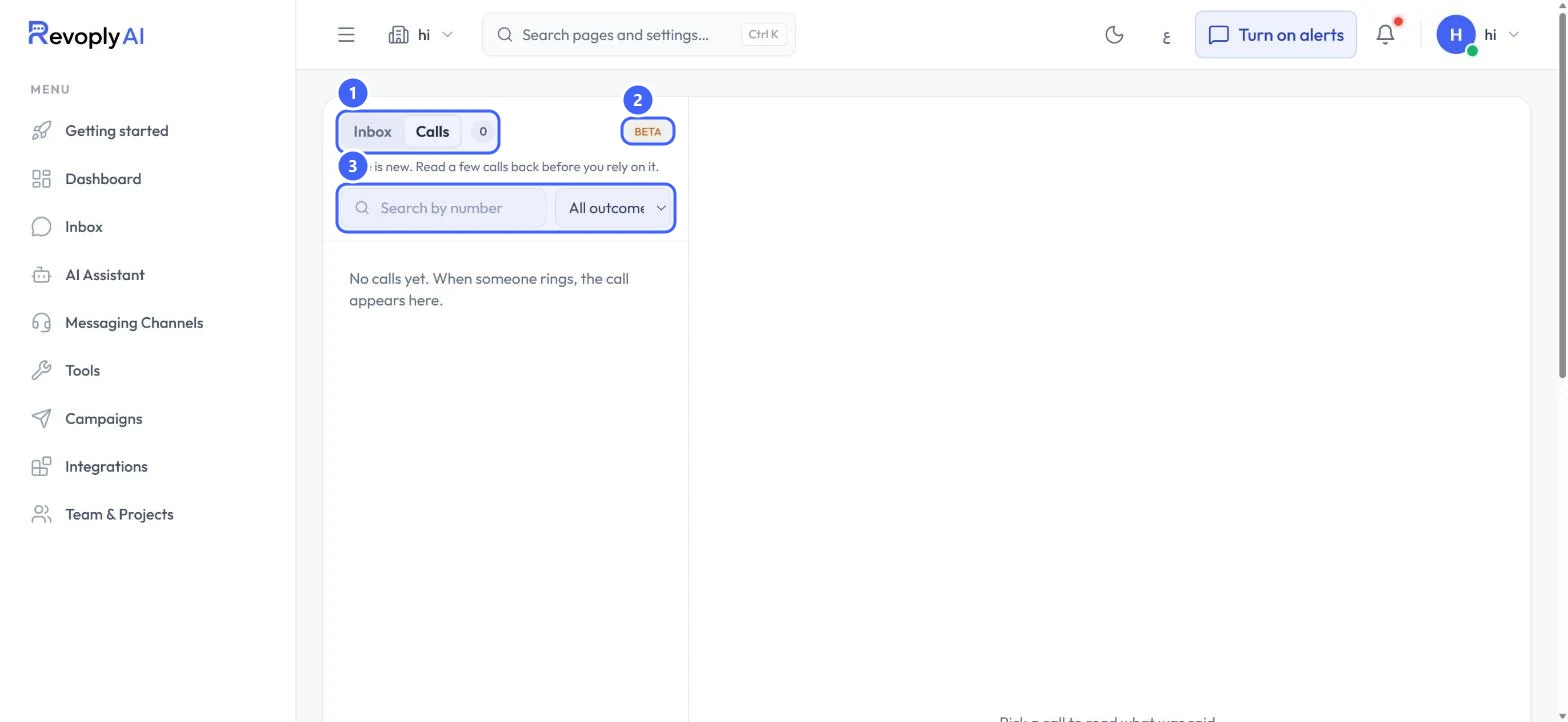
Select Open call log (3 above), or open the Inbox and pick Calls 1. It carries a BETA mark 2. Search by number or filter by outcome 3: Answered, Needs a person, Abandoned, Turned away or Failed. Pick a call to read what was said.
 Open full size
The Calls tab, before the first call.
- 1Inbox and Calls
- 2BETA
- 3Search and outcome filter
Expected result
The assistant answers calls in the languages and voice you chose, and every call shows up in the Calls tab.
Troubleshooting
Save voice settings is greyed out.
It turns on once you change something on the page.
No channel can be switched on.
A channel must be connected first. For the web widget, install it on your website, then come back.
Still stuck?
A real person answers every message. Tell us the page you were on and what you saw.