Overview
Assistant Settings changes what your customers experience: how formal the replies sound, and what happens when a customer sends something the assistant cannot read.
What you will achieve
- Pick a reply style.
- Decide what happens with messages the assistant cannot read.
- Choose the language of automatic messages.
Who this guide is for
Owners and admins.
Before you start
- You are signed in as an owner or an admin.
Reply style and unreadable messages
Step 1: Open Assistant Settings
In AI Assistant, under How it answers, select Settings on Assistant Settings.
Step 2: Pick a reply style
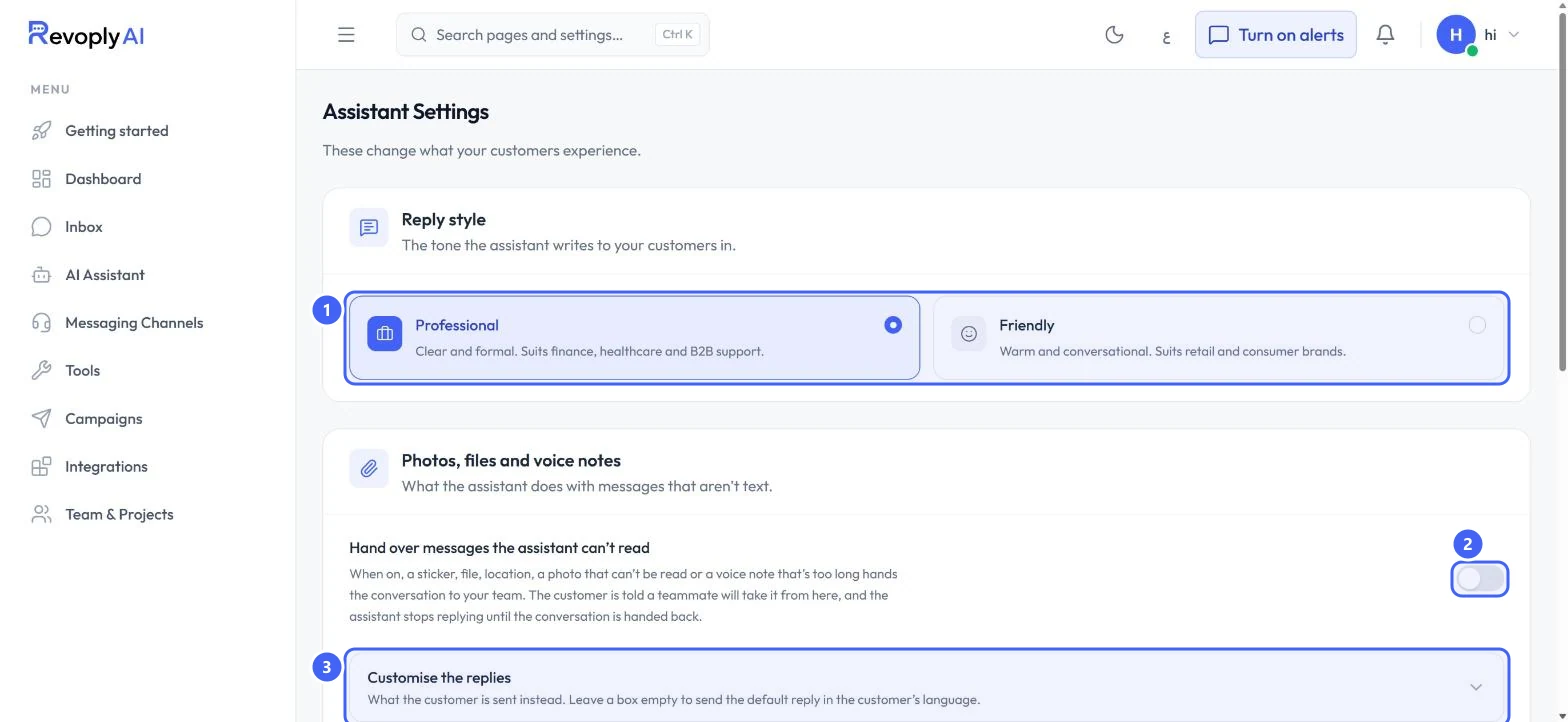
Under Reply style 1, choose Professional, clear and formal, or Friendly, warm and conversational.
 Open full size
Reply style, and Photos, files and voice notes.
- 1Reply style
- 2Hand over messages the assistant can't read
- 3Customise the replies
Step 3: Decide about unreadable messages
Turn on Hand over messages the assistant can't read 2 to pass the conversation to your team when a customer sends a sticker, file, location, an unreadable photo or a voice note that is too long. The customer is told a teammate will take it from here.
Step 4: Customise the replies
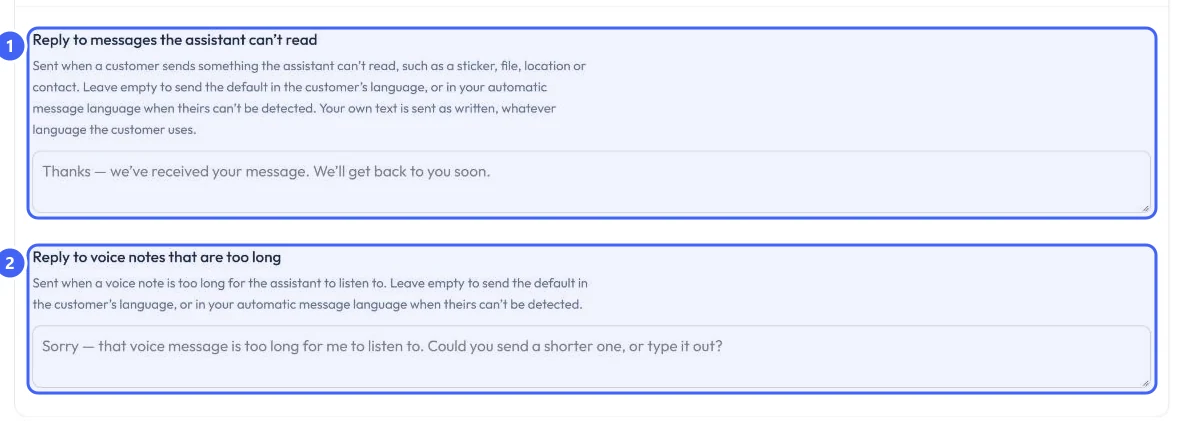
Open Customise the replies 3 to write what the customer is sent instead: one reply for messages the assistant can't read 1, and one for voice notes that are too long 2. Leave a box empty to send the default in the customer's language.
 Open full size
Customise the replies.
- 1Reply to messages the assistant can't read
- 2Reply to voice notes that are too long
Automatic message language
Step 5: Choose a language and save
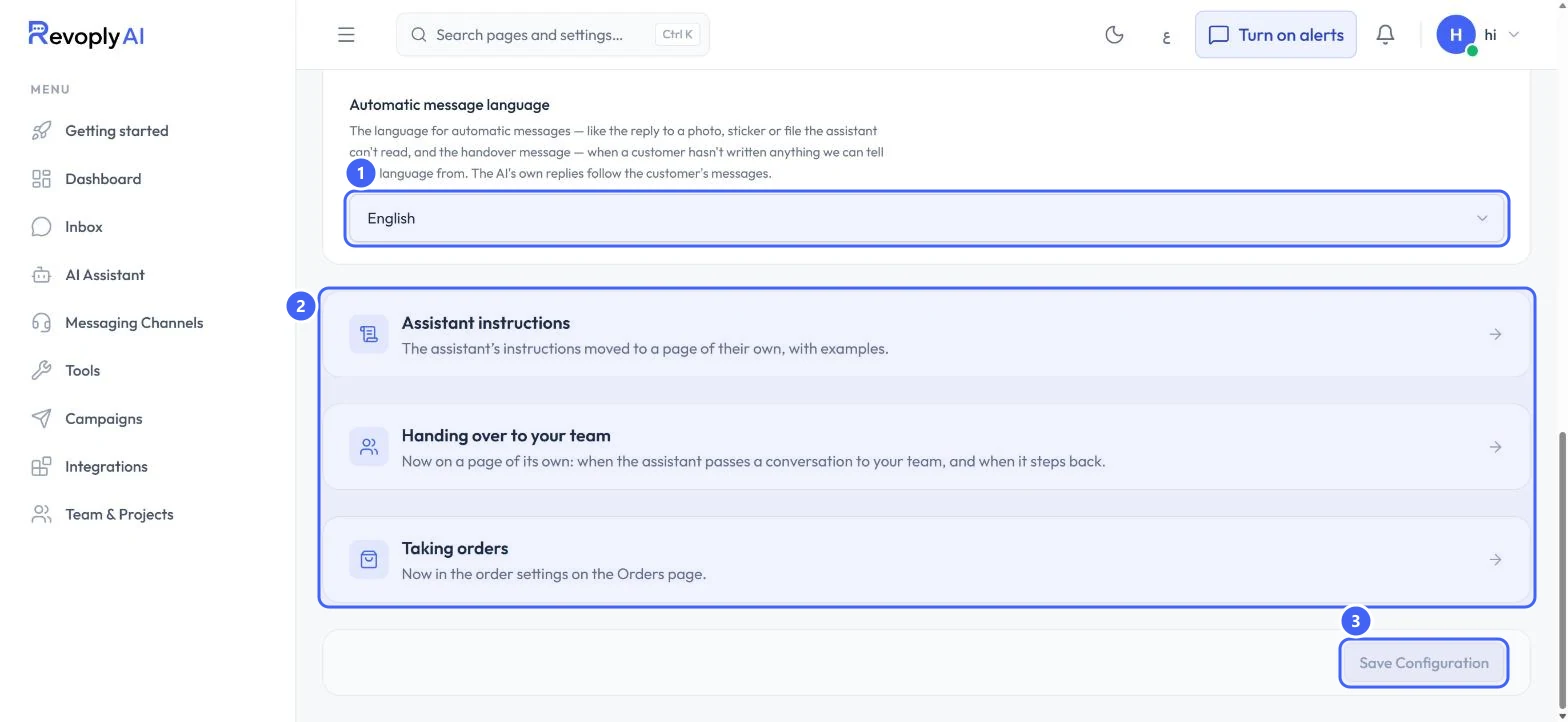
Automatic message language 1 is used for automatic messages when a customer has not written enough to tell their language. The assistant's own replies follow the customer. The cards below 2 link to settings that now have their own pages. Select Save Configuration 3.
 Open full size
Automatic message language and Save Configuration.
- 1Automatic message language
- 2Settings that moved to their own pages
- 3Save Configuration
Expected result
Replies use the style you picked, and unreadable messages are handled the way you chose.
Troubleshooting
I cannot find the instructions or handover settings here.
They moved to their own pages. Use the Assistant instructions and Handing over to your team cards at the bottom of the page.
Still stuck?
A real person answers every message. Tell us the page you were on and what you saw.