Overview
Handover decides when a person takes over from the assistant. Reply timing decides how quickly the assistant answers. Both live on the Handover page.
What you will achieve
- Turn handover on and pick its speed.
- Set the pause after you reply from WhatsApp.
- Add a takeover greeting and a reply delay.
Who this guide is for
Owners and admins who run the team's inbox.
Before you start
- You are signed in as an owner or an admin.
Handing over to your team
Step 1: Open Handover
In AI Assistant, under How it answers, select Settings on Handover.
Step 2: Turn handover on and pick a speed
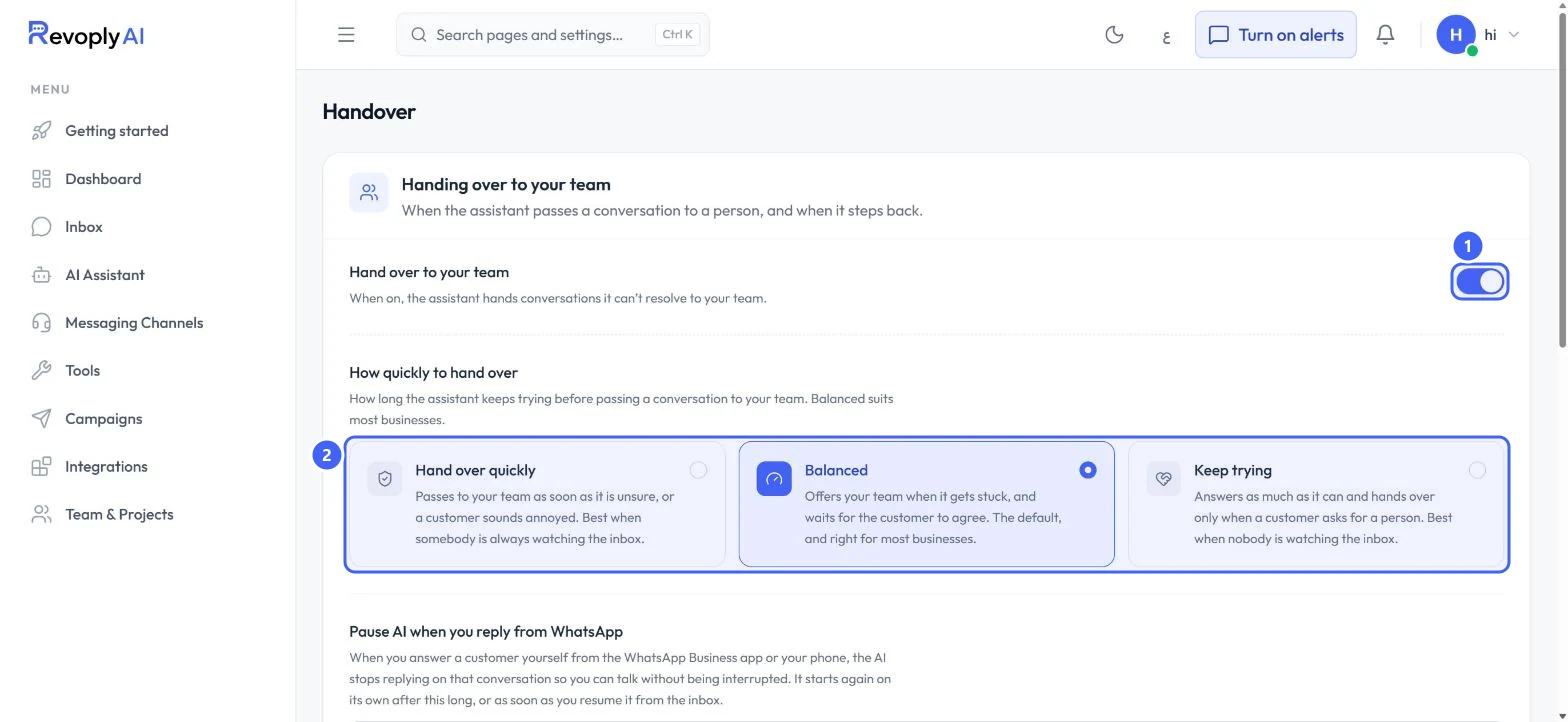
Switch on Hand over to your team 1. Under How quickly to hand over 2, choose Hand over quickly when someone always watches the inbox, Balanced for most businesses, or Keep trying when nobody watches the inbox.
 Open full size
Hand over to your team, and how quickly.
- 1Hand over to your team
- 2How quickly to hand over
Balanced offers your team when the assistant gets stuck and waits for the customer to agree. It is the default.
Step 3: Pause the assistant when you reply from WhatsApp
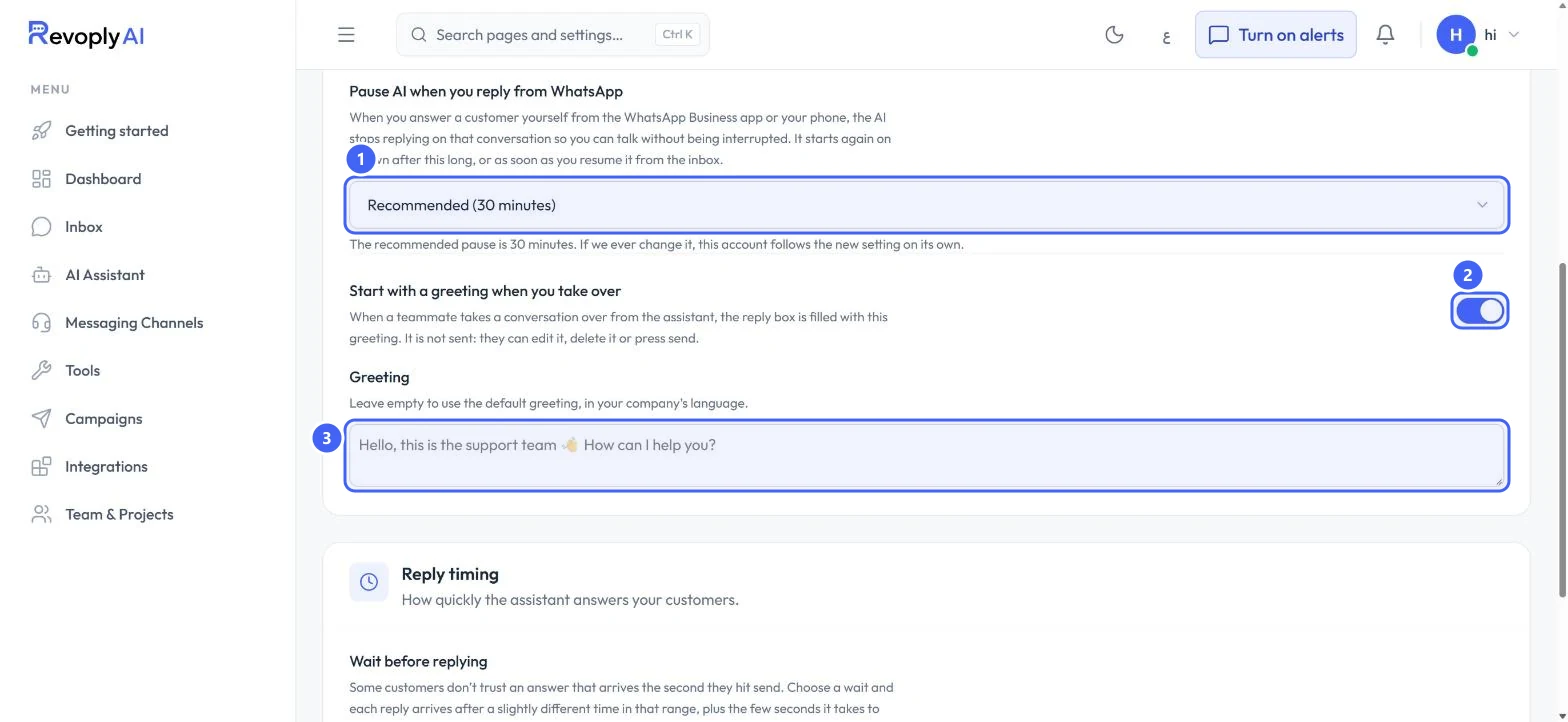
Pause AI when you reply from WhatsApp 1 stops the assistant on a conversation after you answer it yourself from the WhatsApp Business app or your phone. Pick how long: the recommended 30 minutes, another length up to 4 hours, or Never pause. It starts again after that time, or as soon as you resume it from the inbox.
 Open full size
The WhatsApp pause and the takeover greeting.
- 1Pause AI when you reply from WhatsApp
- 2Start with a greeting when you take over
- 3Greeting
Step 4: Start with a greeting when you take over
Switch on Start with a greeting when you take over 2 to fill the reply box with a greeting when a teammate takes a conversation. It is not sent on its own: they can edit it, delete it or send it. Write it in Greeting 3, or leave it empty for the default in your company's language.
Reply timing
Step 5: Choose a wait before replying, then save
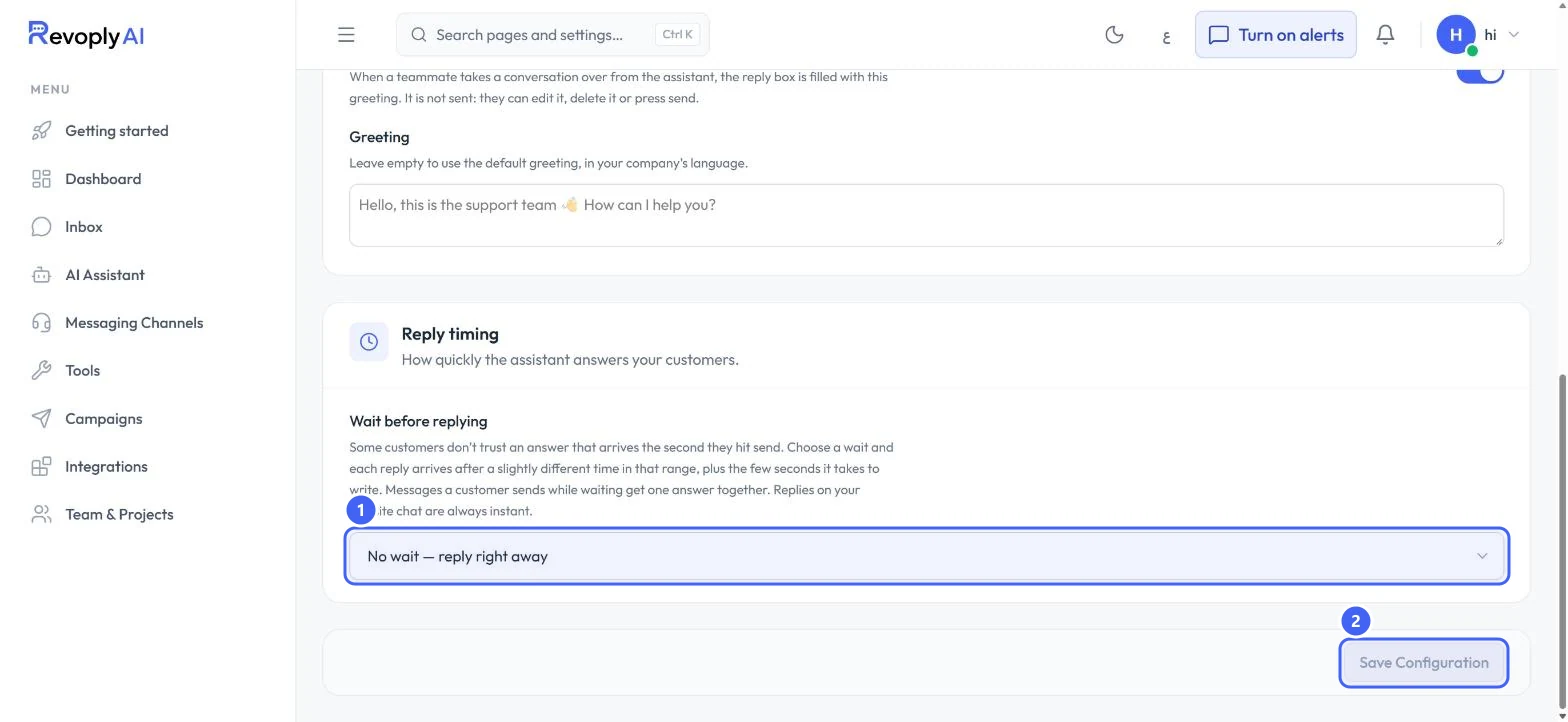
Under Wait before replying 1, choose no wait, or a range from 10 to 20 seconds up to 1 to 2 minutes. Each reply then arrives at a slightly different time within that range, and messages sent while waiting get one answer together. Replies on your website chat are always instant. Select Save Configuration 2.
 Open full size
Reply timing and Save Configuration.
- 1Wait before replying
- 2Save Configuration
Expected result
Conversations reach your team at the speed you chose, and the assistant steps back when you reply yourself.
Troubleshooting
Nobody is told when a conversation is handed over.
Turn on message alerts in the top bar, and check Human escalations in your notification settings.
Still stuck?
A real person answers every message. Tell us the page you were on and what you saw.