Overview
The web widget is a chat bubble on your own website. Visitors write to it and the assistant answers from the same knowledge as on your other channels.
The dialog says you get the code after saving. Saving creates the widget, and that step was not run while writing this guide, so the code screen is not shown here.
What you will achieve
- Set the widget's name, welcome message and colour.
- Adjust its advanced options.
- Get the code to add it to your site.
Who this guide is for
Businesses with a website they can edit, or a person who looks after it.
Before you start
- Access to edit your website, or someone who can add a snippet of code to it.
Set the basics
Step 1: Open the Web Widget card
In Messaging Channels, select Settings on Web Widget. The dialog is titled Set Up Web Widget.
Step 2: Name it, greet visitors, pick a colour
Set Bot Name 1 and Welcome Message 2, and choose a Primary Color 3, either with the swatch or as a colour code.
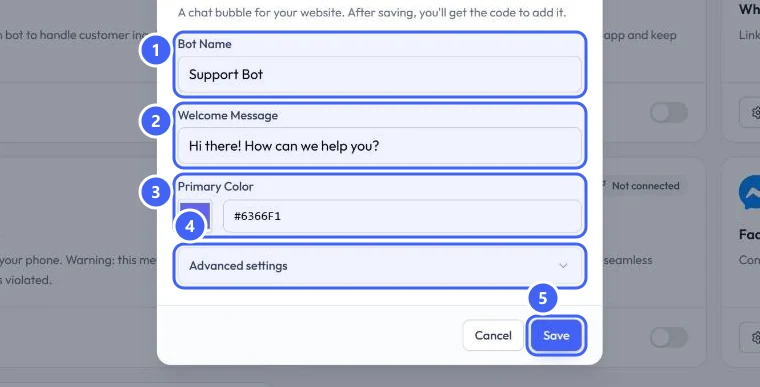 Open full size
Set Up Web Widget.
- 1Bot Name
- 2Welcome Message
- 3Primary Color
- 4Advanced settings
- 5Save
Adjust the advanced settings
Select Advanced settings 4 to open more options.
Step 3: Suggested questions and position
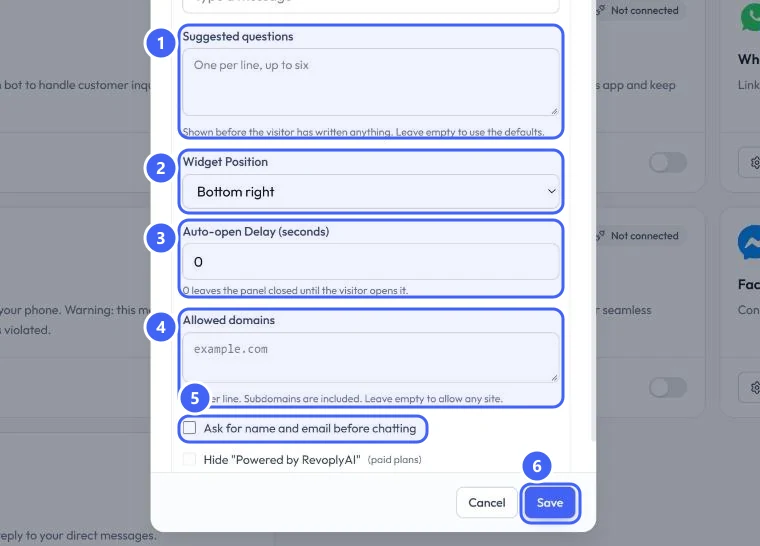
Add up to six Suggested questions 1, one per line. Visitors see them before they write anything; leave the box empty to use the defaults. Pick a Widget Position 2: bottom right or bottom left.
 Open full size
Advanced settings.
- 1Suggested questions
- 2Widget Position
- 3Auto-open Delay
- 4Allowed domains
- 5Ask for name and email before chatting
- 6Save
Step 4: Opening and where it may run
Auto-open Delay 3 opens the panel after that many seconds; 0 keeps it closed until the visitor opens it. Allowed domains 4 limits the widget to your sites, one per line, subdomains included; leave it empty to allow any site.
Fill in Allowed domains with your own domain, so nobody can place your widget on another website.
Step 5: Collect contact details and save
Tick Ask for name and email before chatting 5 if you want visitors to introduce themselves first. Select Save 6, then add the code you are given to your website.
Expected result
The chat bubble appears on the pages where you added the code, and conversations from it arrive in the Inbox.
Troubleshooting
The widget does not appear on my site.
Check that your domain is listed in Allowed domains, or that the list is empty. A domain that is not listed is not allowed.
Still stuck?
A real person answers every message. Tell us the page you were on and what you saw.