Overview
Connecting Messenger lets the assistant answer the messages sent to one of your Facebook Pages.
After Continue with Facebook, Facebook's own screens take over. They were not run while writing this guide, so follow the instructions they show.
What you will achieve
- Start the Messenger connection for a Facebook Page.
Who this guide is for
Businesses with a Facebook Page that gets customer messages.
Before you start
- A Facebook account that can manage the Page you want to connect.
Start the connection
Step 1: Open the Facebook Messenger card
In Messaging Channels, select Settings on Facebook Messenger.
Step 2: Continue with Facebook
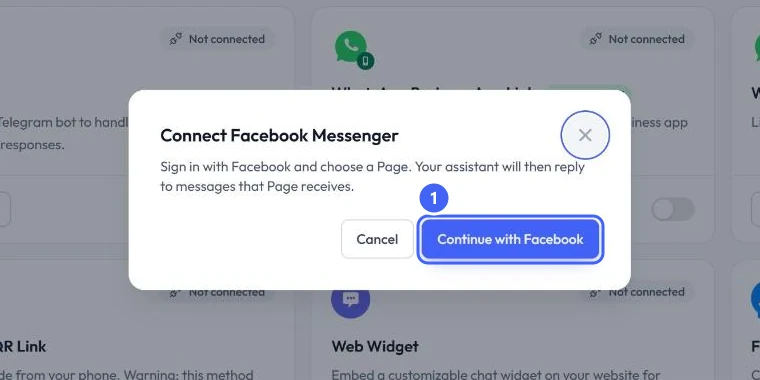
The dialog Connect Facebook Messenger explains the next step: sign in with Facebook and choose a Page. Select Continue with Facebook 1.
 Open full size
Connect Facebook Messenger.
- 1Continue with Facebook
Expected result
The Facebook Messenger card no longer shows Not connected, and messages to your Page appear in the Inbox.
Troubleshooting
My Page is not in the list Facebook shows.
Facebook lists the Pages your account can manage. Ask the Page's admin to give your Facebook account access, then try again.
Still stuck?
A real person answers every message. Tell us the page you were on and what you saw.