Overview
Lead qualification picks facts up from what customers say, such as budget or when they want to buy. Your rules decide what those facts add up to, and a qualified lead is passed to your team.
The screenshots come from a test draft made from the Real estate buyer template. It stayed switched off.
What you will achieve
- Create a qualification from a template.
- Choose the facts to find out and how much each one counts.
- Write rules, and decide who hears about a qualified lead.
Who this guide is for
Owners and admins of businesses that sell to leads: property, cars, software, wholesale, insurance.
Before you start
- The Pro or Business plan.
Start a qualification
Step 1: Open Lead Qualification
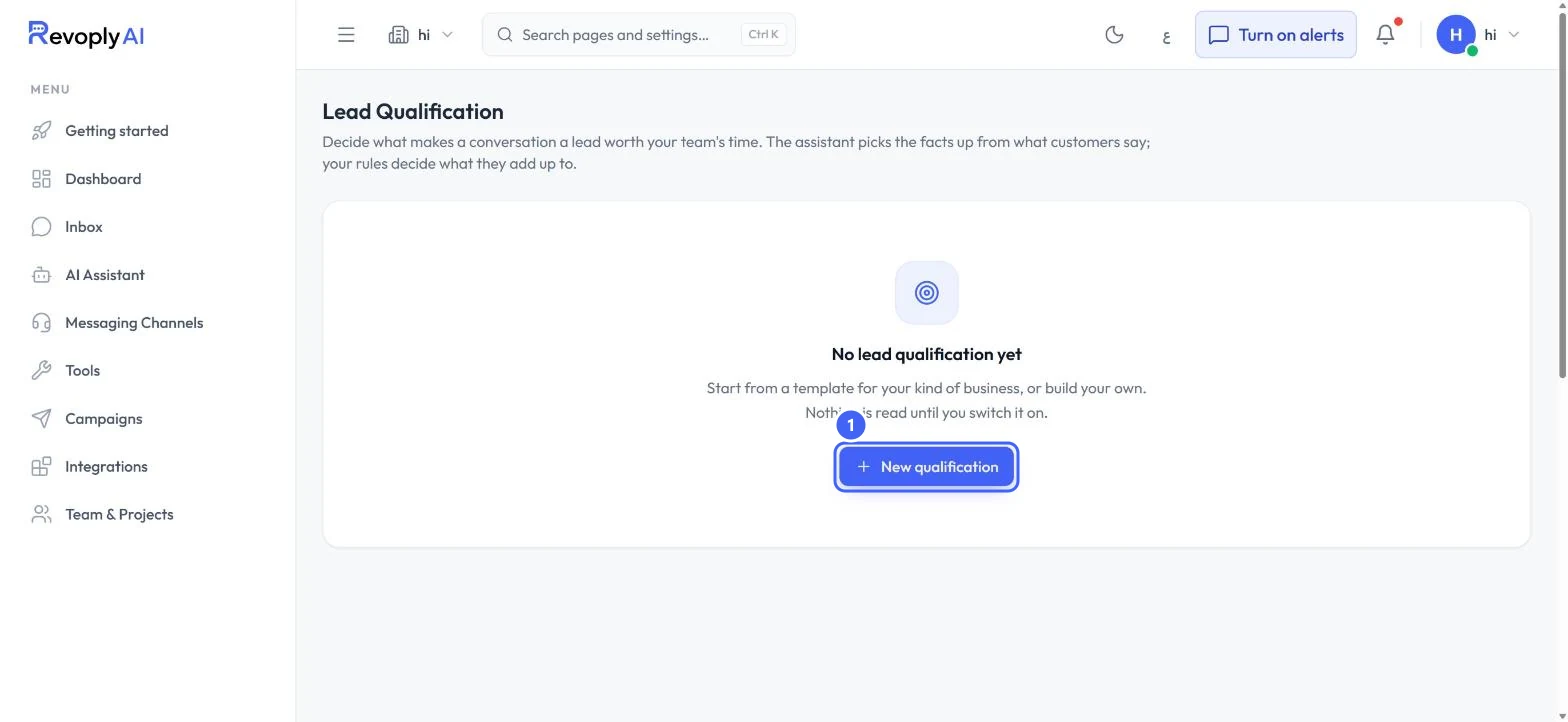
Open Lead Qualification. Until you have one, the page says No lead qualification yet. Nothing is read until you switch it on. Select New qualification 1.
 Open full size
Lead Qualification before the first one.
- 1New qualification
Step 2: Choose a template
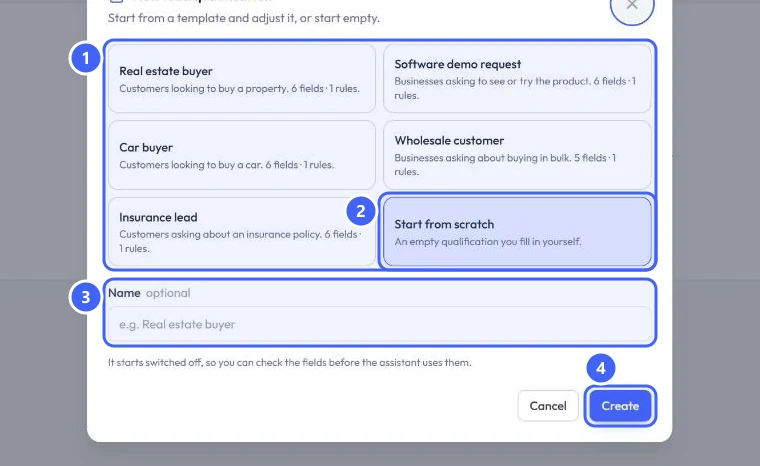
Pick a template 1: Real estate buyer, Software demo request, Car buyer, Wholesale customer or Insurance lead. Each lists how many fields and rules it brings. Start from scratch 2 is an empty one you fill in. Type a Name 3 if you want one, then select Create 4.
 Open full size
The New lead qualification dialog.
- 1Templates
- 2Start from scratch
- 3Name
- 4Create
Step 3: Fill in the details
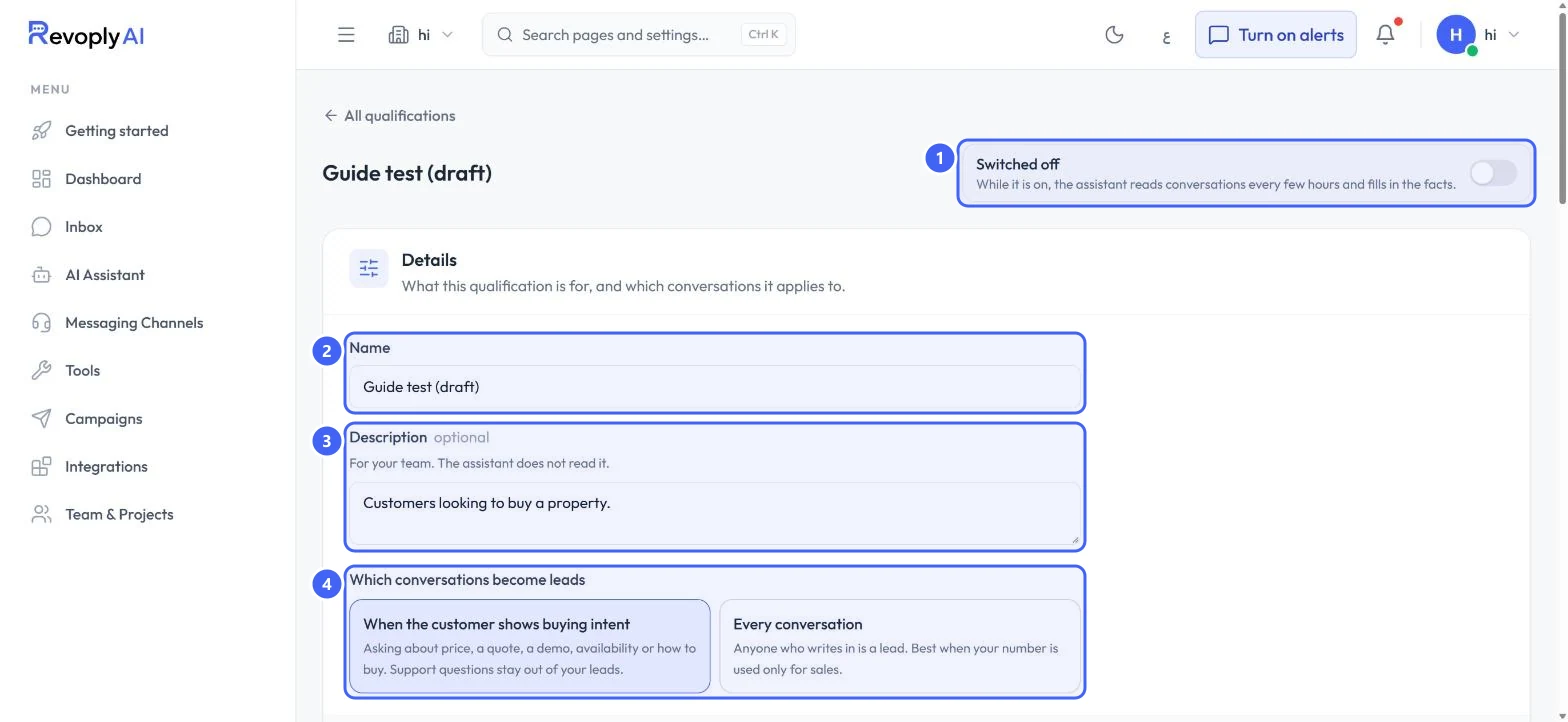
The new qualification opens Switched off 1: while it is on, the assistant reads conversations every few hours and fills in the facts. Check the Name 2 and Description 3; the assistant does not read the description. Under Which conversations become leads 4, pick When the customer shows buying intent (asking about price, a quote, a demo or how to buy) or Every conversation, best when your number is used only for sales. Select Save at the bottom of the card.
 Open full size
Details of a qualification made from the Real estate buyer template.
- 1Switched off
- 2Name
- 3Description
- 4Which conversations become leads
Choose what to find out
Step 4: Read the fields
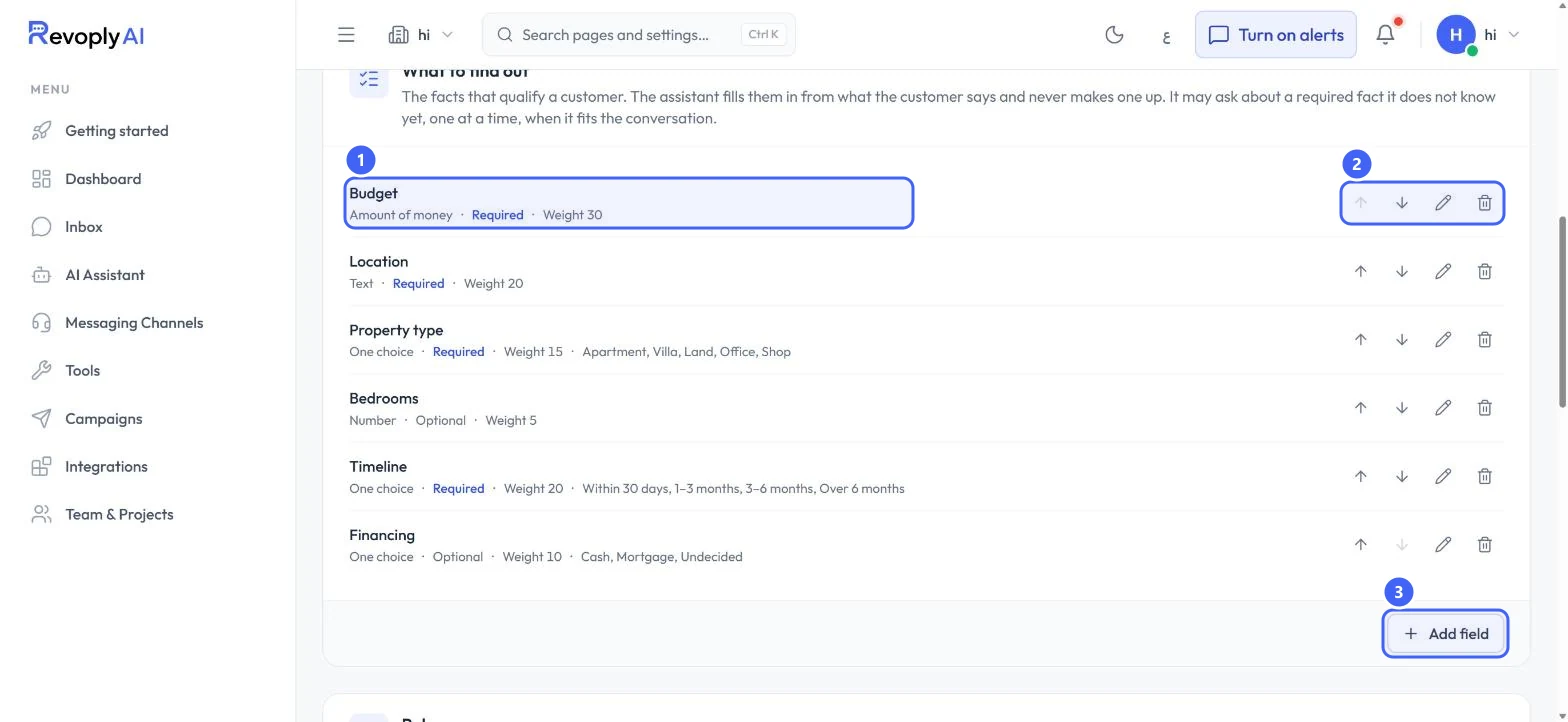
What to find out lists the facts that qualify a customer. Each row 1 shows the field's type, whether it is Required, and its weight. The buttons on the right 2 move, edit or delete it. Add field 3 adds another. The assistant fills fields in from what the customer says and never makes one up; it may ask about a required fact it does not know yet, one at a time.
 Open full size
The fields from the Real estate buyer template.
- 1Field
- 2Move, edit, delete
- 3Add field
Step 5: Edit a field
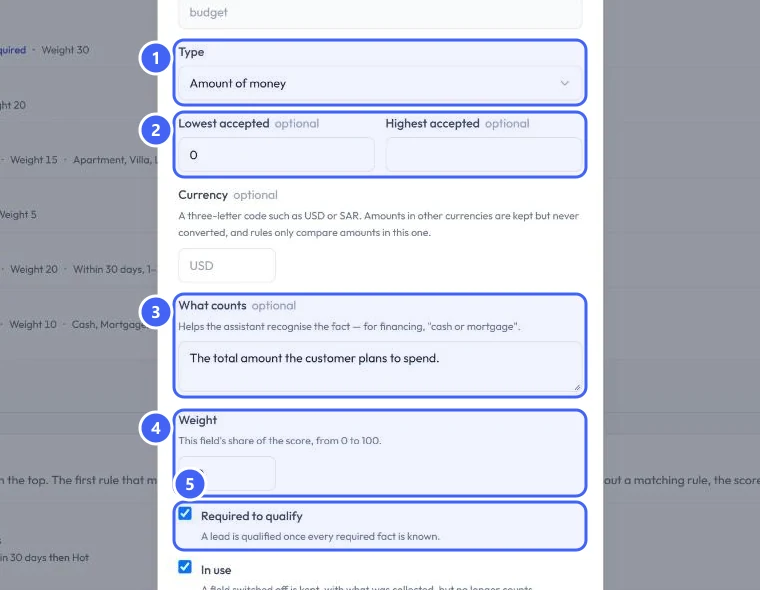
Select the pencil on a field. Pick its Type 1: Text, Number, Amount of money, One choice, Several choices, Yes or no or Date. For an amount, set Lowest accepted and Highest accepted 2 and a Currency such as SAR. What counts 3 helps the assistant recognise the fact. Weight 4 is the field's share of the score, from 0 to 100. Tick Required to qualify 5: a lead qualifies once every required fact is known. Select Save field.
 Open full size
Editing the Budget field.
- 1Type
- 2Lowest and highest accepted
- 3What counts
- 4Weight
- 5Required to qualify
A field's key cannot change, because collected facts are stored under it. Untick In use to stop a field counting without losing what was collected.
Write the rules
Step 6: Read the rules
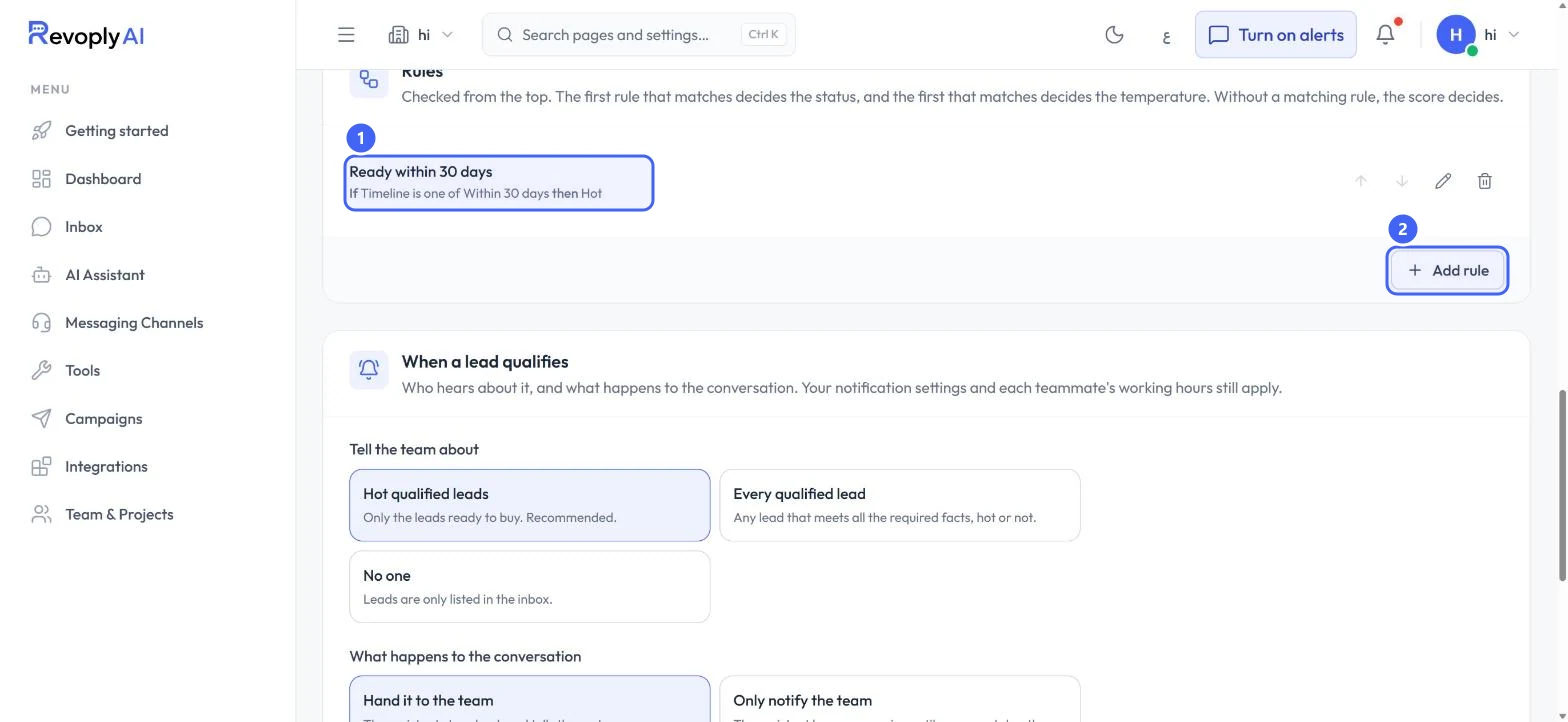
Rules are checked from the top. The first rule that matches decides the status, and the first that matches decides the temperature; without a matching rule, the score decides. The template brings one rule 1. Add rule 2 adds another.
 Open full size
Rules, with the template's rule.
- 1Rule
- 2Add rule
Step 7: Edit a rule
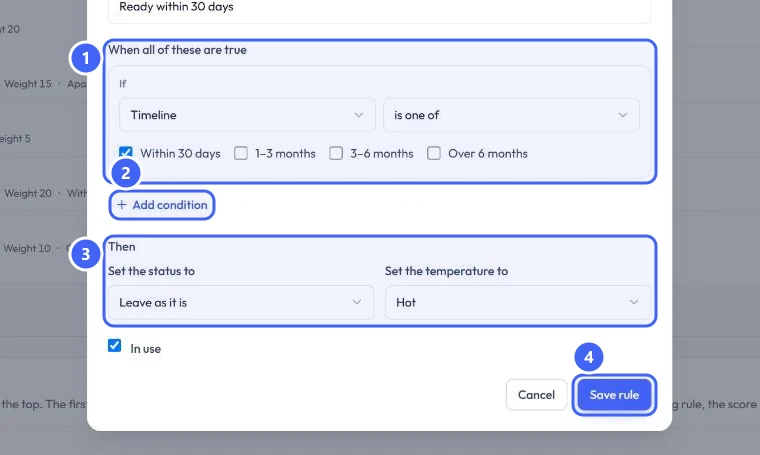
Select the pencil on a rule. Under When all of these are true 1, pick a field and a test: is one of, is, is not, is known or is not known yet. Add condition 2 adds another. Under Then 3, Set the status to Qualified or Not qualified, and Set the temperature to Hot, Warm or Cold; Leave as it is changes nothing. Select Save rule 4.
 Open full size
The rule Ready within 30 days.
- 1Conditions
- 2Add condition
- 3Then
- 4Save rule
Decide what happens to a qualified lead
Step 8: Who hears about it
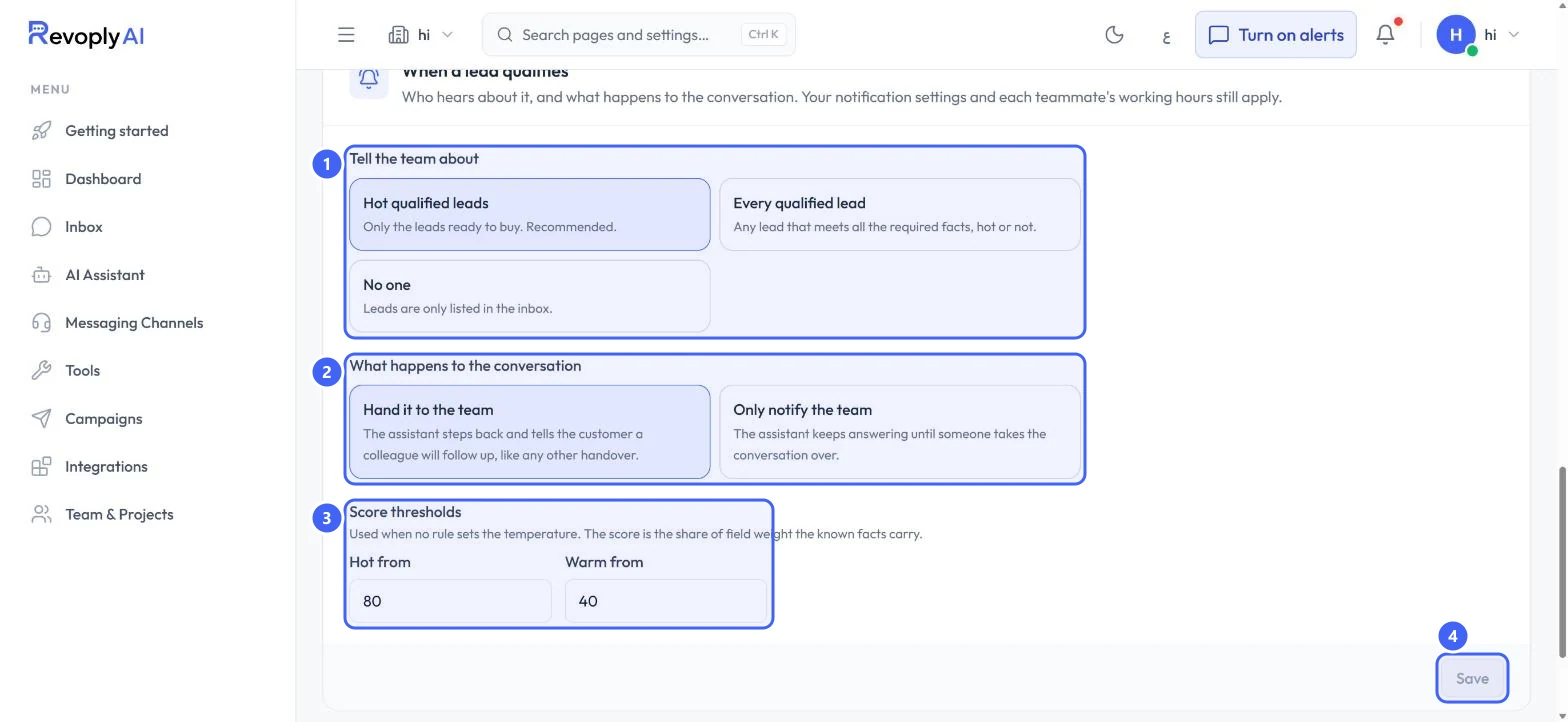
Under When a lead qualifies, Tell the team about 1 Hot qualified leads (recommended), Every qualified lead or No one. Under What happens to the conversation 2, Hand it to the team makes the assistant step back like any handover; Only notify the team lets it keep answering. Score thresholds 3 set where Hot and Warm start when no rule sets the temperature. Select Save 4.
 Open full size
When a lead qualifies.
- 1Tell the team about
- 2What happens to the conversation
- 3Score thresholds
- 4Save
Your notification settings and each teammate's working hours still apply to these alerts.
Step 9: Switch it on
When the fields and rules match how your team judges a lead, switch the qualification on at the top of the page.
Expected result
The assistant fills in the facts from your conversations, rates each lead, and passes hot leads to your team.
Troubleshooting
Nothing is being qualified.
A qualification starts switched off. Switch it on at the top of its page. The assistant reads conversations every few hours, so facts do not appear instantly.
A lead never becomes qualified.
A lead qualifies once every required fact is known. Check which fields are marked Required, and whether customers are likely to mention them.
Every lead shows as Cold.
Without a matching rule the score decides. Lower Hot from and Warm from under Score thresholds, or add a rule that sets the temperature.
Still stuck?
A real person answers every message. Tell us the page you were on and what you saw.