Overview
The Dashboard page shows how the assistant performed over a period you choose, and how much of your monthly allowance is used. Check it to spot conversations that need you and to see when your limit resets.
What you will achieve
- Choose the period the numbers cover.
- Find what needs your attention.
- Read your monthly token usage and reset date.
Who this guide is for
Owners and admins who follow how the assistant is doing.
Before you start
- You are signed in.
The numbers at the top
Step 1: Pick a period
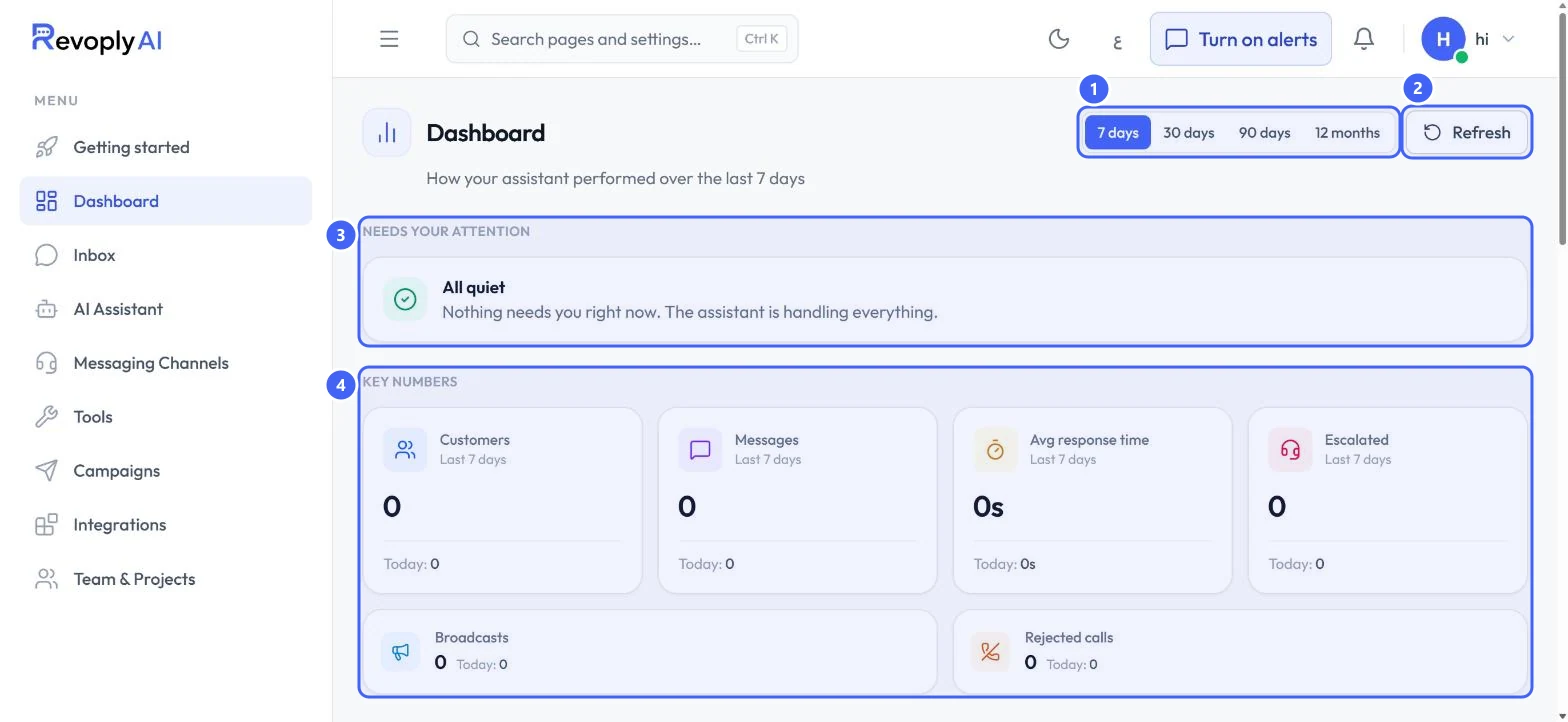
Open Dashboard in the menu. Choose 7 days, 30 days, 90 days or 12 months 1. Select Refresh 2 to load the latest figures.
 Open full size
The top of the Dashboard page.
- 1Period
- 2Refresh
- 3Needs your attention
- 4Key numbers
Step 2: Check what needs your attention
Needs your attention 3 says All quiet when nothing is waiting for you. Anything listed here is worth handling first.
Step 3: Read the key numbers
Key numbers 4 show customers, messages, average response time and escalations for the period, with today's figure under each. Broadcasts and rejected calls follow below them.
Your monthly usage
Step 4: Find Monthly Token Usage
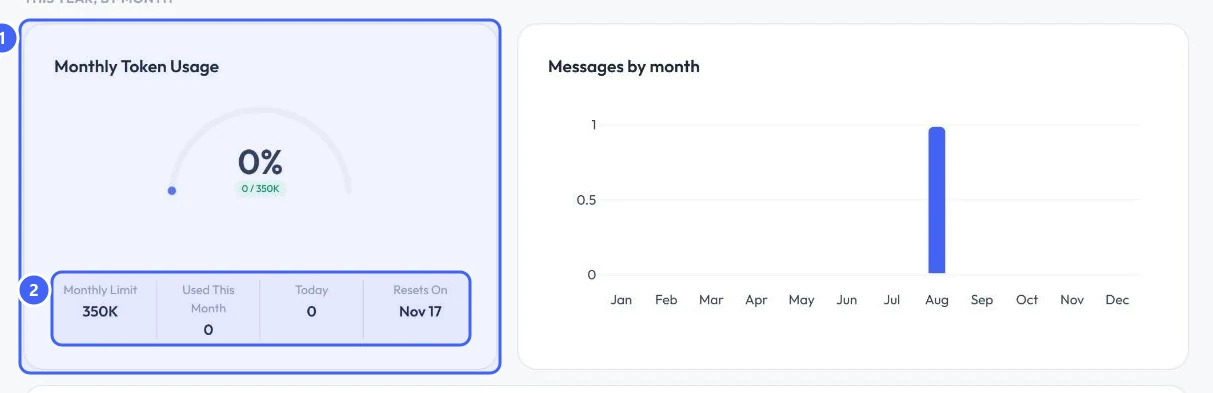
Scroll down to This year, by month. Monthly Token Usage 1 shows how much of the month's allowance is used. Under it 2 you see the Monthly Limit, what is Used This Month, Today, and the date the allowance Resets On.
 Open full size
Monthly Token Usage, next to Messages by month.
- 1Monthly Token Usage
- 2Limit, used, today and reset date
Plans are metered in tokens. To be told when usage is running low or has run out, keep Usage limits on in your notification settings.
Expected result
You know what needs you now, how the assistant did over the period, and when your allowance resets.
Troubleshooting
All the numbers are zero.
Numbers count real customer conversations. They stay at zero until a channel is connected and customers write in. Test console messages are not customer messages.
Still stuck?
A real person answers every message. Tell us the page you were on and what you saw.