Overview
RevoplyAI offers three ways to connect WhatsApp. Which one is right depends on the number you want the assistant to answer on, and on whether you want to keep using the WhatsApp Business app on your phone.
What you will achieve
- Understand the three WhatsApp connections.
- Pick the right one for your number.
Who this guide is for
Owners and admins about to connect WhatsApp.
Before you start
- You are signed in as an owner or an admin.
The three WhatsApp cards
Step 1: Open Messaging Channels
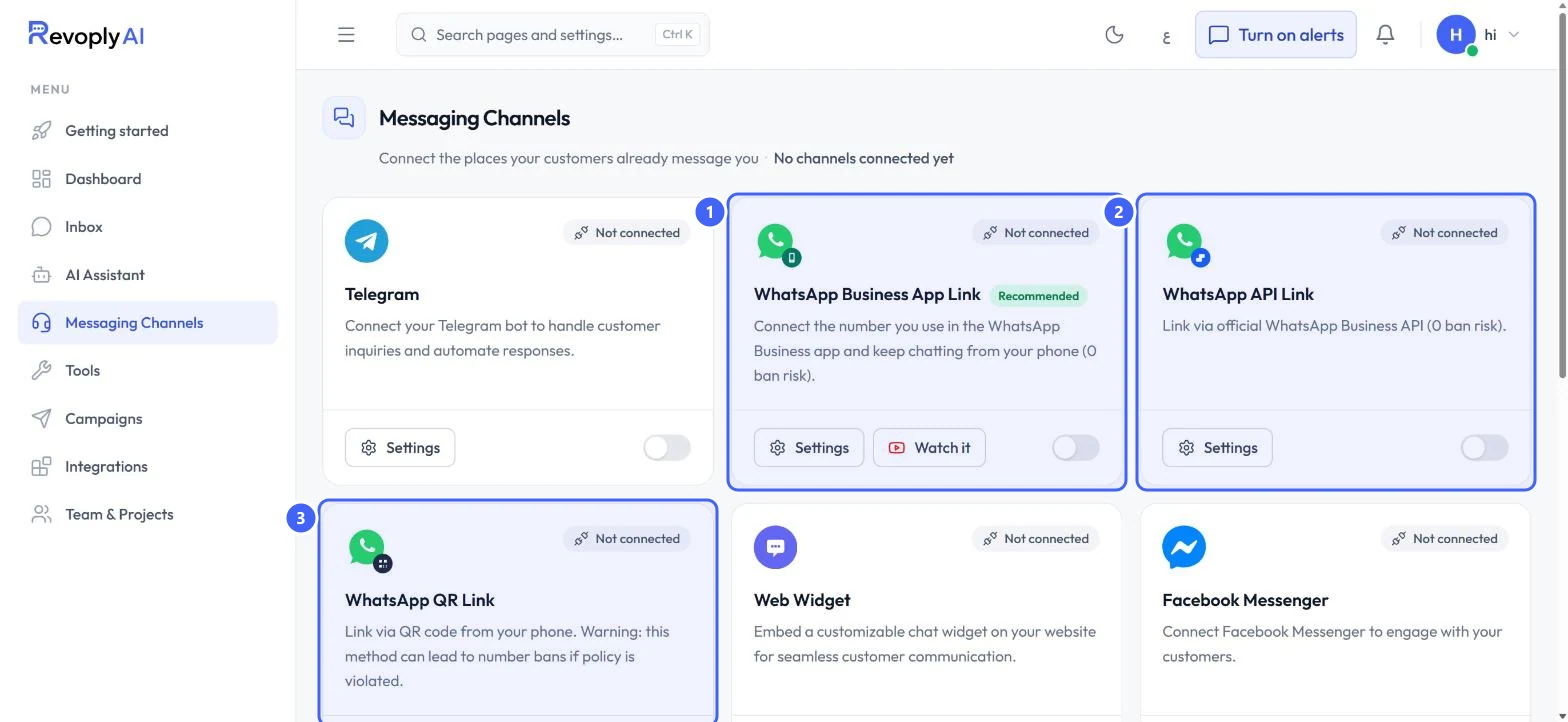
Select Messaging Channels in the menu. Three cards are about WhatsApp.
 Open full size
The WhatsApp cards on Messaging Channels.
- 1WhatsApp Business App Link
- 2WhatsApp API Link
- 3WhatsApp QR Link
Step 2: WhatsApp Business App Link (recommended)
1 Connects the number you already use in the WhatsApp Business app, and you keep chatting from your phone. The card marks it Recommended. Choose it if your customers already know your WhatsApp Business number.
Step 3: WhatsApp API Link
2 Links a number through the official WhatsApp Business API. Its connect page asks for a new number: one that is not on WhatsApp yet and can receive an SMS or a call. Choose it for a fresh number that only the assistant and your team use from the dashboard.
Step 4: WhatsApp QR Link
3 Links a number by scanning a QR code with your phone. The card warns that this method can lead to number bans if the policy is violated, and its connect page calls it unofficial and meant for a test number.
Use the QR link only for testing. For a number your customers depend on, use one of the official connections.
Expected result
You know which card to open. Each one has its own guide, linked below.
Troubleshooting
I want to send message templates or broadcasts.
The Message Templates page asks for the official WhatsApp Business API before you can create templates. Connect WhatsApp with an official connection first.
Still stuck?
A real person answers every message. Tell us the page you were on and what you saw.