Overview
The QR link connects a number by scanning a code with the phone that has the number. It is the quickest way to try the assistant on WhatsApp, and it is unofficial, so keep it for a test number.
The card warns that this method can lead to number bans if the policy is violated, and the connect page calls it unofficial. Do not use it for the number your customers rely on.
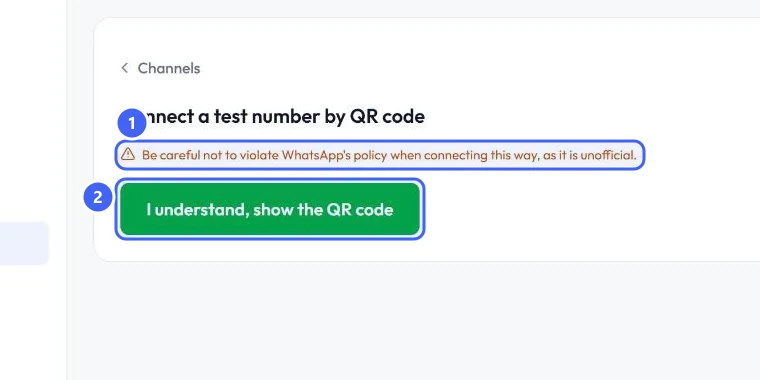
Selecting I understand, show the QR code starts a link session. It was not run while writing this guide, so the QR screen itself is not shown here.
What you will achieve
- Start a QR connection for a test number.
- Know the risk that comes with it.
Who this guide is for
Anyone trying the assistant on a spare WhatsApp number.
Before you start
- A test phone with WhatsApp installed on the number you want to link.
Start the connection
Step 1: Open the WhatsApp QR Link card
In Messaging Channels, select Settings on WhatsApp QR Link.
Step 2: Read the warning and show the code
The page is titled Connect a test number by QR code. Read the warning 1, then select I understand, show the QR code 2 and scan the code with WhatsApp on your test phone.
 Open full size
The QR connect page and its warning.
- 1The warning
- 2I understand, show the QR code
Expected result
The WhatsApp QR Link card no longer shows Not connected, and messages to the test number appear in the Inbox.
Troubleshooting
Can I use this for my main business number?
It is not recommended. Use WhatsApp Business App Link or WhatsApp API Link for a number your customers depend on.
Still stuck?
A real person answers every message. Tell us the page you were on and what you saw.