Overview
With orders switched on, a customer who wants to buy can order in the chat. The assistant collects the details and the order lands on the Orders page for you to confirm. Switched off, a customer who wants to buy is handed to your team instead.
What you will achieve
- Turn order taking on.
- Choose delivery, pickup or both.
- Find and filter the orders that come in.
Who this guide is for
Businesses that take orders over chat.
Before you start
- A connected WhatsApp, Telegram, Messenger or Instagram channel. Orders work on those four.
Turn orders on
Step 1: Open Orders
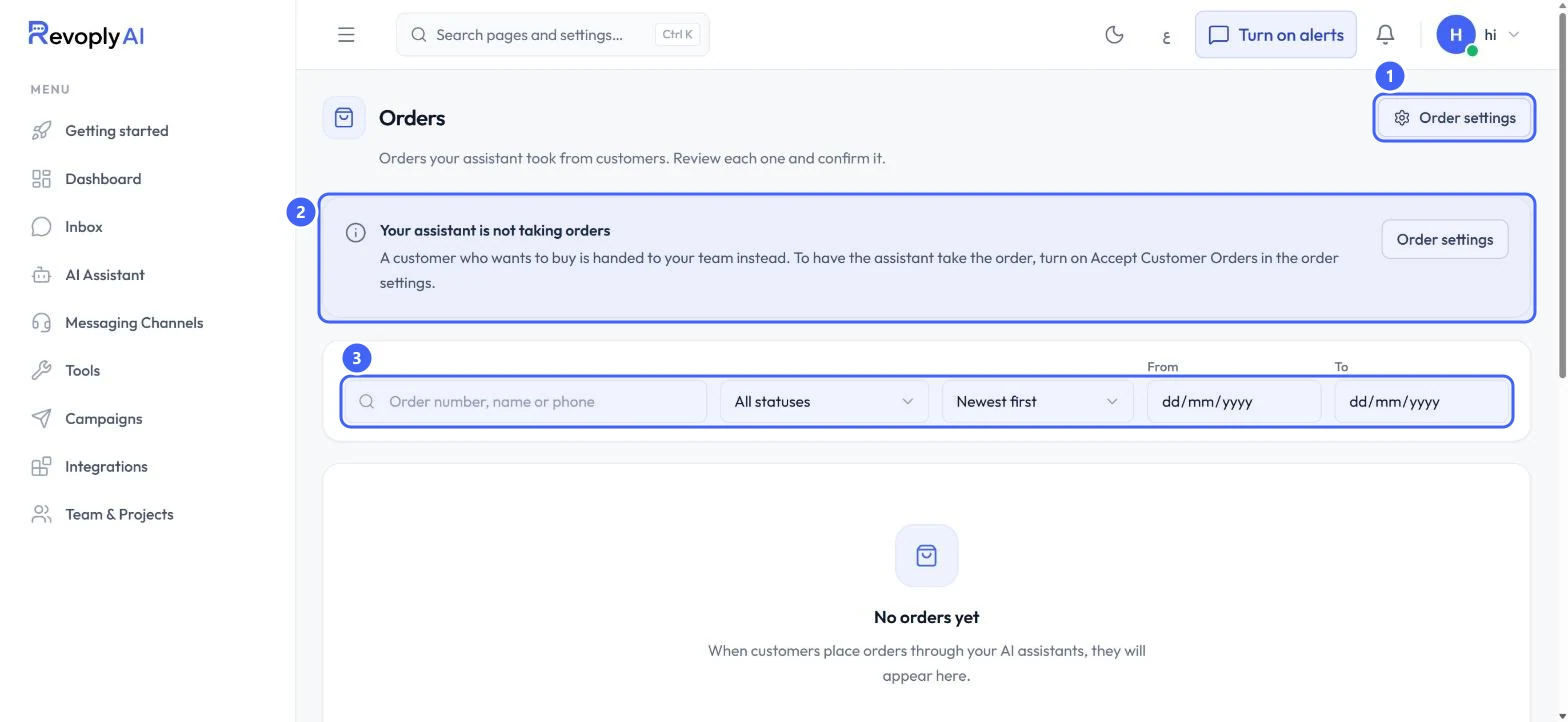
In AI Assistant, under What it brings back, select Settings on Orders. While orders are off, the page says Your assistant is not taking orders 2. Select Order settings 1.
 Open full size
The Orders page.
- 1Order settings
- 2Your assistant is not taking orders
- 3Search and filters
Step 2: Accept orders and choose how customers get them
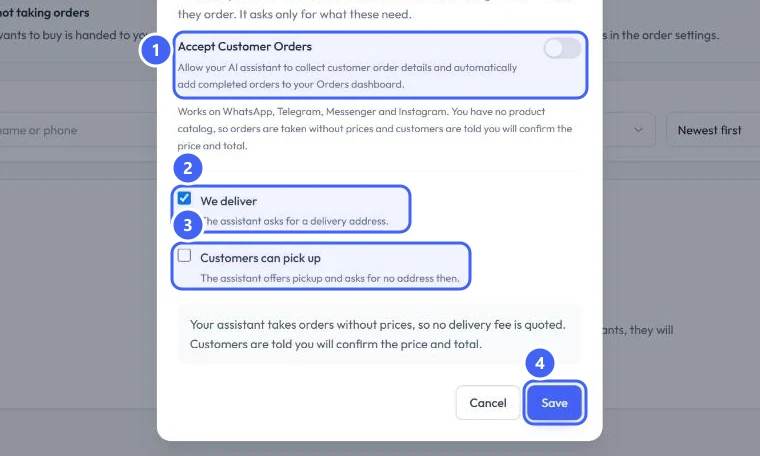
Switch on Accept Customer Orders 1. Tick We deliver 2 to have the assistant ask for a delivery address, and Customers can pick up 3 to offer pickup. Select Save 4.
 Open full size
Order settings.
- 1Accept Customer Orders
- 2We deliver
- 3Customers can pick up
- 4Save
Without a product catalog, orders are taken without prices and the customer is told you will confirm the price and total. No delivery fee is quoted.
Review incoming orders
Step 3: Find an order
Search by order number, name or phone, filter by status, sort, or pick a date range 3. Statuses are Pending confirmation, Confirmed, Processing, Completed and Cancelled. Review each order and confirm it.
Expected result
The assistant collects orders in the chat, and each one appears on the Orders page for you to review and confirm.
Troubleshooting
Customers who want to buy are handed to my team instead.
That is what happens while Accept Customer Orders is off. Turn it on in Order settings.
Still stuck?
A real person answers every message. Tell us the page you were on and what you saw.