Overview
With appointment booking on, the assistant offers free times during a conversation and books the one the customer picks. Appointments are kept in RevoplyAI, so you do not need a calendar to start.
What you will achieve
- Set how long one appointment is and which days you take bookings.
- List the services customers can book.
- See every appointment in a list or a calendar, and add one yourself.
Who this guide is for
Owners and admins of clinics, salons and any business that works by appointment.
Before you start
- The Pro or Business plan.
- Your opening hours for appointments, which can be narrower than your working hours.
Open appointment booking
Step 1: Find the card in Tools
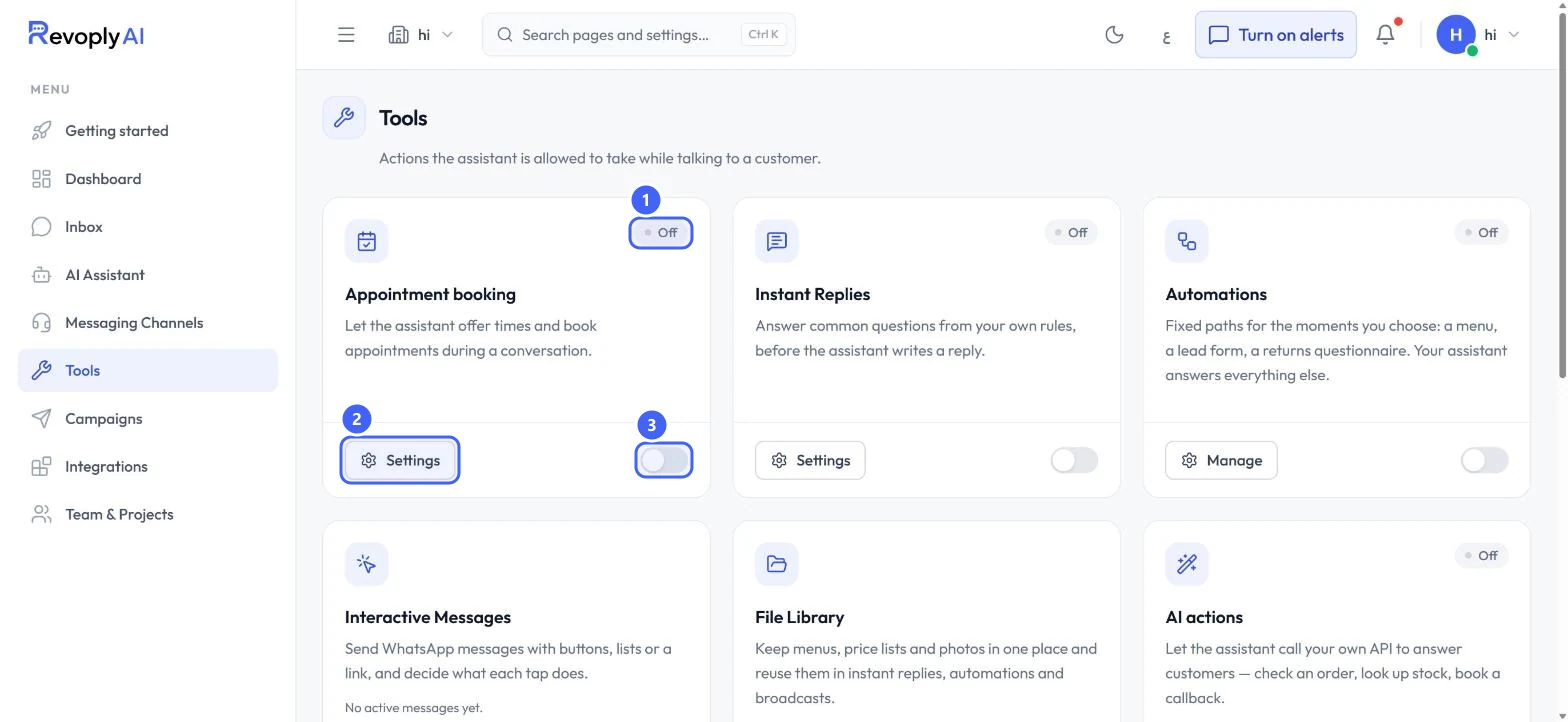
Select Tools in the menu. The Appointment booking card shows Off 1 until you switch it on. Select Settings 2 to set it up. The switch 3 turns booking on once at least one day is open.
 Open full size
The Appointment booking card in Tools.
- 1Off or On
- 2Settings
- 3Switch
Set your booking hours
Step 2: Open Booking hours
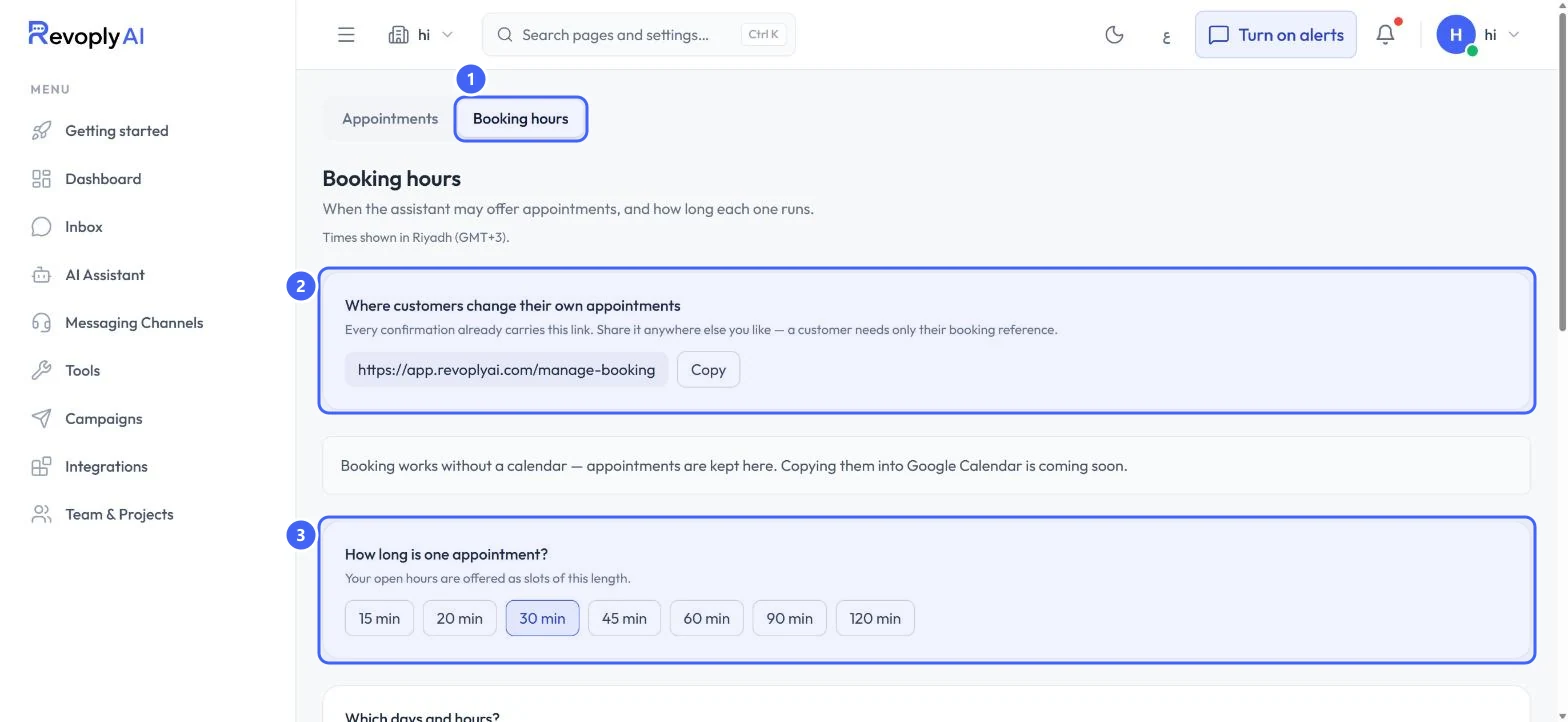
Select the Booking hours tab 1. Where customers change their own appointments 2 is the link every confirmation already carries; select Copy to share it elsewhere. A customer needs only their booking reference there. Under How long is one appointment? 3, pick a length from 15 to 120 minutes: your open hours are offered as slots of that length.
 Open full size
Booking hours: the self-service link and the appointment length.
- 1Booking hours
- 2Link for customers to change appointments
- 3Appointment length
Booking works without a calendar. The page says copying appointments into Google Calendar is coming soon.
Step 3: Open the days you take bookings
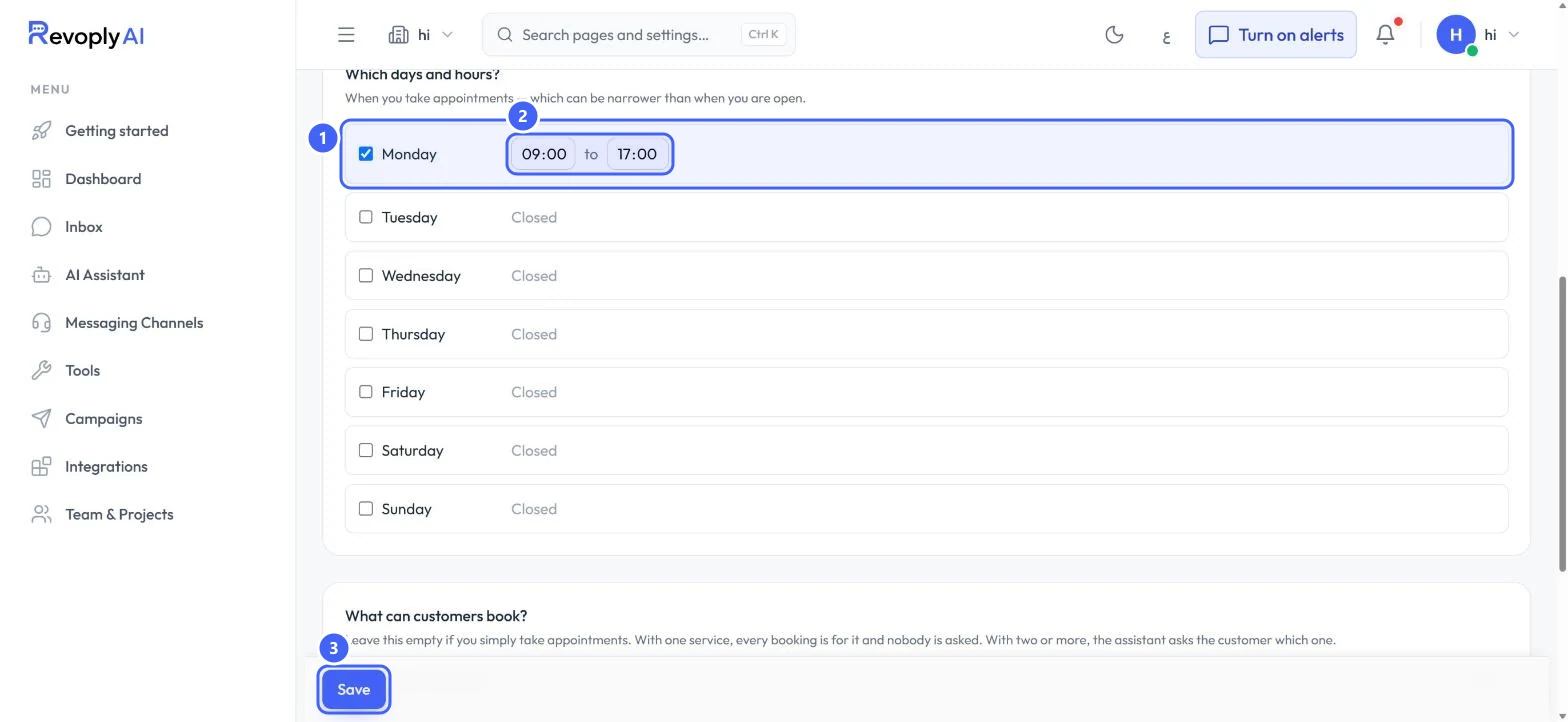
Under Which days and hours?, tick a day 1. It opens from 09:00 to 17:00; change the times 2 to the hours you take appointments. Days you leave unticked show Closed. Select Save 3.
 Open full size
Monday opened from 09:00 to 17:00.
- 1Tick the day
- 2From and to
- 3Save
Step 4: Add your services
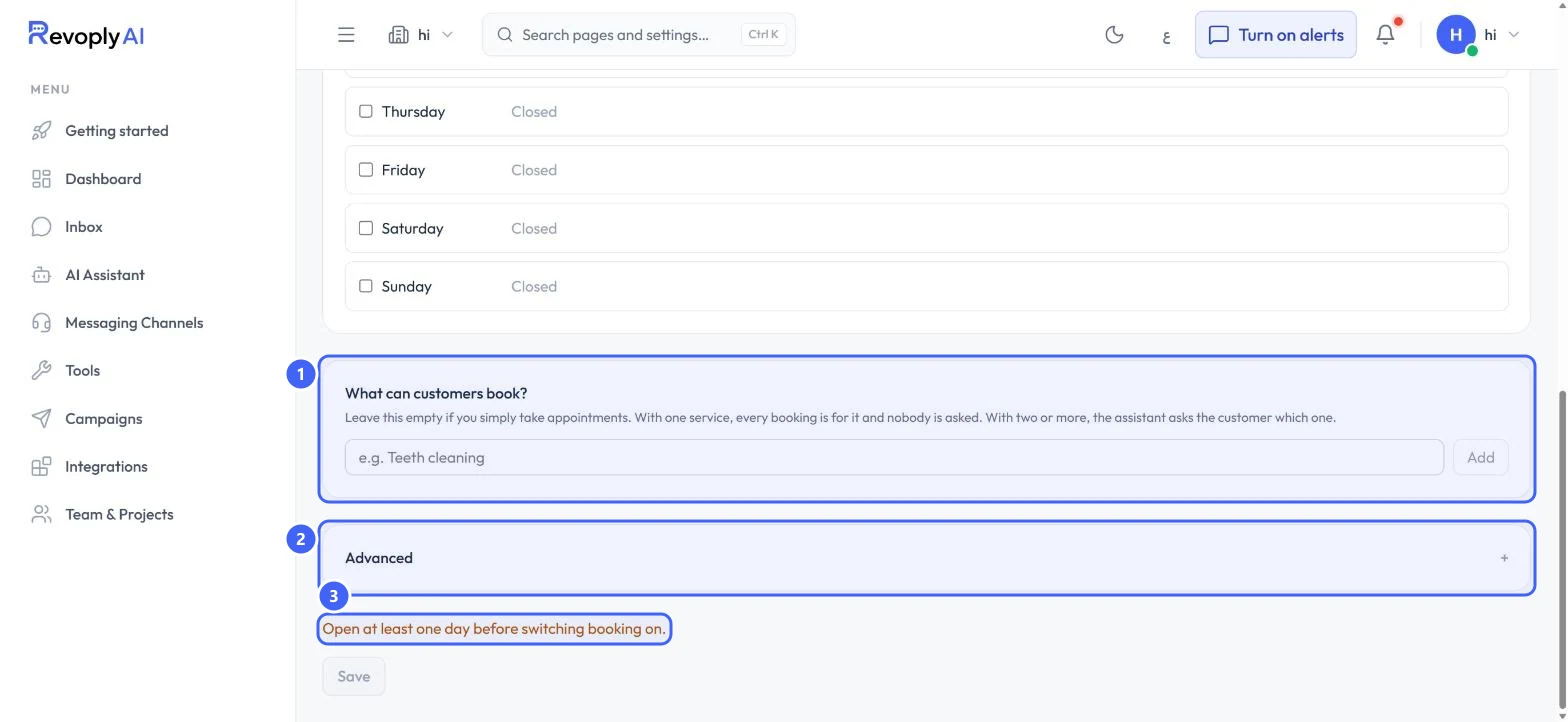
Under What can customers book? 1, type a service, for example Teeth cleaning, and select Add. Leave it empty if you take appointments only. With one service, every booking is for it; with two or more, the assistant asks the customer which one. Until a day is open, the page reminds you Open at least one day before switching booking on. 3
 Open full size
Services and Advanced settings.
- 1Services
- 2Advanced settings
- 3Reminder to open a day
Step 5: Check the advanced settings
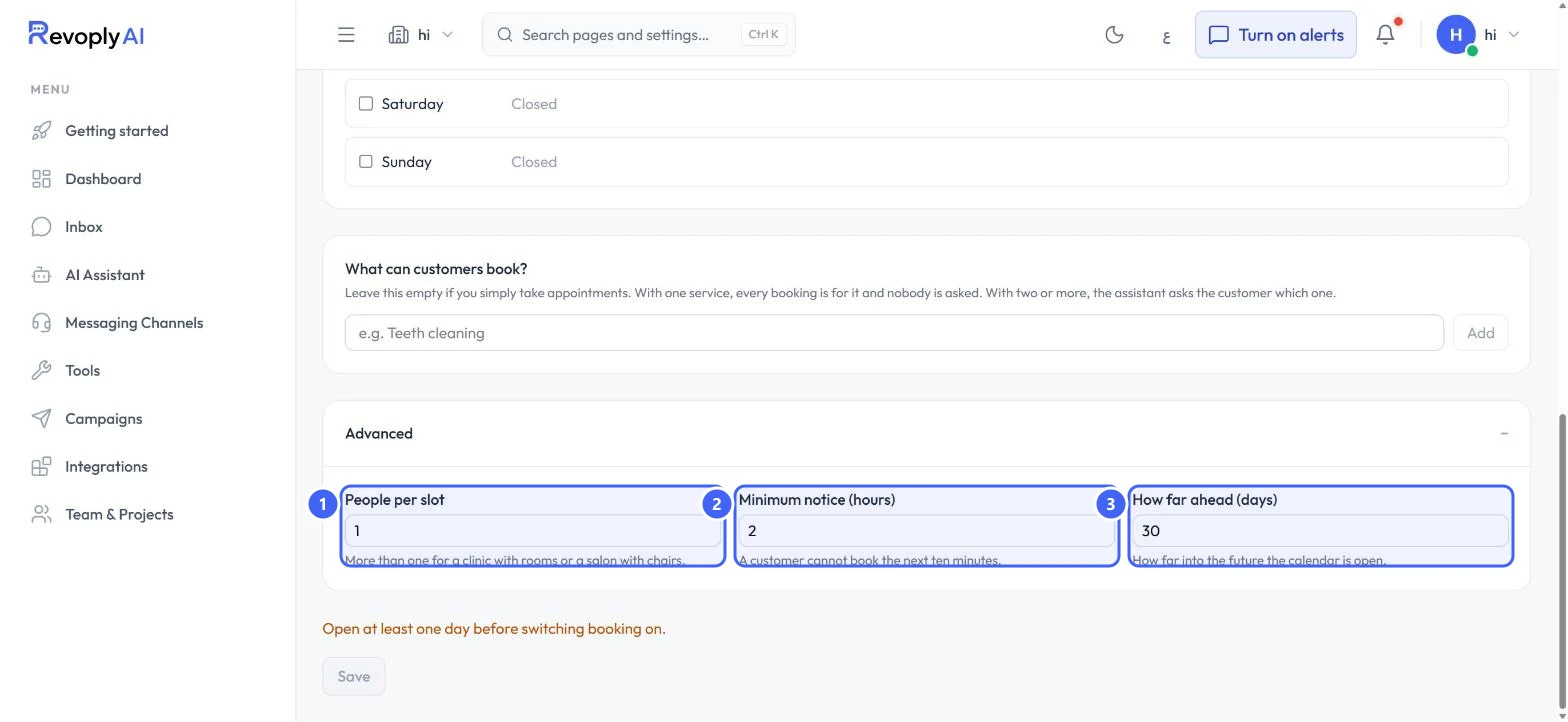
Open Advanced settings. People per slot 1 is how many customers one slot takes: more than one suits a clinic with several rooms or a salon with several chairs. Minimum notice (hours) 2 stops last-minute bookings. How far ahead (days) 3 is how far into the future a customer can book.
 Open full size
Advanced settings, with their defaults.
- 1People per slot
- 2Minimum notice
- 3How far ahead
See and add appointments
Step 6: Read the appointments list
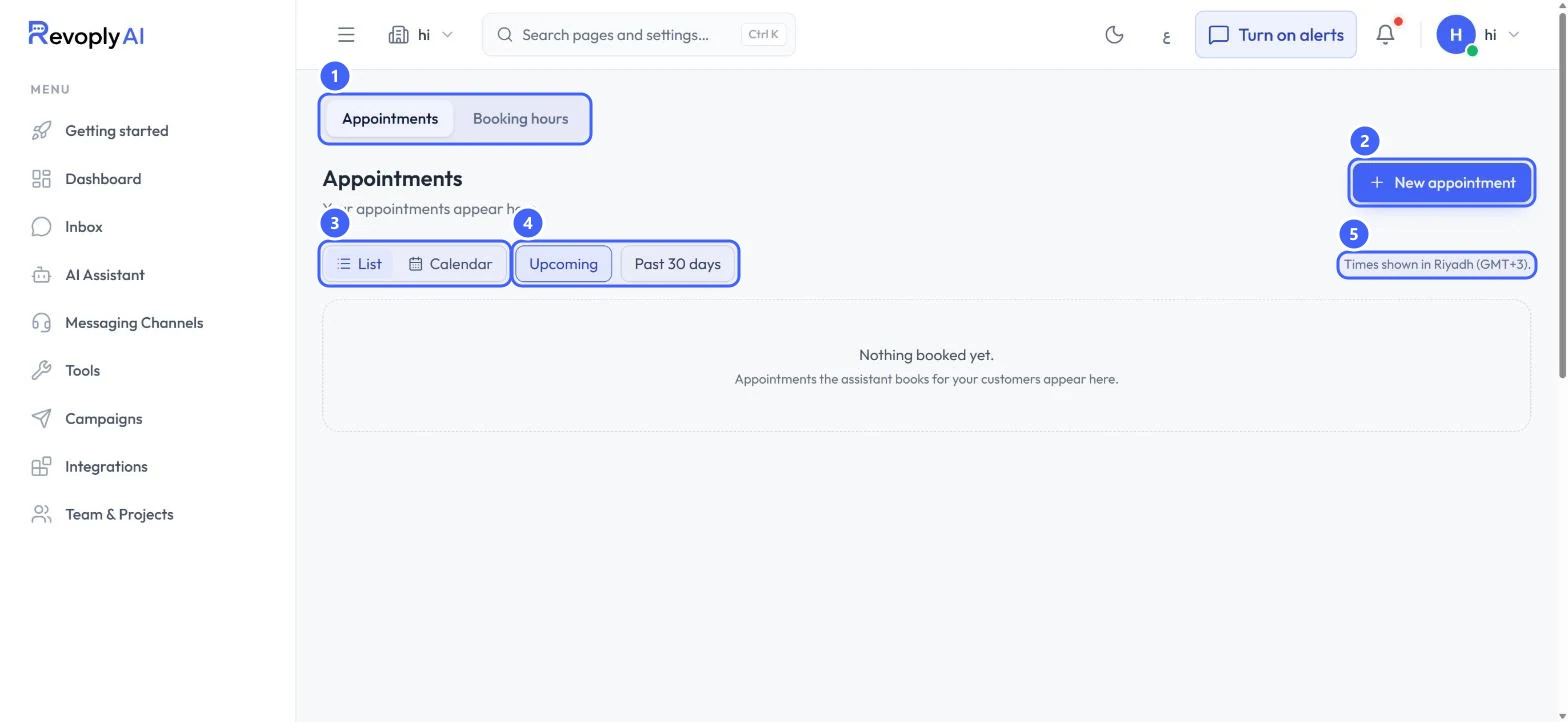
The Appointments tab 1 lists what is booked. Switch between List and Calendar 3, and between Upcoming and Past 30 days 4. Times are shown in your business time zone 5. New appointment 2 adds one by hand.
 Open full size
Appointments, before anything is booked.
- 1Appointments and Booking hours
- 2New appointment
- 3List or Calendar
- 4Upcoming or Past 30 days
- 5Time zone
Step 7: Use the calendar
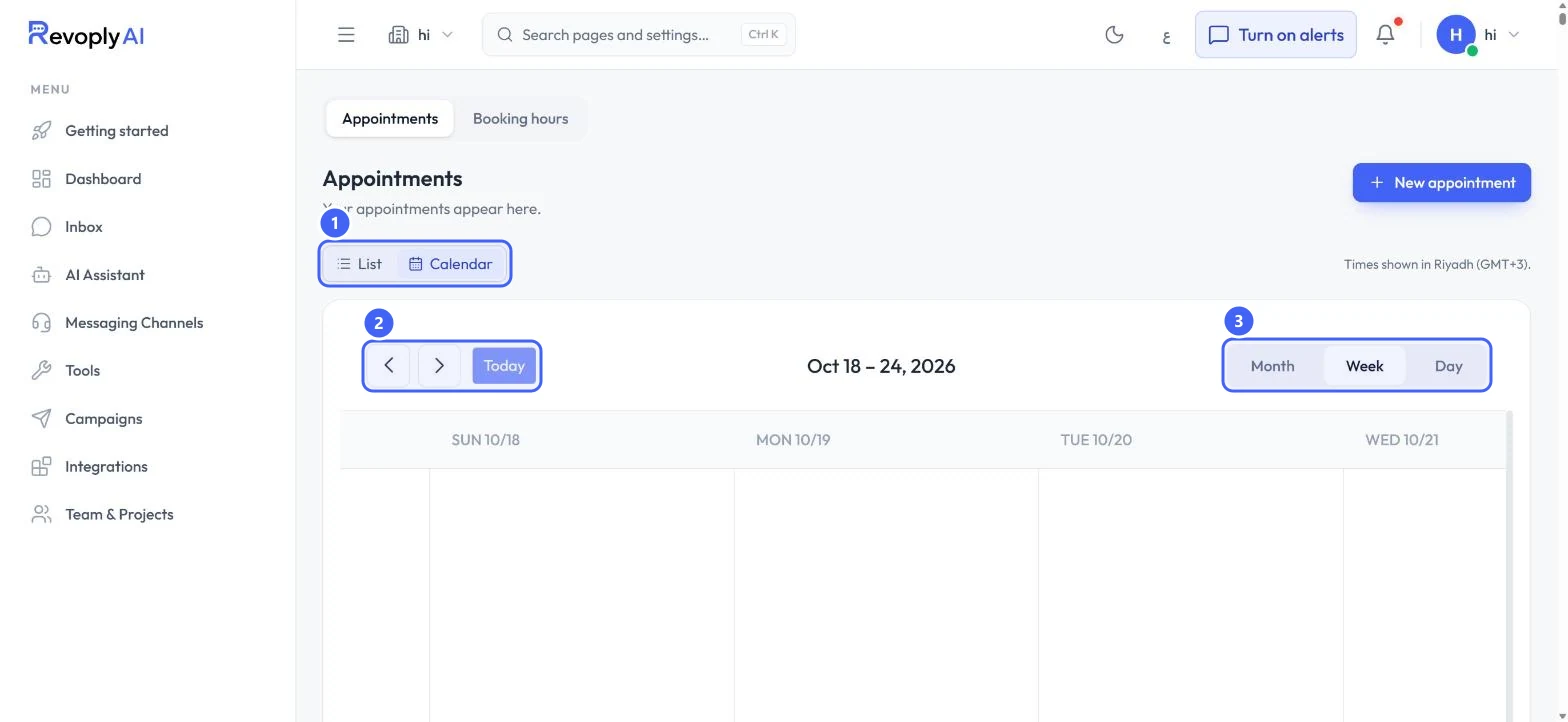
In Calendar, pick Month, Week or Day 3, and move with the arrows or Today 2.
 Open full size
The calendar in week view.
- 1List or Calendar
- 2Today and arrows
- 3Month, Week, Day
Step 8: Add an appointment yourself
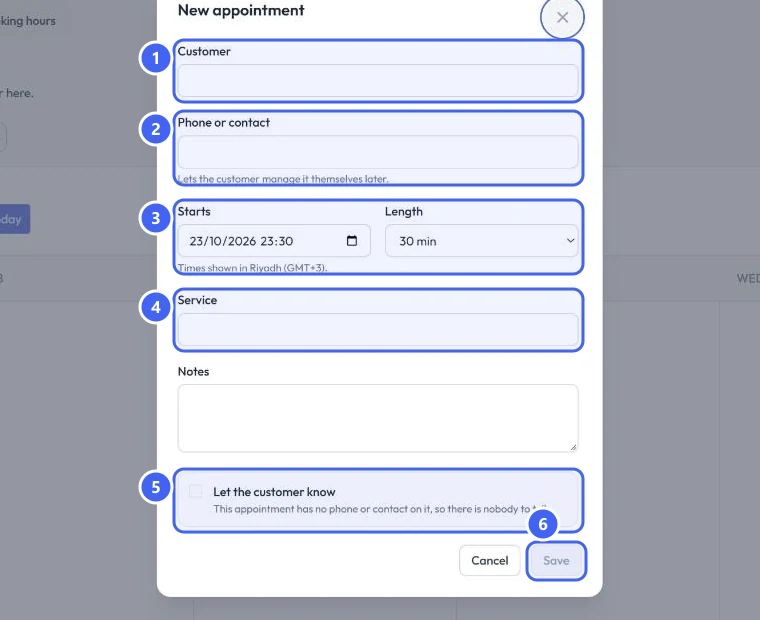
Select New appointment. Fill in Customer 1 and Phone or contact 2: the contact lets the customer manage the appointment themselves later. Set Starts and Length 3, pick the Service 4, and tick Let the customer know 5 to send them a confirmation. Select Save 6.
 Open full size
The New appointment dialog.
- 1Customer
- 2Phone or contact
- 3Starts and Length
- 4Service
- 5Let the customer know
- 6Save
Let the customer know stays unavailable until the appointment has a phone number or contact: there is nobody to tell.
Expected result
Booking is on, your hours and services are set, and the assistant offers free slots when a customer asks for an appointment.
Troubleshooting
The switch on the Appointment booking card will not turn on.
Open at least one day under Which days and hours? and save. The page shows a reminder until you do.
Customers are offered times I do not work.
Booking hours are separate from the working hours in Company Profile. Check the days and times on Booking hours.
A customer wants to move their appointment.
Send them the link from Where customers change their own appointments. They need only their booking reference.
Still stuck?
A real person answers every message. Tell us the page you were on and what you saw.