Overview
An instant reply goes out without asking the assistant: when a customer's message contains one of your keywords, or as a greeting when someone writes to you for the first time in a while. It is instant and costs no tokens.
What you will achieve
- Create a keyword rule or a greeting.
- Write the reply in Arabic and English and attach files.
- Switch the rule on.
Who this guide is for
Owners and admins who get the same questions every day.
Before you start
- The Pro or Business plan.
Create a rule
Step 1: Open Instant Replies
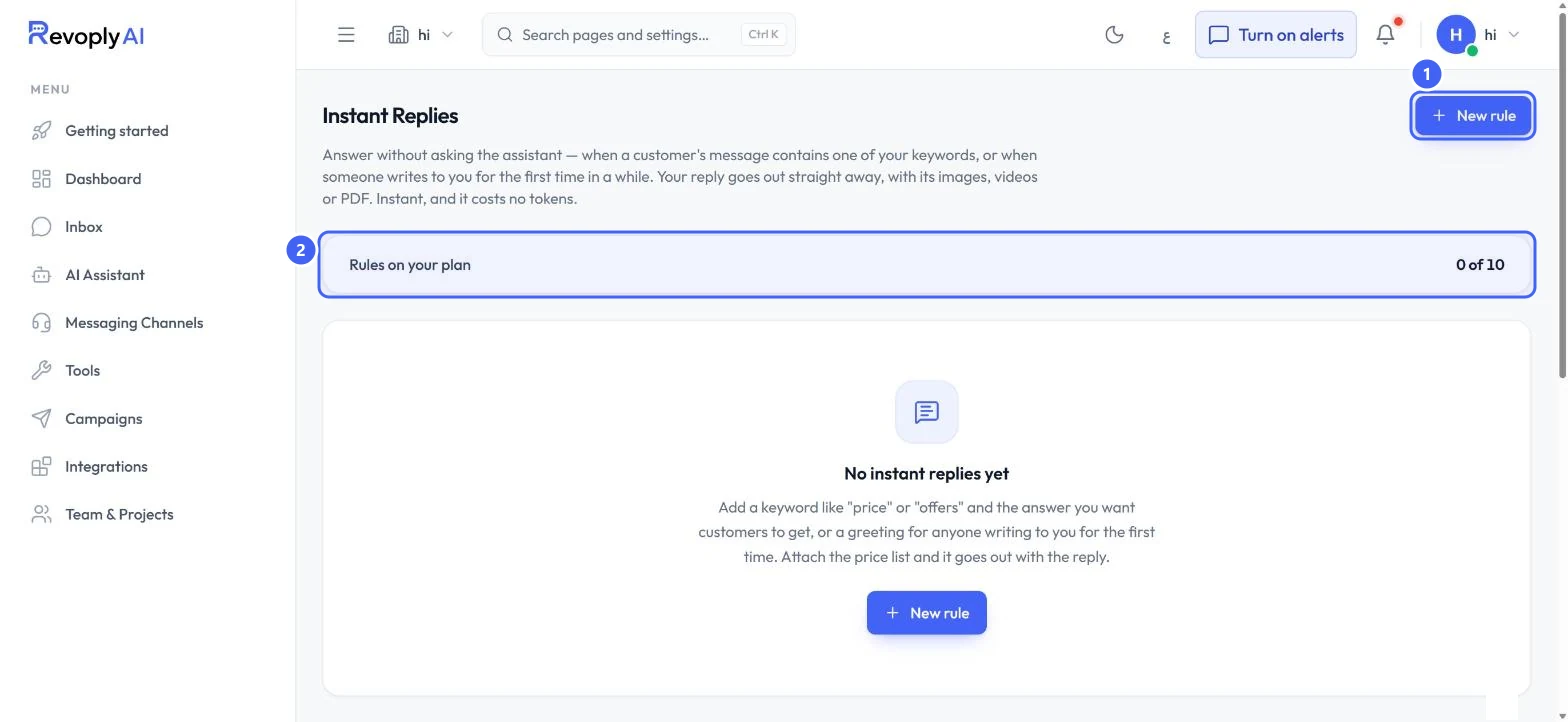
In Tools, select Settings on Instant Replies. Rules on your plan 2 shows how many you have used: 10 on this plan. Select New rule 1.
 Open full size
Instant Replies before the first rule.
- 1New rule
- 2Rules on your plan
Step 2: Choose when it is sent
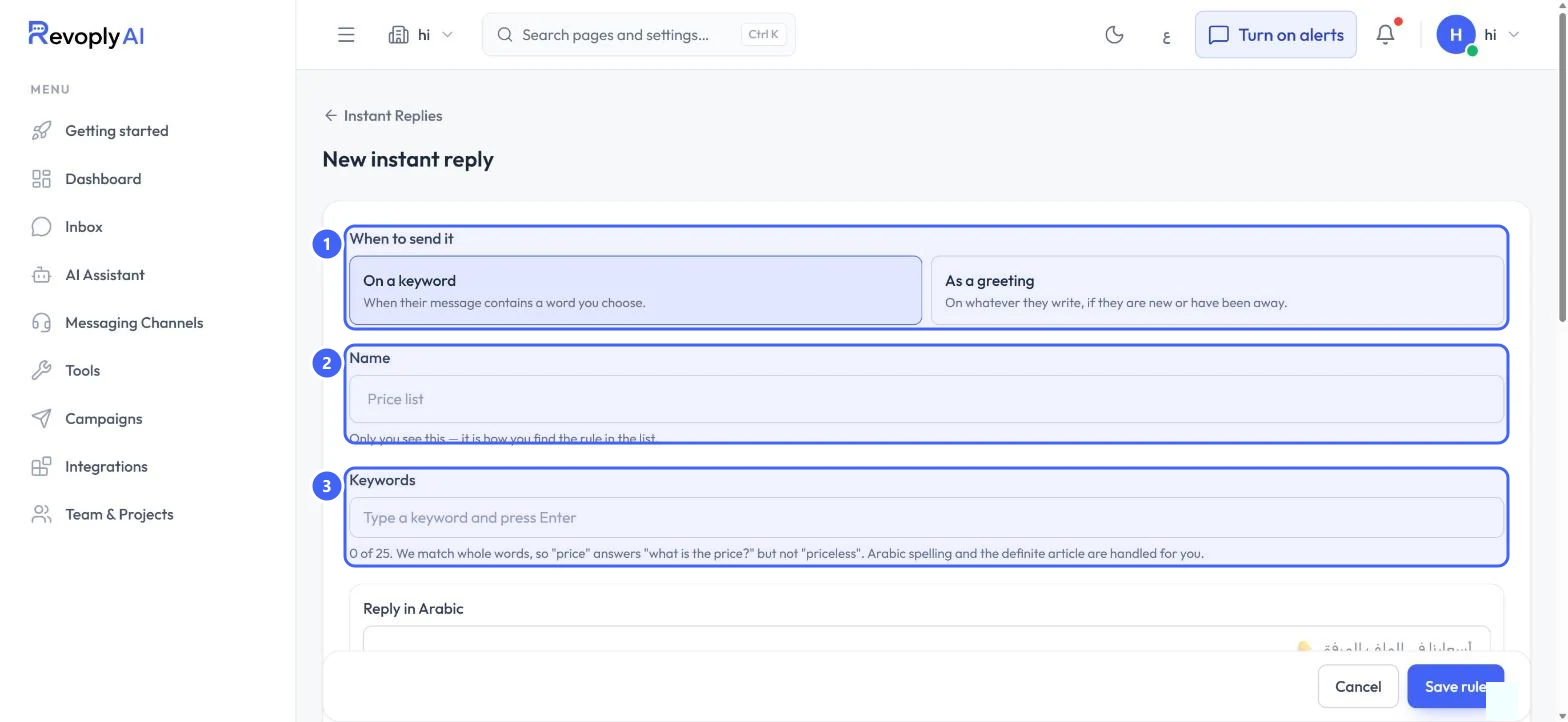
Under When to send it 1, pick On a keyword (when their message contains a word you choose) or As a greeting (on whatever they write, if they are new or have been away). Give the rule a Name 2: only you see it. For a keyword rule, type each word in Keywords 3 and press Enter, up to 25.
 Open full size
When to send it, Name and Keywords.
- 1When to send it
- 2Name
- 3Keywords
Keywords match whole words: "price" answers "what is the price?" but not "priceless". Arabic spelling and the definite article are handled for you.
Write the reply
Step 3: Write it in each language
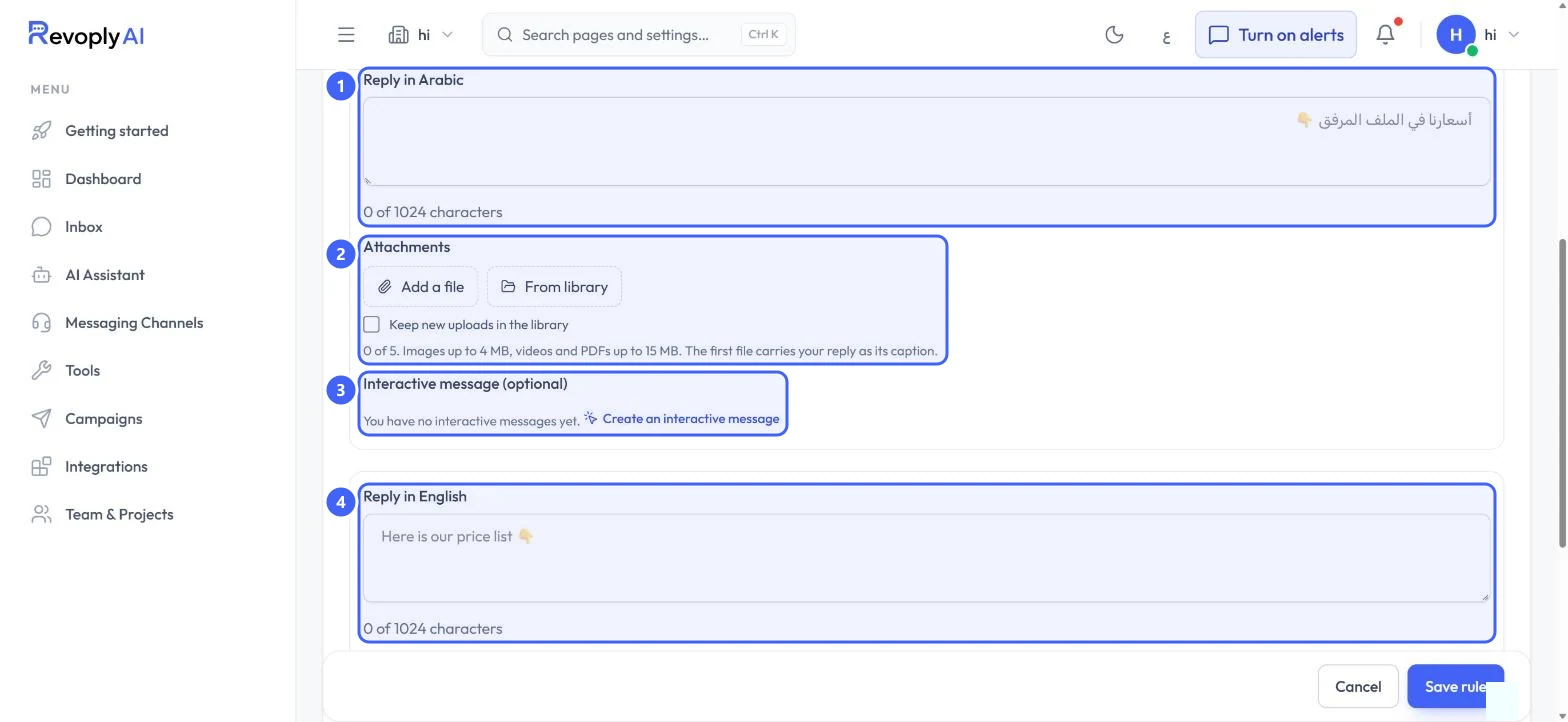
Write Reply in Arabic 1 and Reply in English 4, up to 1024 characters each. Under Attachments 2, Add a file or pick one From library: up to 5 files, images up to 4 MB, videos and PDFs up to 15 MB. The first file carries your reply as its caption. You can also attach an Interactive message (optional) 3.
 Open full size
The reply in Arabic and English, with attachments.
- 1Reply in Arabic
- 2Attachments
- 3Interactive message
- 4Reply in English
Step 4: Save the rule
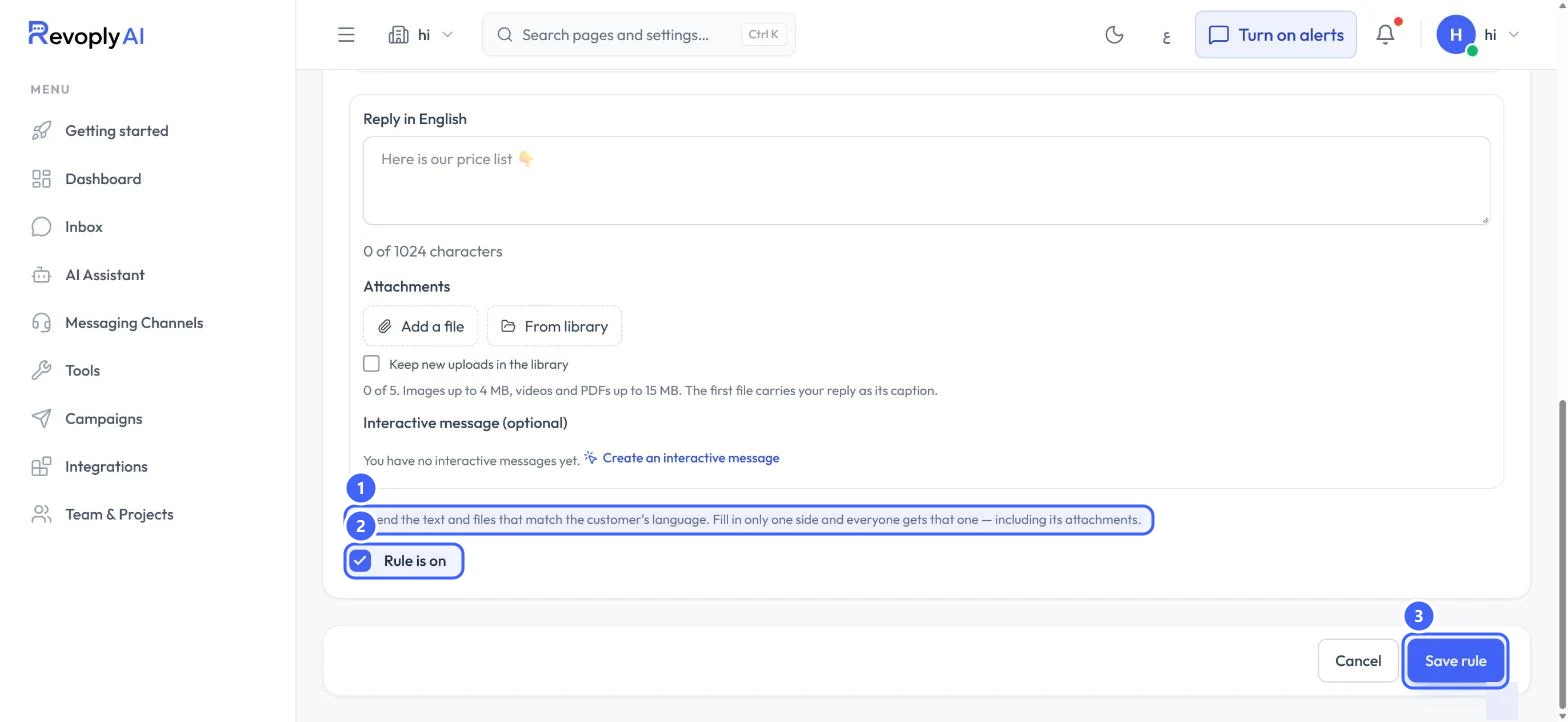
The note at the bottom 1 explains the languages: the customer gets the text and files in their language, and if you fill in only one side, everyone gets that one. Keep Rule is on 2 ticked and select Save rule 3.
 Open full size
Rule is on and Save rule.
- 1Language note
- 2Rule is on
- 3Save rule
Switch instant replies on
Step 5: Use the switch in Tools
Back in Tools, the Instant Replies card has its own switch. While the card shows Off, no rule is sent.
Expected result
A customer who writes your keyword, or writes to you for the first time, gets your reply and files at once.
Troubleshooting
A keyword does not trigger the reply.
Keywords match whole words only. Check the rule is on, the Instant Replies card in Tools is on, and the word is not part of a longer word.
The customer got the English reply in an Arabic chat.
Only one side was filled in, so everyone gets that one. Fill in Reply in Arabic too.
Still stuck?
A real person answers every message. Tell us the page you were on and what you saw.