Overview
The File Library keeps the files you send to customers in one place. Replace a file here and everything that sends it uses the new version.
What you will achieve
- Upload a file.
- Know the size limits and how many files your plan holds.
Who this guide is for
Owners and admins.
Before you start
- The file you want to reuse: an image, a video or a PDF.
Upload a file
Step 1: Open File Library
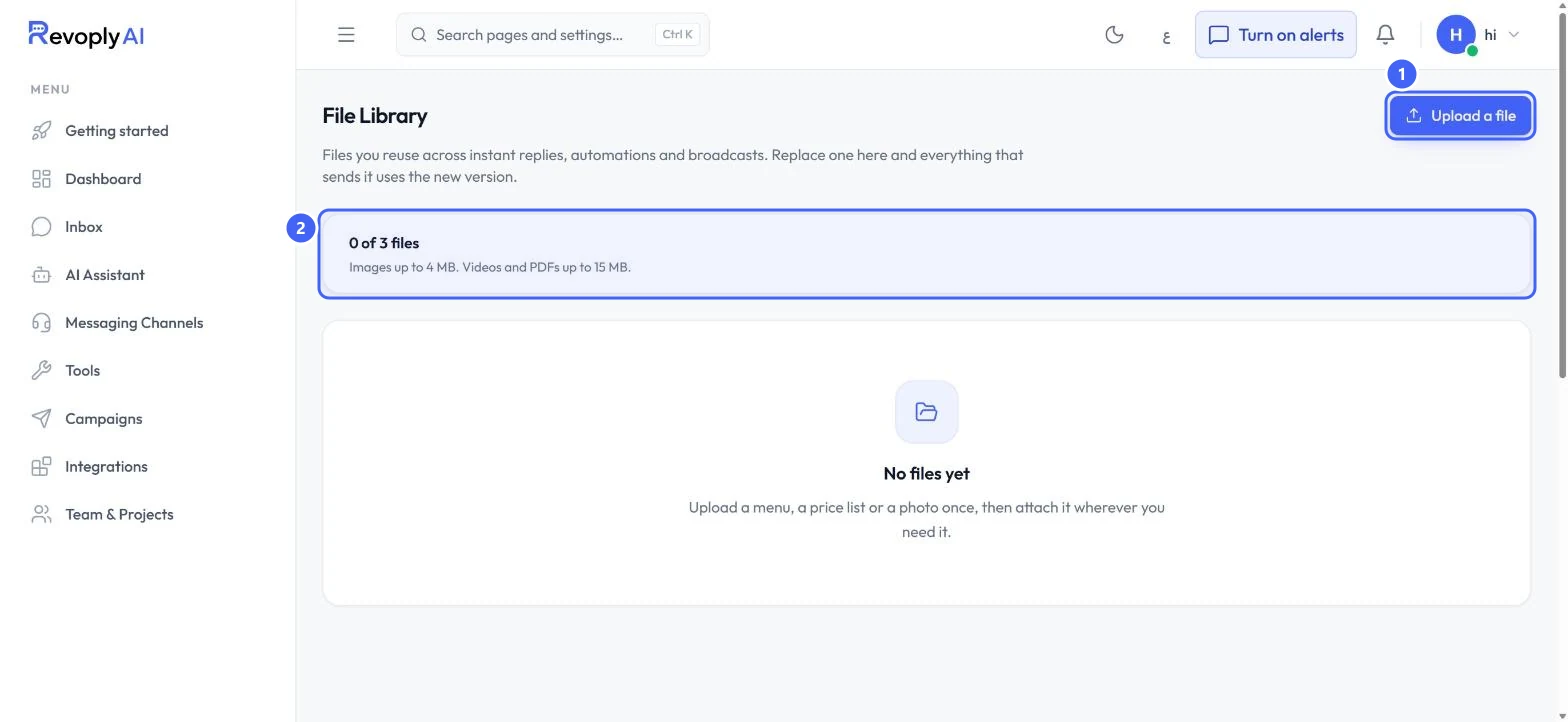
In Tools, select Open on File Library. The page shows how many files you have out of your plan's allowance 2, for example 0 of 3 files.
 Open full size
File Library.
- 1Upload a file
- 2Files used and size limits
Step 2: Upload
Select Upload a file 1 and choose the file. Images can be up to 4 MB, videos and PDFs up to 15 MB.
The library is for files you send to customers. To teach the assistant, use the knowledge base instead: files there are read, not sent.
Expected result
The file appears in the library, ready to attach wherever you need it.
Troubleshooting
The upload is refused.
Check the size: images up to 4 MB, videos and PDFs up to 15 MB. Also check that you have not reached the number of files your plan holds.
Still stuck?
A real person answers every message. Tell us the page you were on and what you saw.