Overview
Integrations are business systems the assistant reads from when it answers. Some are for stores and catalogs, others connect your own systems through the RevoplyAI API.
What you will achieve
- Know which store connections are open.
- Know where the developer tools are and which plan they need.
Who this guide is for
Owners and admins, and the developer who looks after your systems.
Before you start
- You are signed in as an owner or an admin.
Stores and catalogs
Step 1: Connect the Meta catalog
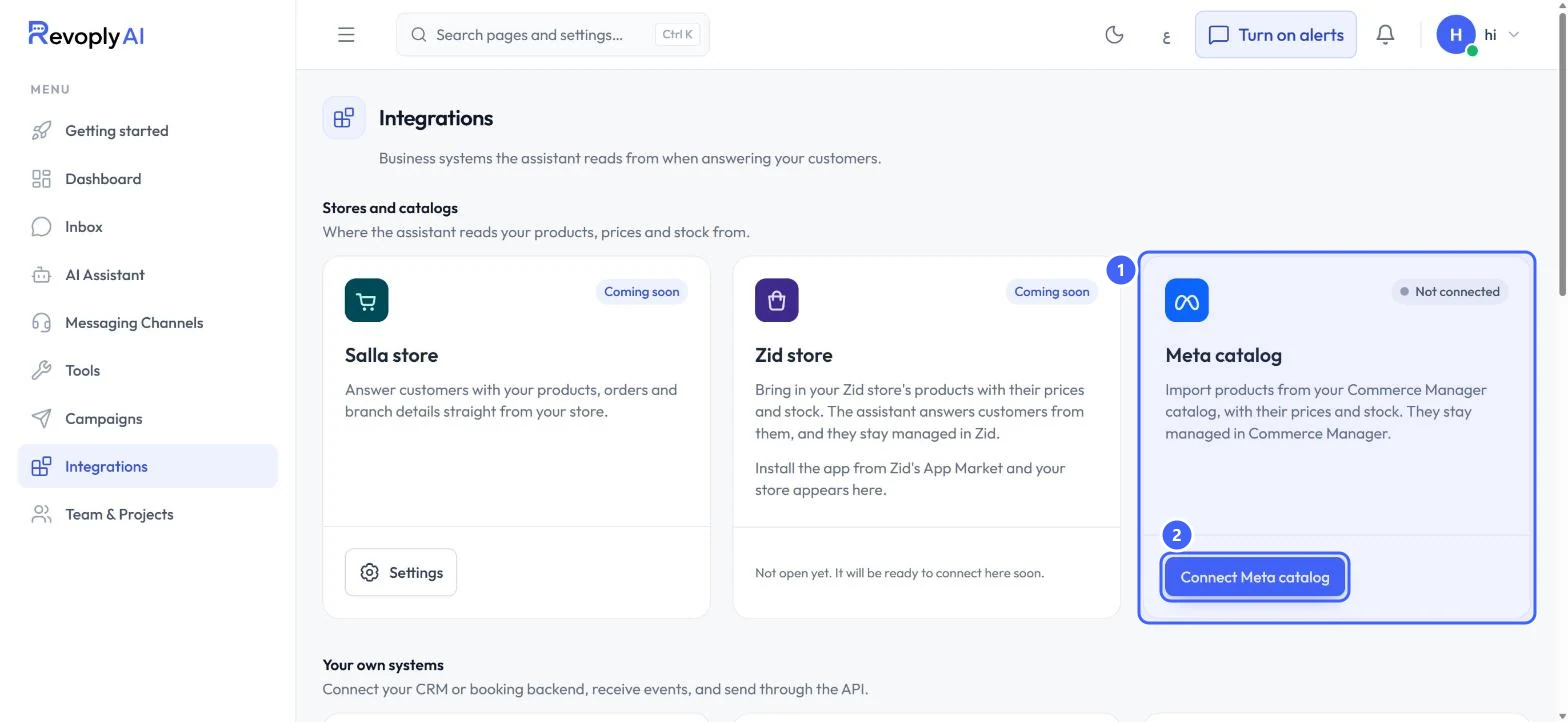
Select Integrations in the menu. Meta catalog 1 imports products from your Commerce Manager catalog, with their prices and stock; they stay managed in Commerce Manager. Select Connect Meta catalog 2 to start. Salla and Zid are marked Coming soon.
 Open full size
Stores and catalogs.
- 1Meta catalog
- 2Connect Meta catalog
Your own systems
Step 2: Developer tools
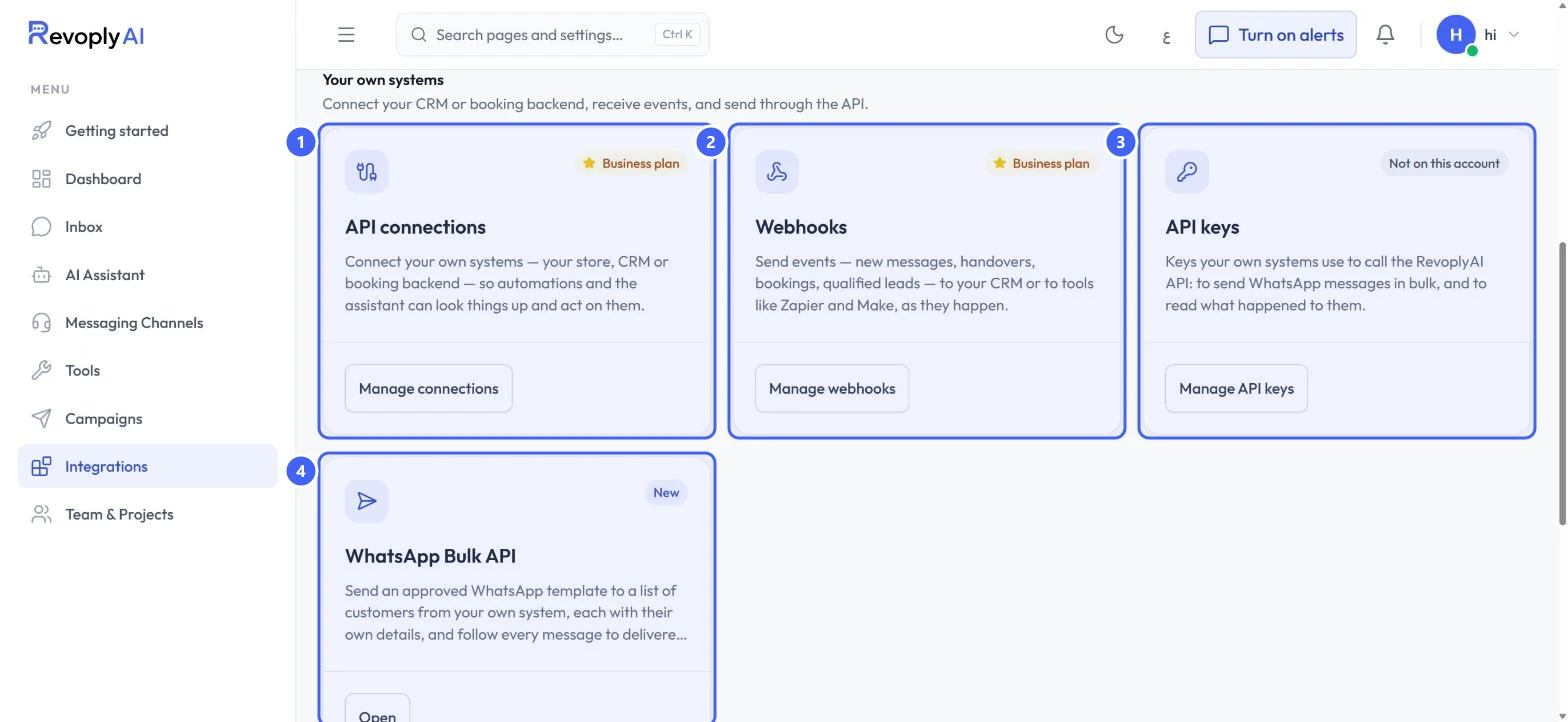
API connections 1 connect your store, CRM or booking backend so automations and the assistant can look things up. Webhooks 2 send events such as new messages, handovers, bookings and qualified leads to your CRM or to tools like Zapier and Make. Both are on the Business plan. API keys 3 let your systems call the RevoplyAI API. WhatsApp Bulk API 4 sends an approved template to a list from your own system.
 Open full size
Your own systems.
- 1API connections
- 2Webhooks
- 3API keys
- 4WhatsApp Bulk API
The technical details for developers, including the API reference and webhook events, are at docs.revoplyai.com.
Expected result
You know which integrations you can open now, and where your developer should start.
Troubleshooting
API keys says Not on this account.
API keys are not included on your current plan or account. The card shows that state instead of an error.
Still stuck?
A real person answers every message. Tell us the page you were on and what you saw.