Overview
An AI action lets the assistant call your own API while it talks to a customer. Every action goes through a connection: the address of your system and how to sign in to it. Automations use the same connections from their Call your system step.
The screenshots use a test connection to example.com that was switched off. No AI action was saved or tested, so the result of a test call is not shown.
What you will achieve
- Add an API connection.
- Describe an AI action: what it calls, what the assistant fills in, and what it reads back.
- Test the action before you rely on it.
Who this guide is for
Owners and admins with a developer or an existing API, on the Business plan.
Before you start
- The Business plan.
- Your system's public base URL, starting with https://, and its credential.
Add a connection
Step 1: Open API connections
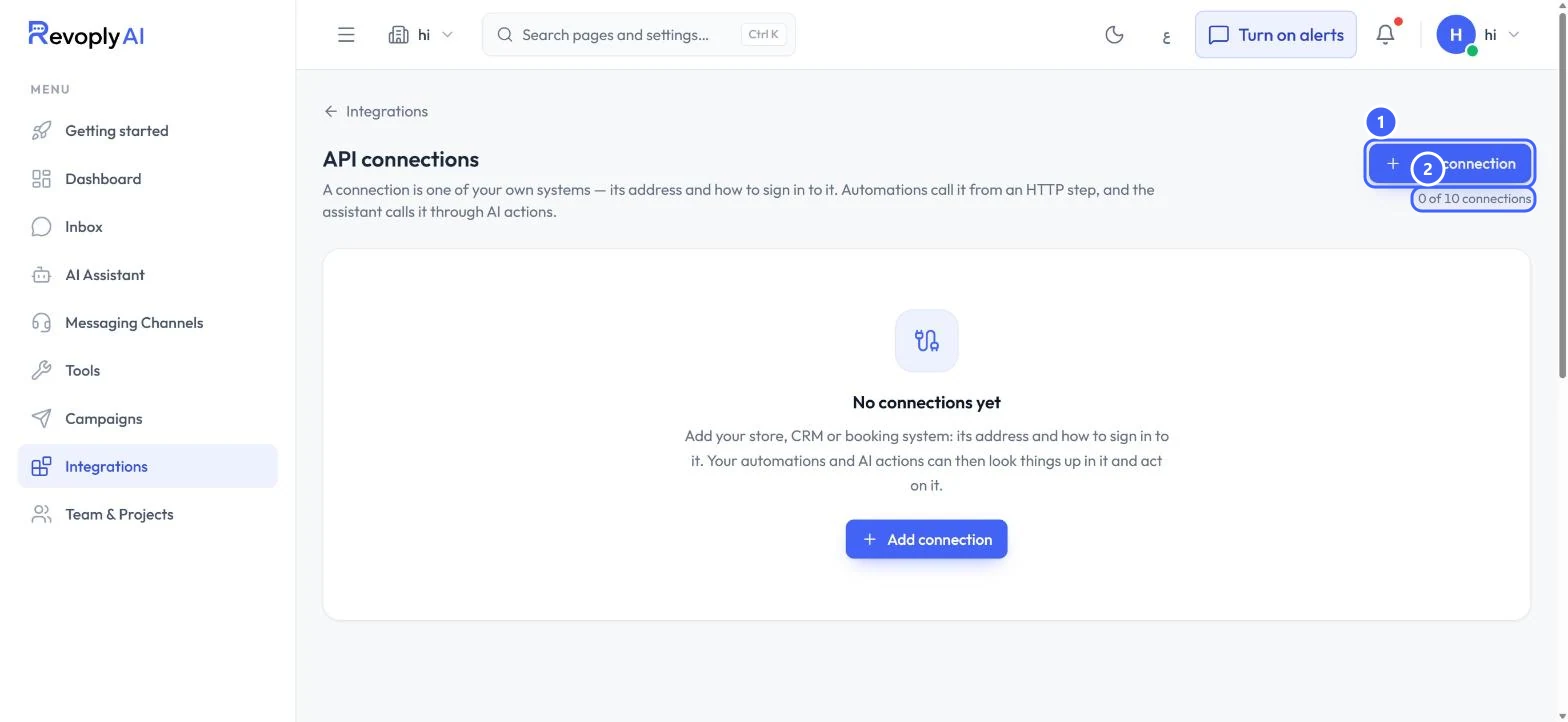
Open Integrations and select API connections. Select Add connection 1. The count 2 shows 0 of 10 on this plan.
 Open full size
API connections before the first one.
- 1Add connection
- 2Connections used
Step 2: Fill in the connection
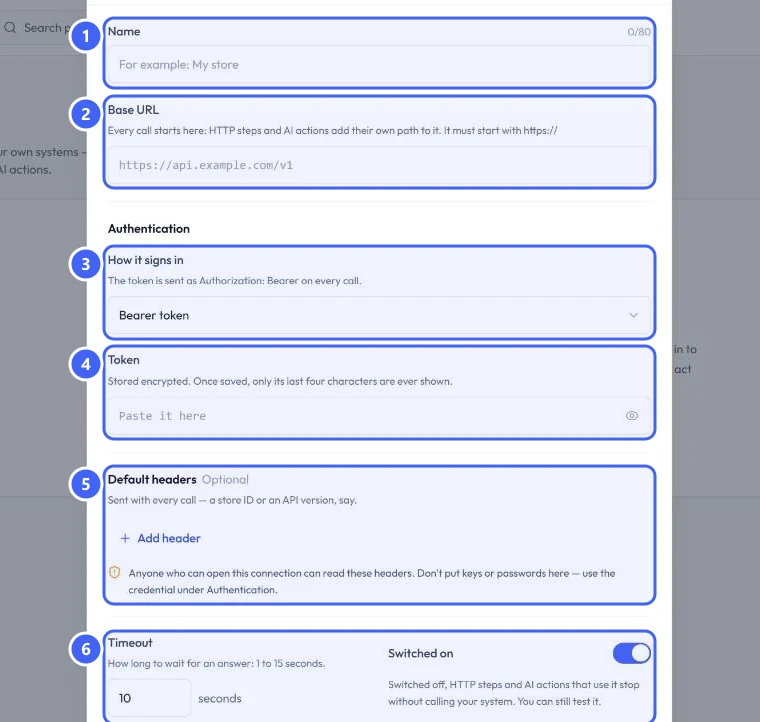
Type a Name 1; HTTP steps and AI actions pick it by name. Enter the Base URL 2: every call starts there, and it must start with https://. Under How it signs in 3, choose No authentication, Bearer token, Username and password, API key in a header or API key in the URL, then paste the credential 4. Add Default headers 5, such as a store ID, if every call needs them. Set the Timeout 6 from 1 to 15 seconds, and select Add connection at the bottom.
 Open full size
The Add a connection dialog.
- 1Name
- 2Base URL
- 3How it signs in
- 4Token
- 5Default headers
- 6Timeout and Switched on
Anyone who can open the connection can read its default headers. Put keys and passwords under Authentication, never in a header. The token is stored encrypted and only its last four characters are shown after saving.
Step 3: Use a public address
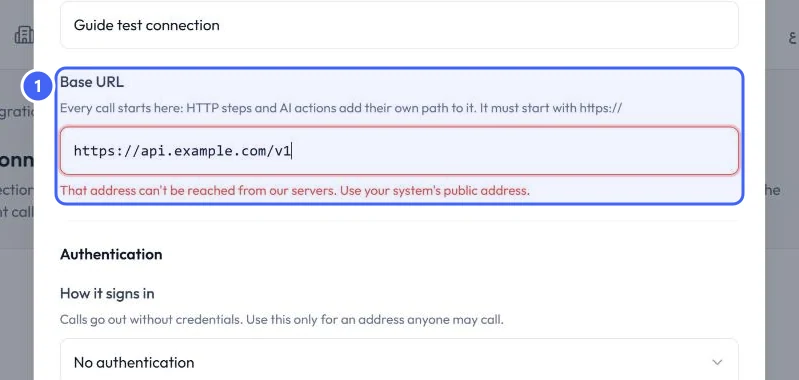
RevoplyAI checks the address when you save. If it cannot reach it, the Base URL turns red 1 with That address can't be reached from our servers. Use your system's public address. An address on your own network or a made-up domain is refused.
 Open full size
An address RevoplyAI cannot reach.
- 1Base URL error
Step 4: Check the saved connection
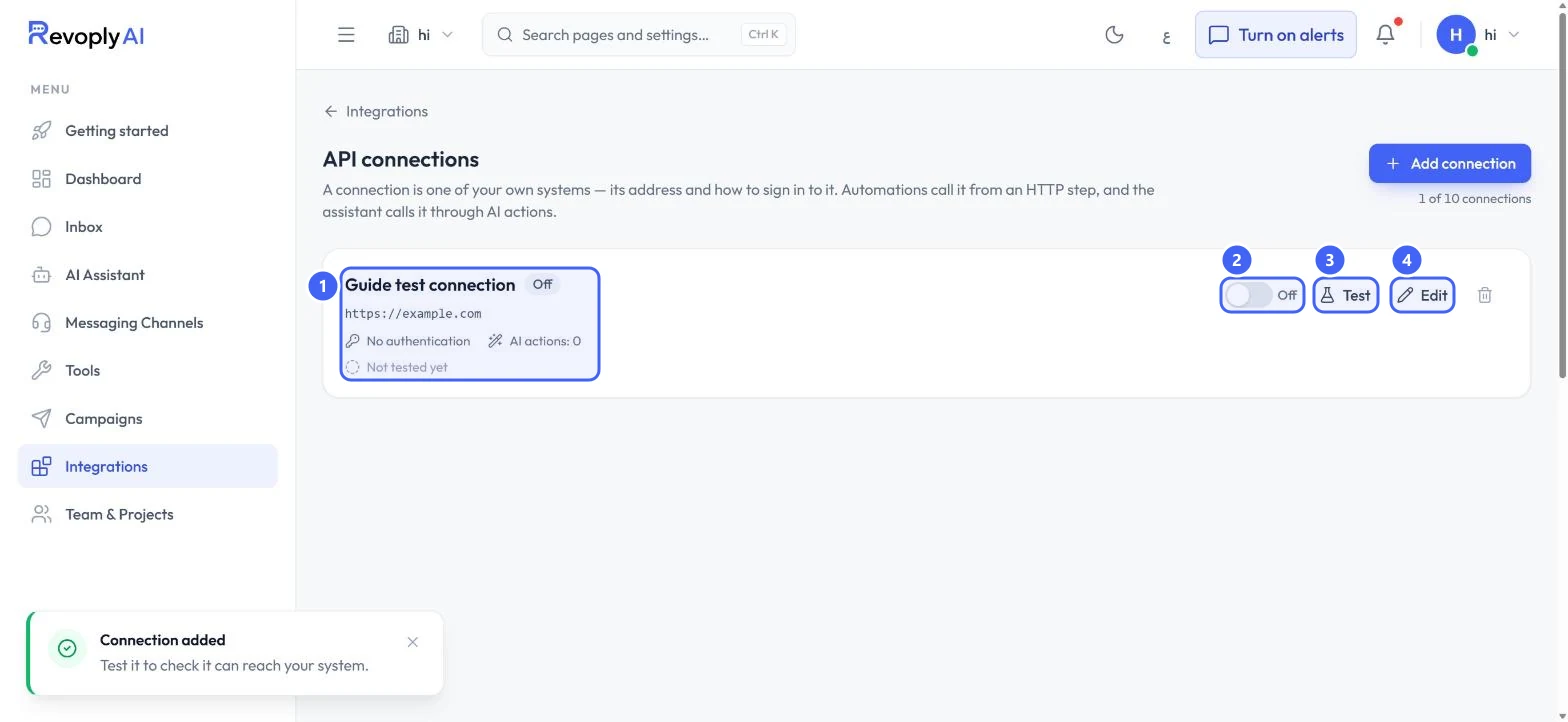
The connection appears as a card 1 with its address, how it signs in, how many AI actions use it, and Not tested yet. Use its switch 2 to turn it on or off. Test 3 checks it can reach your system, and Edit 4 changes it.
 Open full size
A saved test connection, switched off.
- 1Connection
- 2Switch
- 3Test
- 4Edit
Switched off, HTTP steps and AI actions that use the connection stop without calling your system. You can still test it.
Describe an AI action
Step 5: Open AI actions
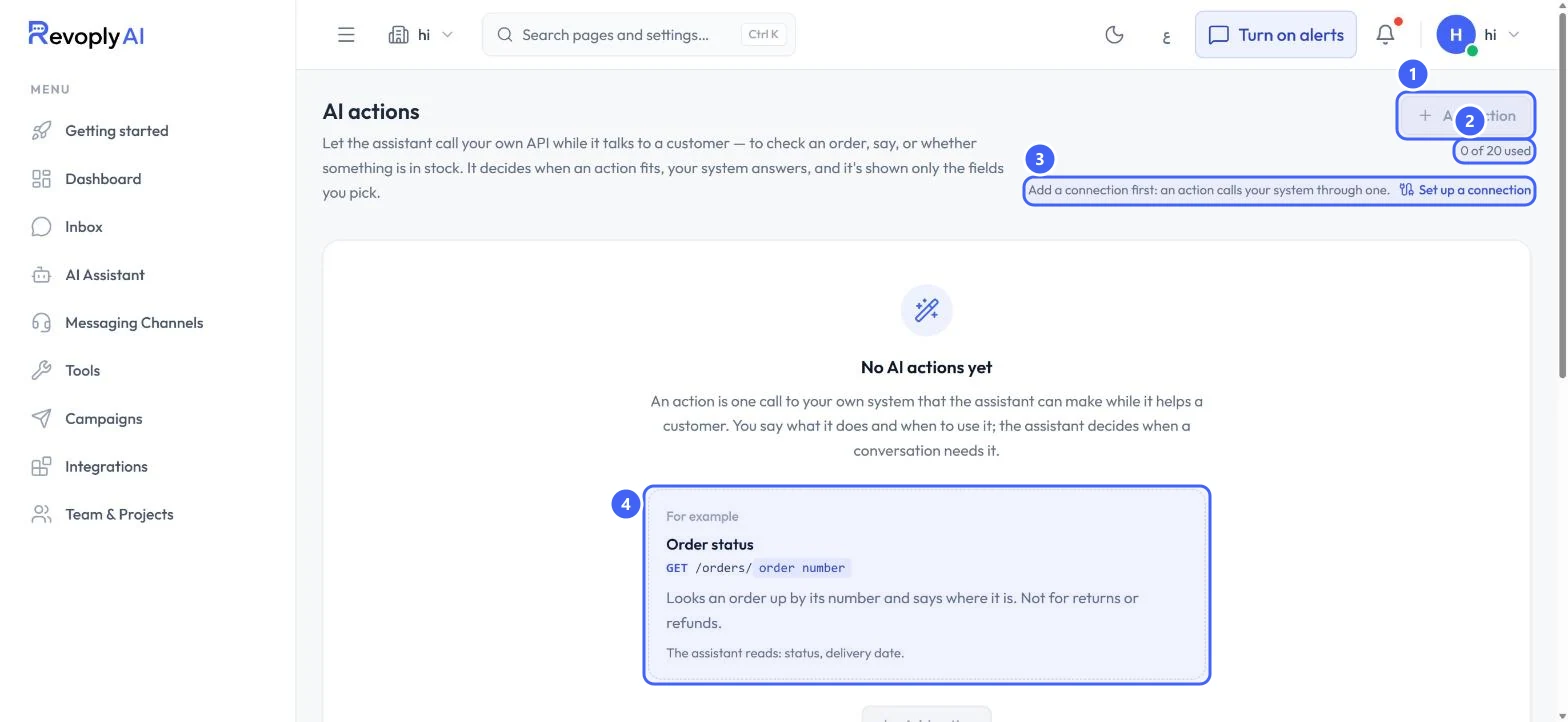
In Tools, select Manage AI actions. Without a connection, Add action 1 stays unavailable and the page says Add a connection first with a link to Set up a connection 3. The count 2 shows 0 of 20. The example 4 shows what an action is: Order status looks an order up by its number, and the assistant reads only the status and delivery date.
 Open full size
AI actions before the first connection.
- 1Add action
- 2Actions used
- 3Set up a connection
- 4Example action
Step 6: The basics
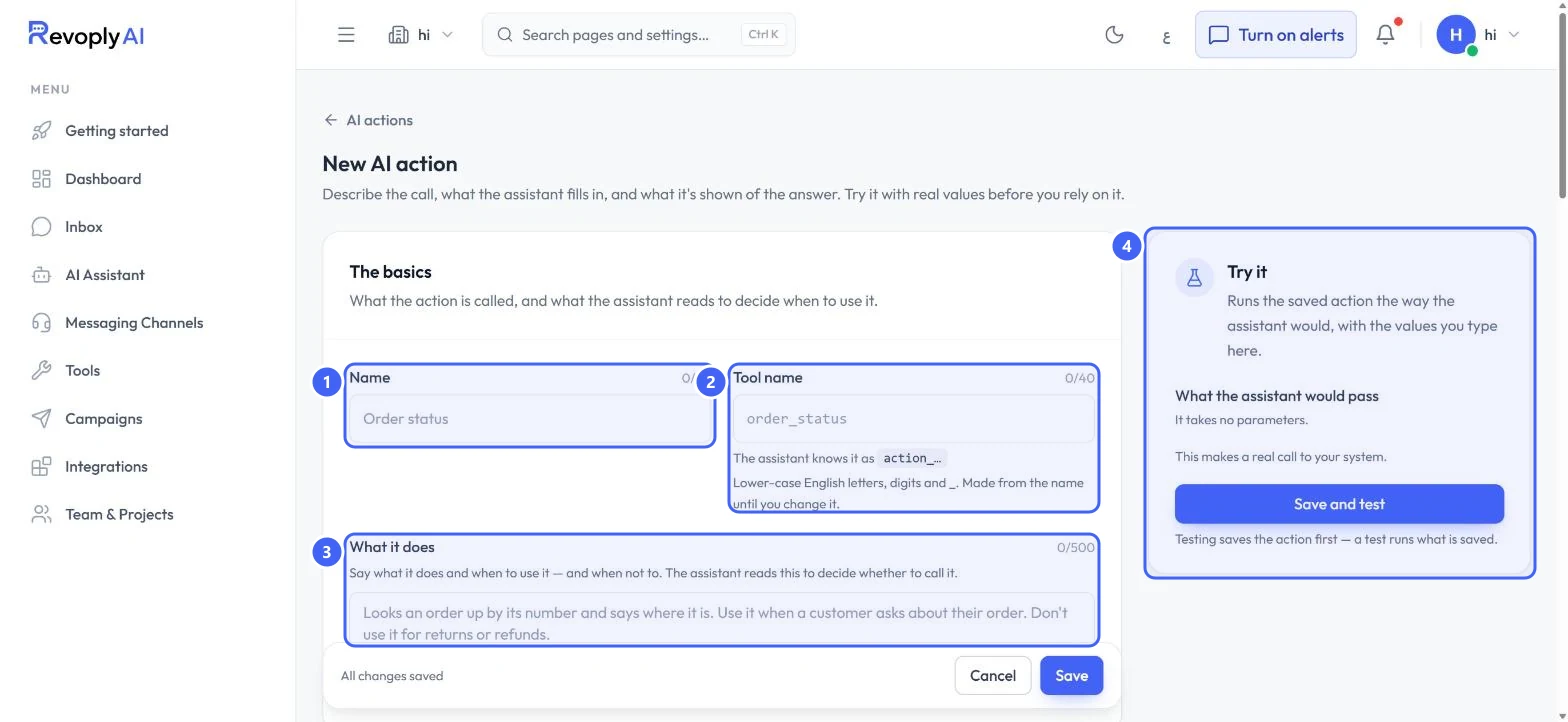
Select Add action. Give it a Name 1. The Tool name 2 is made from the name in lower-case English letters, digits and _; the assistant knows it as action_ followed by it. What it does 3 is what the assistant reads to decide whether to call it: say what it does and when to use it, and when not to. Try it 4 runs the saved action the way the assistant would.
 Open full size
New AI action: the basics and Try it.
- 1Name
- 2Tool name
- 3What it does
- 4Try it
Step 7: The request
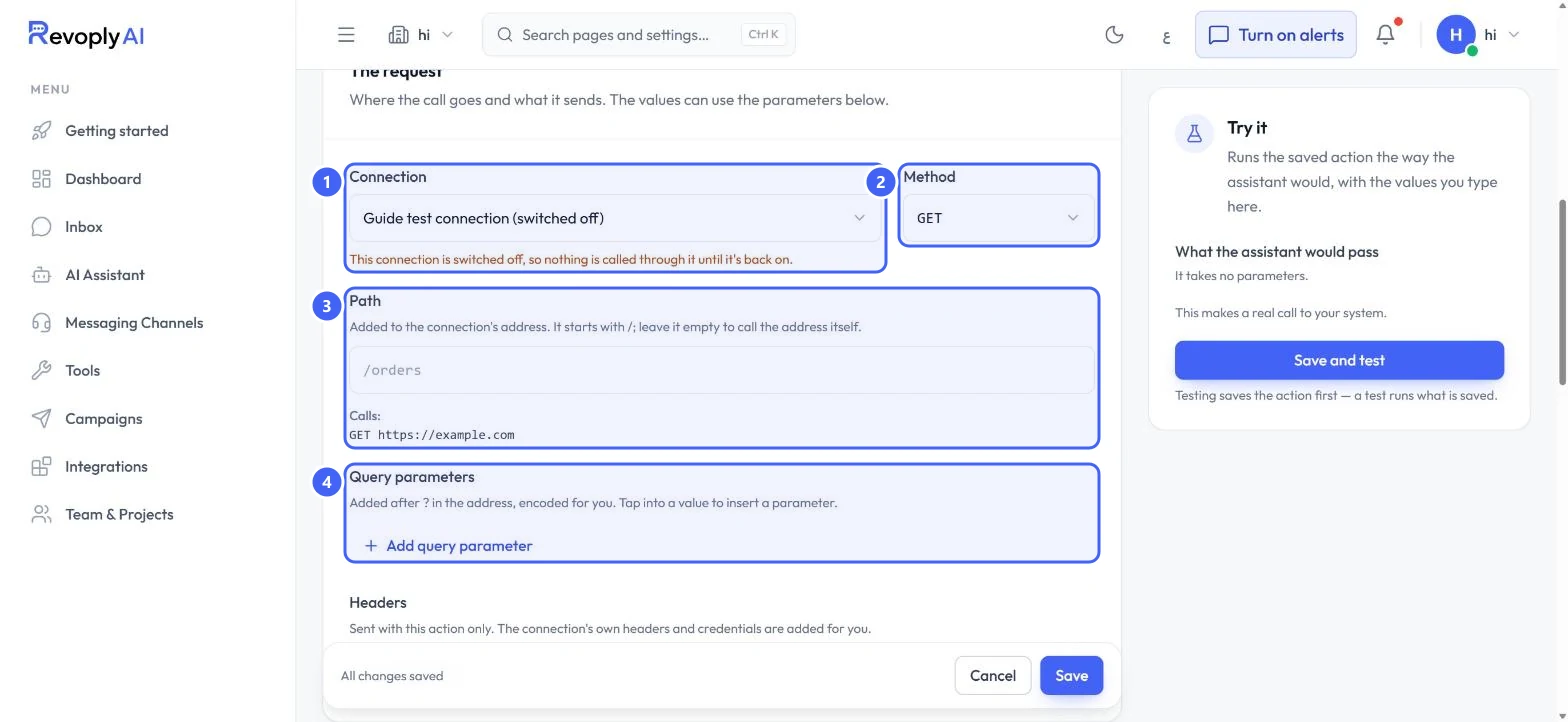
Pick the Connection 1 and the Method 2: GET, POST, PUT, PATCH or DELETE. Add the Path 3, which is added to the connection's address; the line under it shows the full call. Add Query parameters 4 and Headers if the call needs them. A switched-off connection shows a warning here, and nothing is called through it until it is back on.
 Open full size
The request, using the test connection.
- 1Connection
- 2Method
- 3Path and the full call
- 4Query parameters
Step 8: What the assistant fills in
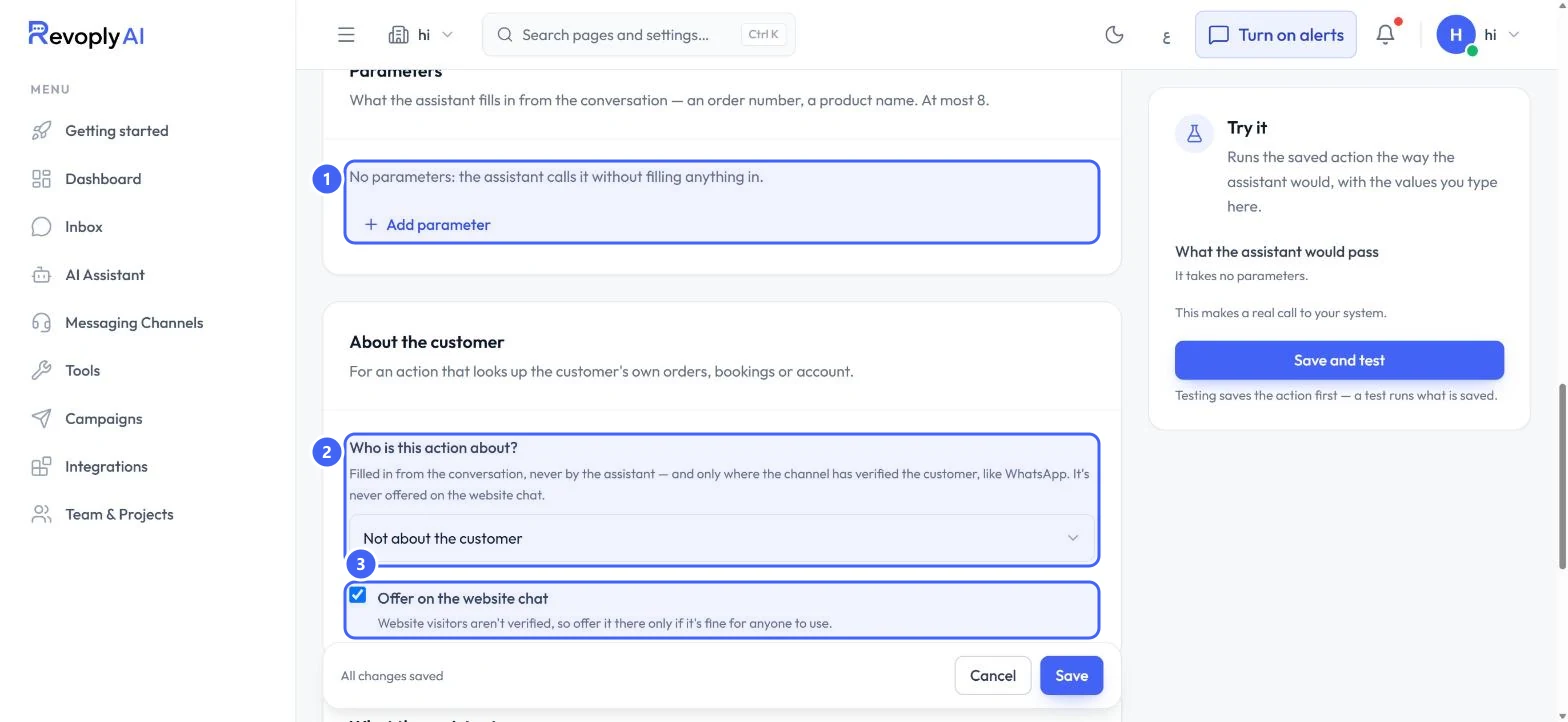
Under Parameters 1, add what the assistant fills in from the conversation, such as an order number, at most 8. Under About the customer, Who is this action about? 2 passes the customer's phone number, email or RevoplyAI id for an action that looks up their own orders or bookings; it is filled in from the conversation, never by the assistant, and only where the channel has verified the customer. Offer on the website chat 3 decides whether the action is offered there.
 Open full size
Parameters and About the customer.
- 1Parameters
- 2Who is this action about?
- 3Offer on the website chat
Website visitors are not verified. Offer an action on the website chat only if it is fine for anyone to use.
Step 9: What the assistant reads back
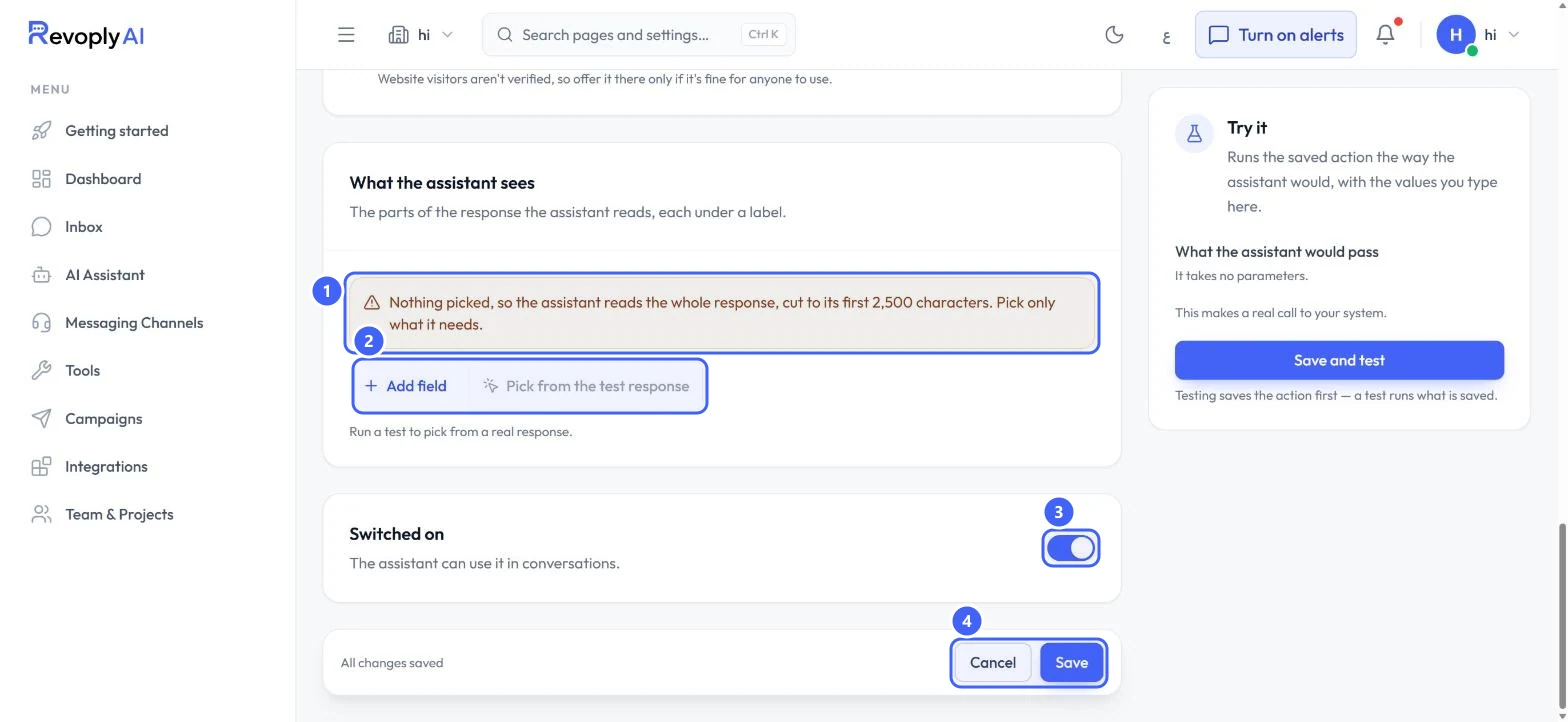
Under What the assistant sees, pick the parts of the response it reads. With nothing picked 1, it reads the whole response, cut to its first 2,500 characters. Use Add field, or Pick from the test response 2 after a test run. The Switched on switch 3 lets the assistant use the action. Select Save 4, or Save and test under Try it.
 Open full size
What the assistant sees, the switch and Save.
- 1Nothing picked yet
- 2Add field and Pick from the test response
- 3Switched on
- 4Cancel and Save
Testing saves the action first and makes a real call to your system. Test with real values before you rely on it.
Expected result
The assistant calls your system when a conversation needs it, and answers from the fields you picked.
Troubleshooting
Add action is greyed out.
An action calls your system through a connection. Add a connection in Integrations first.
Saving the connection says the address can't be reached.
Use your system's public https:// address. RevoplyAI's servers must be able to reach it from the internet.
Calls stop without reaching my system.
Check the connection is switched on. Switched off, HTTP steps and AI actions that use it stop without calling your system.
Still stuck?
A real person answers every message. Tell us the page you were on and what you saw.