Overview
Your assistant already answers customers. Add an automation only where you want a fixed path; everywhere else the assistant keeps answering as it does now. You build it on a canvas, step by step, try it in a preview that sends nothing, and publish it when it is ready.
The screenshots come from a test draft built from the Welcome menu template. It was never published.
What you will achieve
- Create an automation from a template or from scratch.
- Choose what starts it and edit its steps.
- Try it in the preview, then publish it.
Who this guide is for
Owners and admins who want certain conversations to follow the same steps every time.
Before you start
- The Pro or Business plan.
Choose a starting point
Step 1: Open Automations
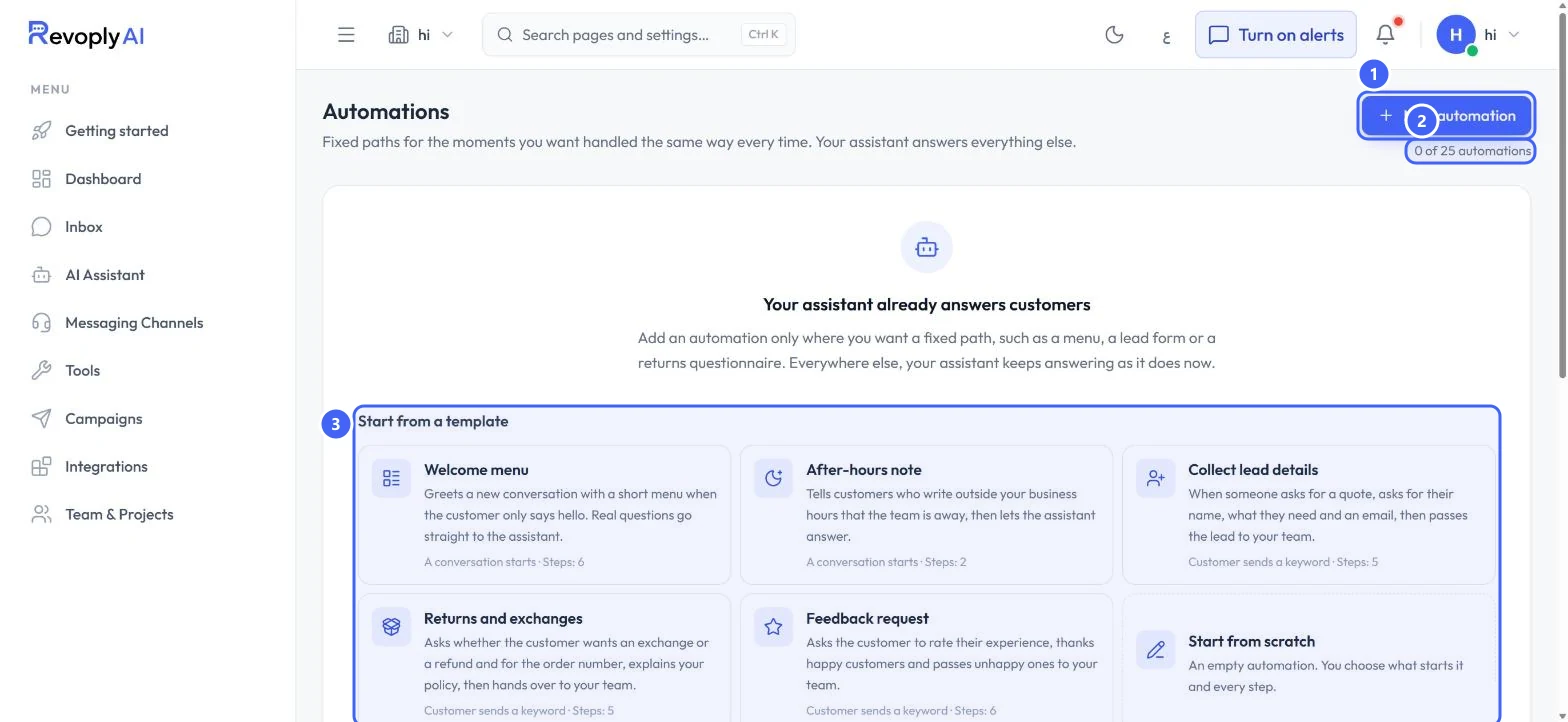
In Tools, select Manage on Automations. Under the count 2, 0 of 25 on this plan, Start from a template 3 lists ready paths: Welcome menu, After-hours note, Collect lead details, Returns and exchanges and Feedback request. Each card says what starts it and how many steps it has. Select New automation 1 or a card.
 Open full size
Automations with its templates.
- 1New automation
- 2Automations used
- 3Templates
Step 2: Create it
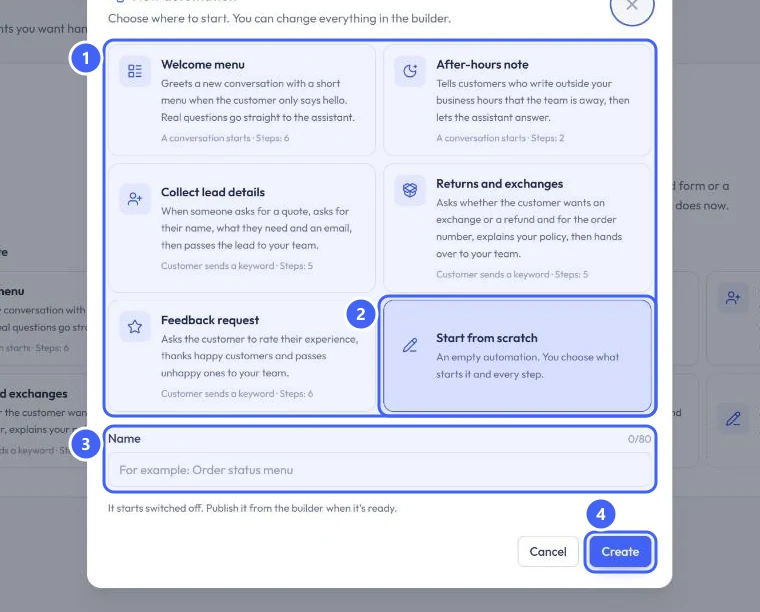
In New automation, pick a template 1 or Start from scratch 2: an empty automation where you choose what starts it and every step. Type a Name 3, or leave it empty to use the template's name, and select Create 4. The builder opens.
 Open full size
The New automation dialog.
- 1Templates
- 2Start from scratch
- 3Name
- 4Create
A new automation starts switched off. Nothing reaches a customer until you publish it and switch it on.
Find your way around the builder
Step 3: The builder
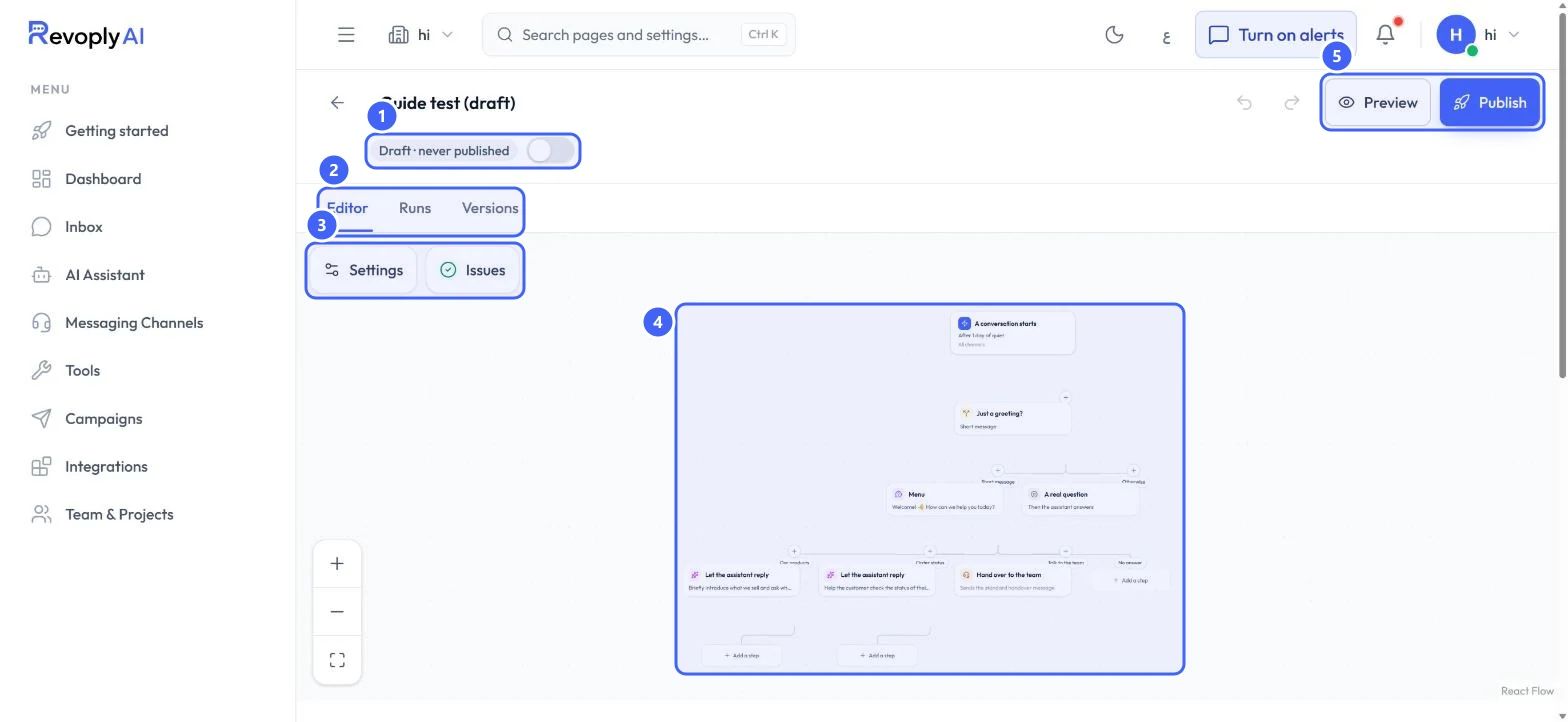
Under the name, Draft · never published and the switch 1 show the automation's state. Editor, Runs and Versions 2 are its tabs. Settings and Issues 3 open panels; Issues counts errors and warnings. The canvas 4 shows every step from the trigger down; use the zoom buttons or fit to screen in the corner. Preview and Publish 5 are at the top.
 Open full size
The builder with the Welcome menu template.
- 1State and switch
- 2Editor, Runs, Versions
- 3Settings and Issues
- 4Canvas
- 5Preview and Publish
Step 4: Choose what starts it
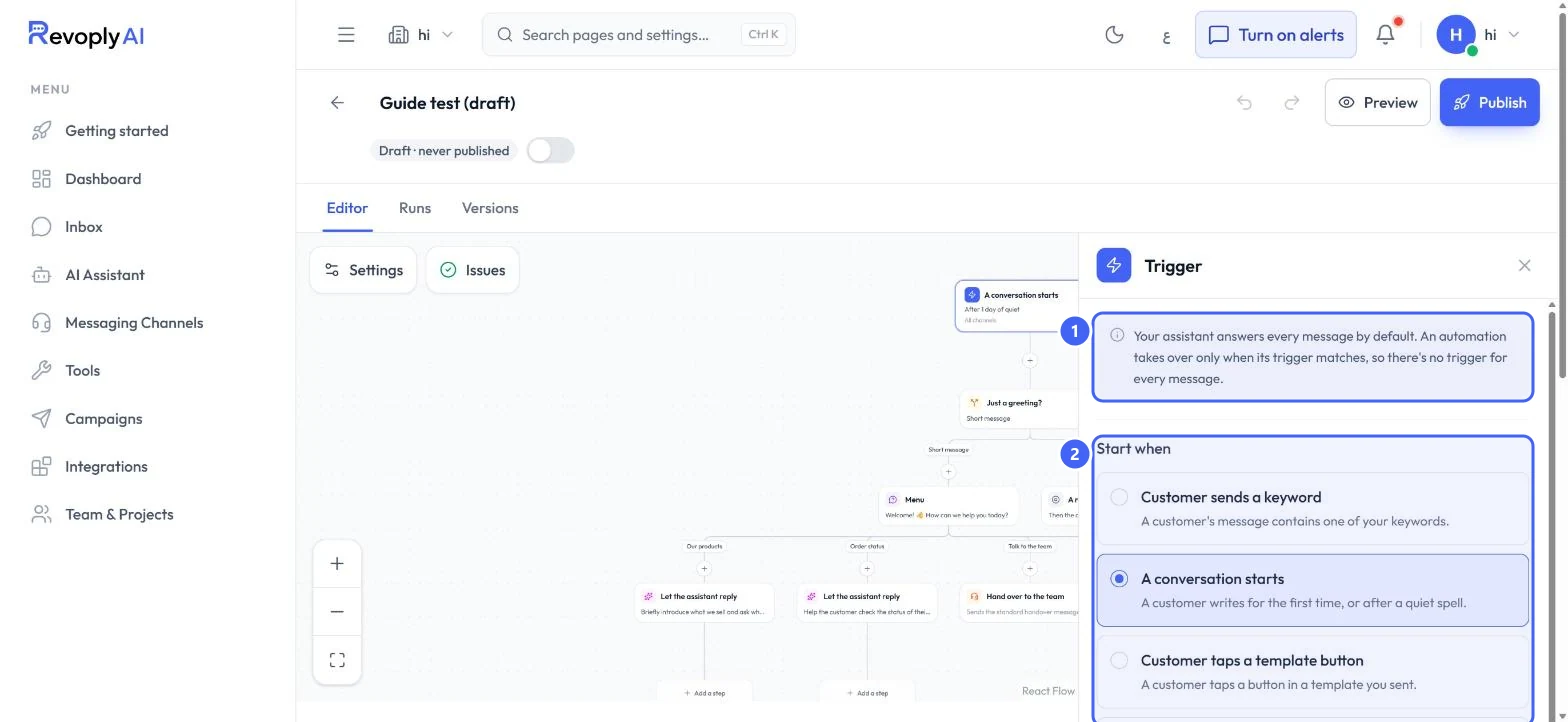
Select the first box on the canvas to open Trigger. Your assistant answers every message by default 1, so an automation takes over only when its trigger matches. Under Start when 2, pick Customer sends a keyword, A conversation starts, Customer taps a template button, Your team starts it or Your system sends an event. A conversation starts also asks how long the quiet spell is, from First message only to 30 days, and which channels it runs on.
 Open full size
The Trigger panel.
- 1How triggers work
- 2Start when
Edit the steps
Step 5: Open a step
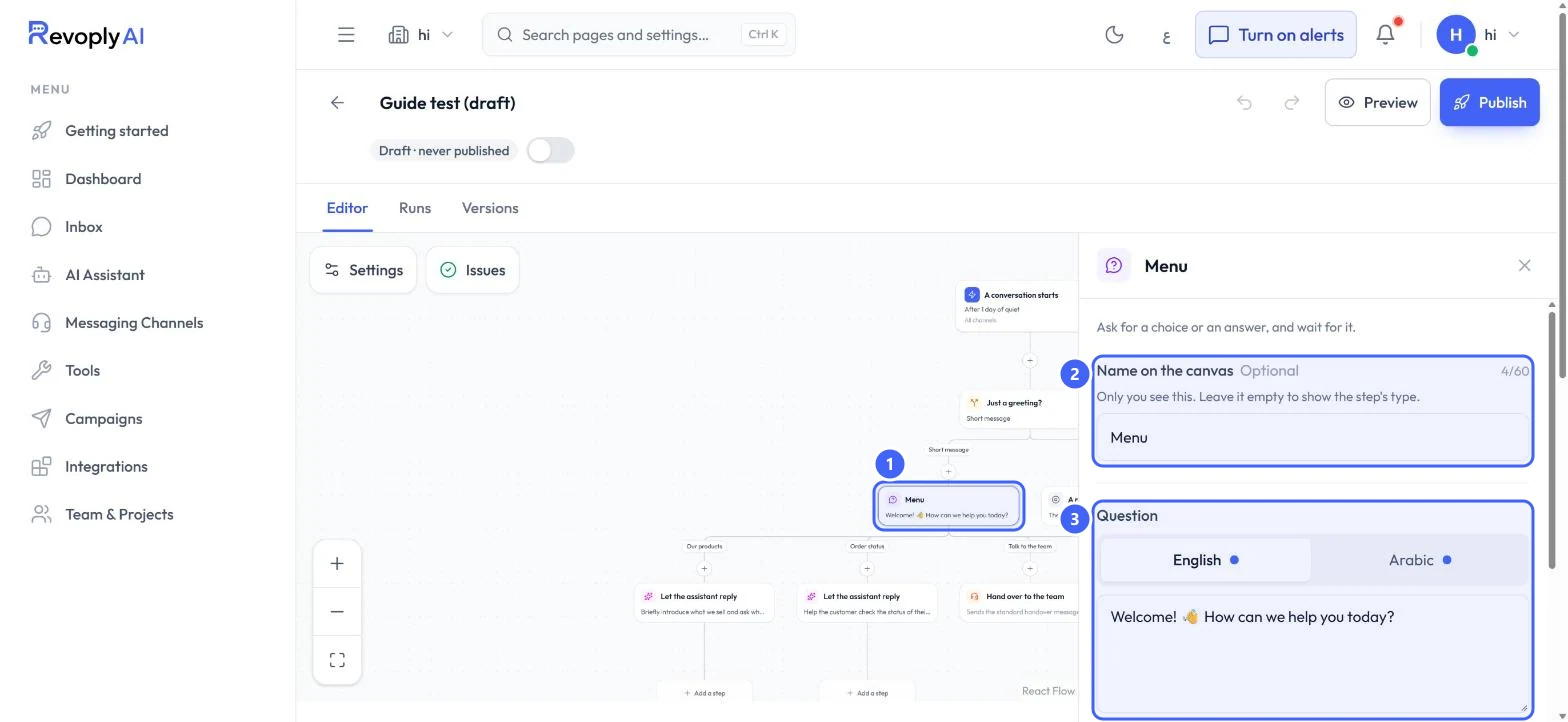
Select a step on the canvas 1 to edit it in the panel. Name on the canvas 2 is optional and only you see it. For a question, write the Question 3 in English and Arabic, using the tabs; Insert a value adds a saved answer or a customer detail.
 Open full size
The Menu step from the template.
- 1Selected step
- 2Name on the canvas
- 3Question in each language
Step 6: Set the answer you expect
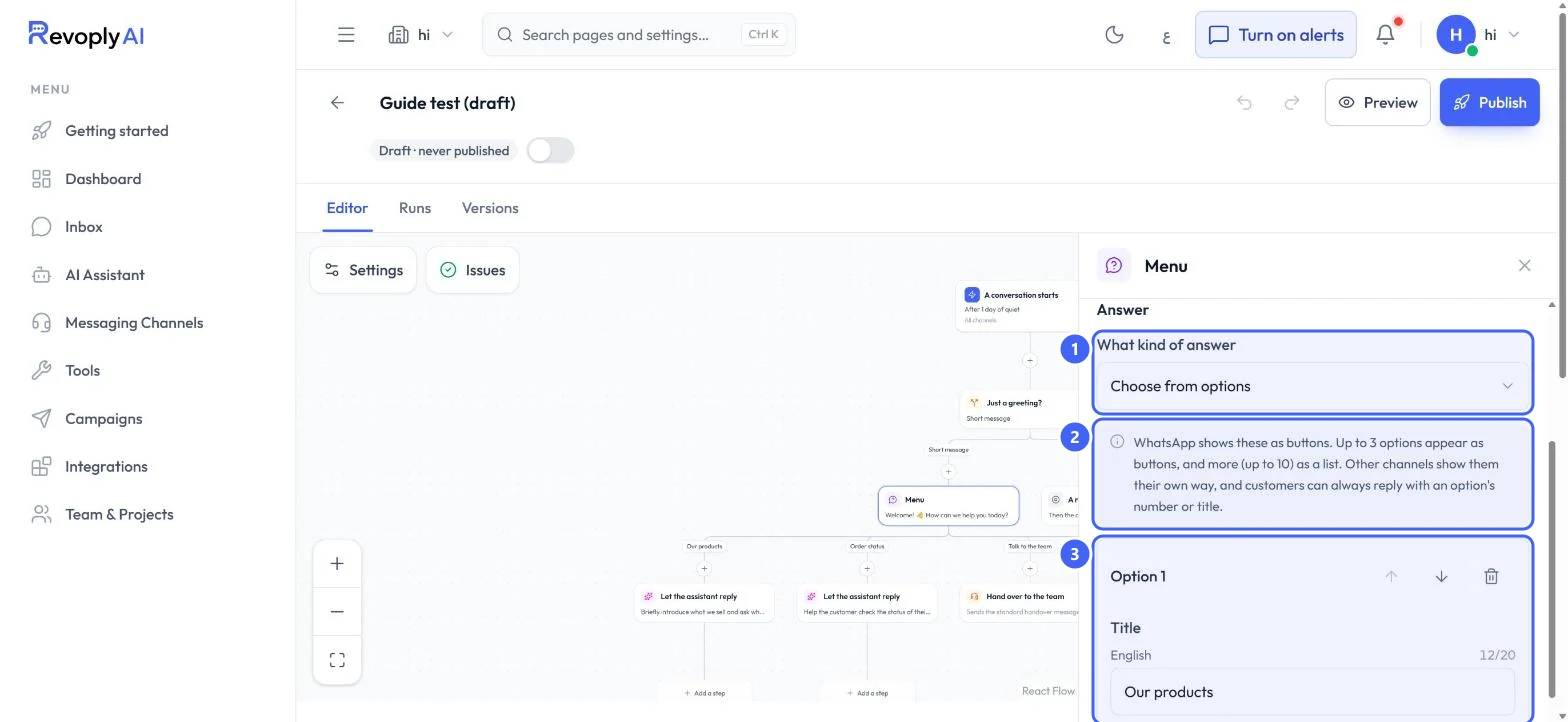
Under What kind of answer 1, pick Choose from options, Any text, A number, An email address or A phone number. With options, WhatsApp shows up to 3 as buttons and up to 10 as a list 2; customers can always reply with an option's number or title. Give each option 3 a title in both languages and, if you like, Other words for this option that pick it too.
 Open full size
Answer type and options.
- 1What kind of answer
- 2How options appear
- 3Option
Step 7: Decide what happens with a wrong answer
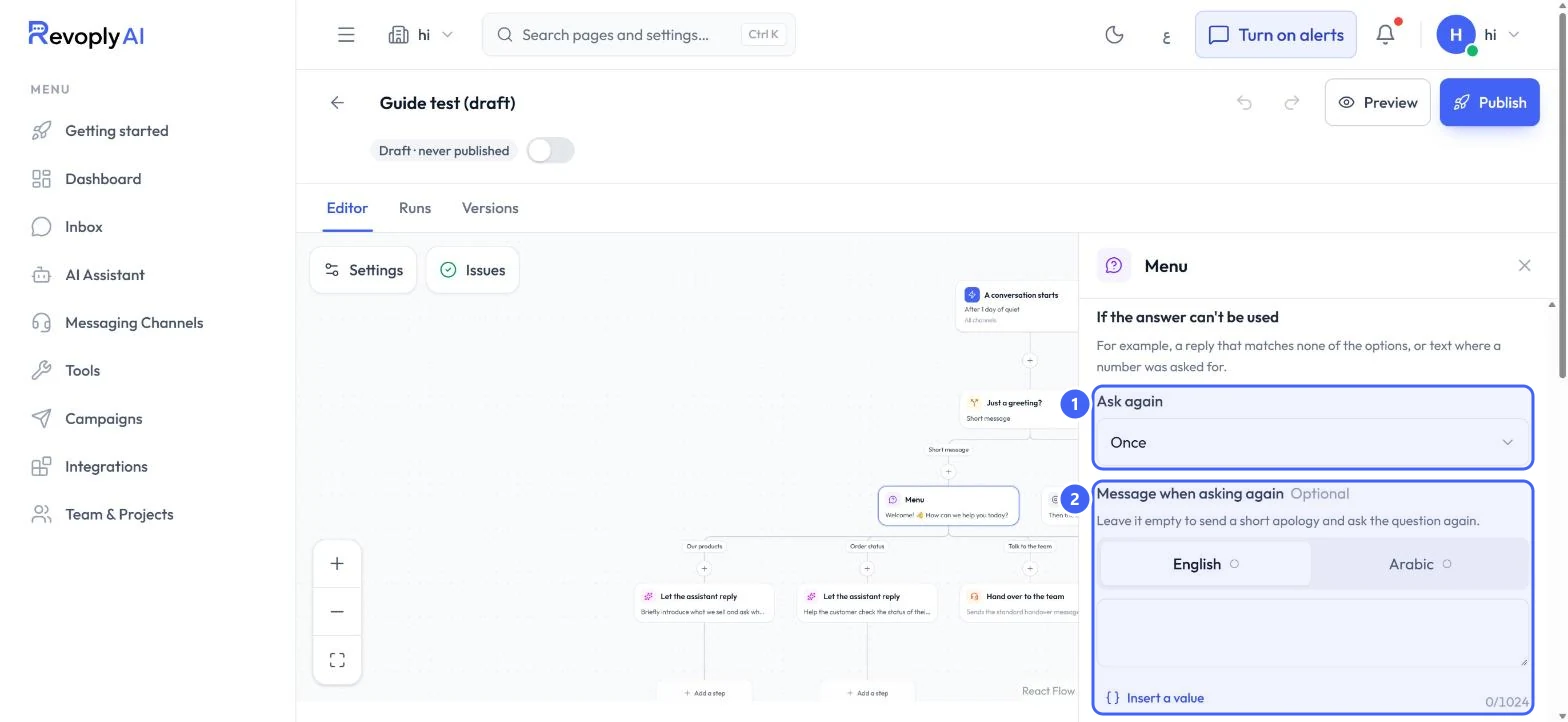
Under If the answer can't be used, choose how often to Ask again 1, from Don't ask again to 3 times, and write the Message when asking again 2 if you want your own. Leave it empty to send a short apology. If it still can't be used, the step can Let the assistant answer. You can also Save it as a variable to use the answer in later steps.
 Open full size
What happens when the answer cannot be used.
- 1Ask again
- 2Message when asking again
Step 8: Add a step
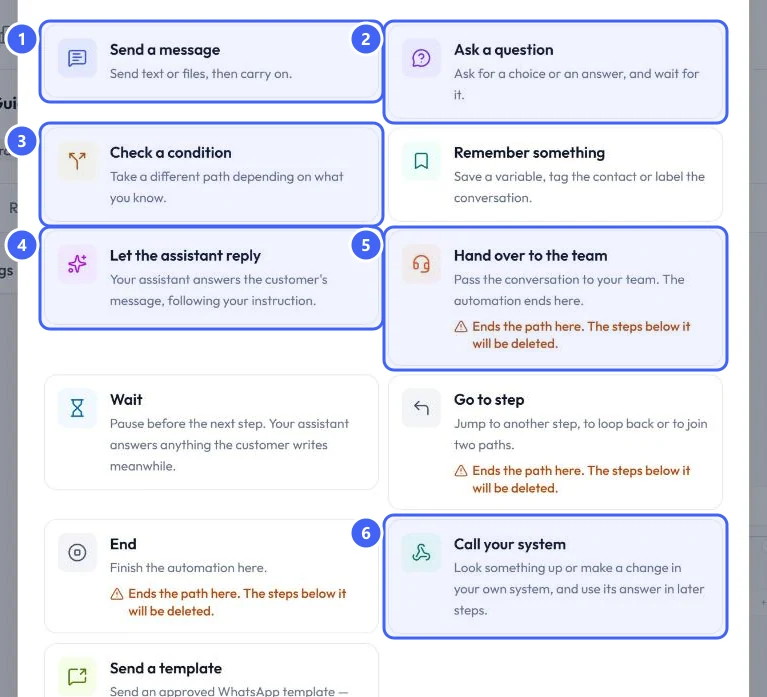
Select Add a step under any step. Pick Send a message 1, Ask a question 2, Check a condition 3, Let the assistant reply 4, Hand over to the team 5 or Call your system 6, which uses an API connection. There are also Remember something, Wait, Go to step, End and Send a template.
 Open full size
The Add a step dialog.
- 1Send a message
- 2Ask a question
- 3Check a condition
- 4Let the assistant reply
- 5Hand over to the team
- 6Call your system
Hand over to the team, Go to step and End finish the path. Adding one in the middle deletes the steps below it.
Step 9: Check the automation's settings
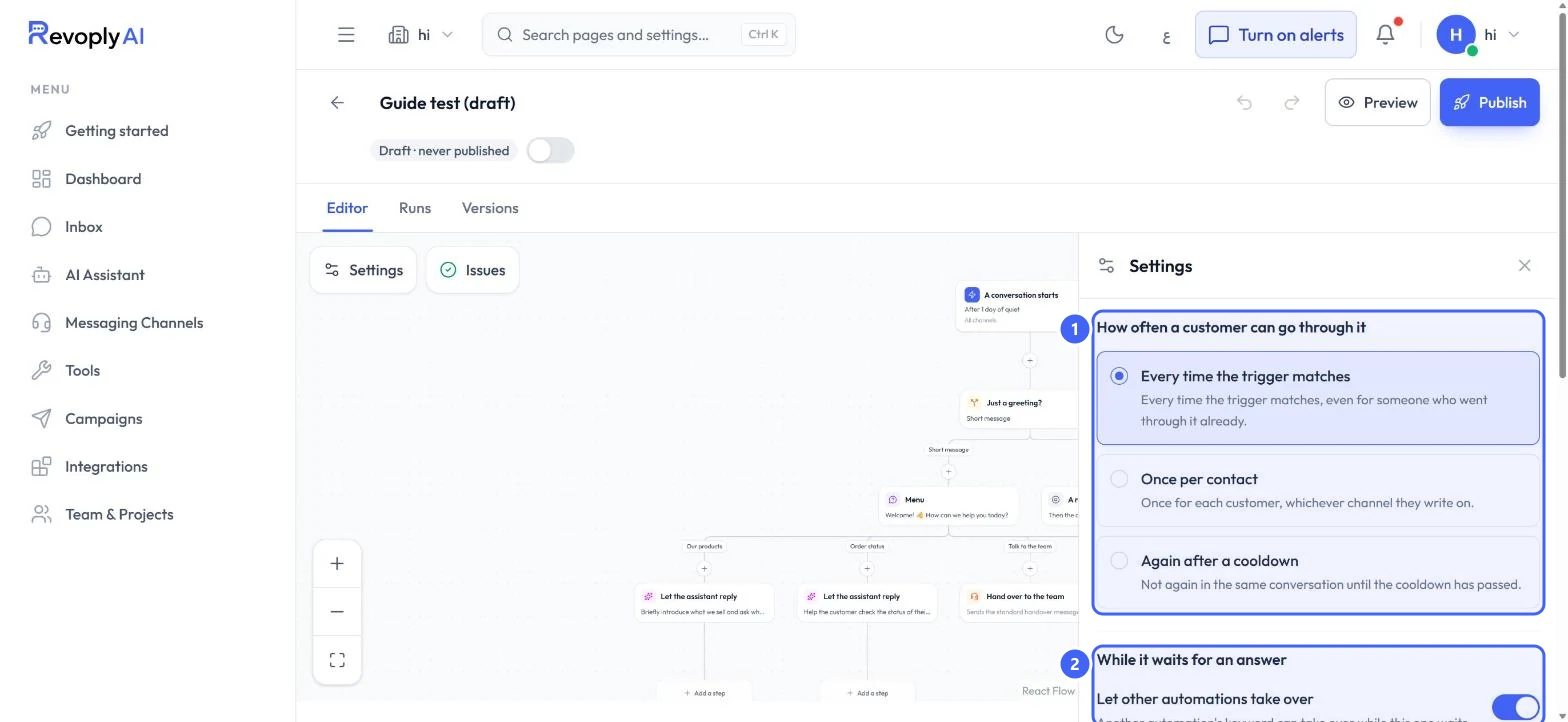
Select Settings. How often a customer can go through it 1: Every time the trigger matches, Once per contact or Again after a cooldown. While it waits for an answer 2: whether another automation's keyword can take over, and Exit words that let a customer leave and get the assistant back.
 Open full size
Automation settings.
- 1How often
- 2While it waits for an answer
Try it and publish
Step 10: Try it in the preview
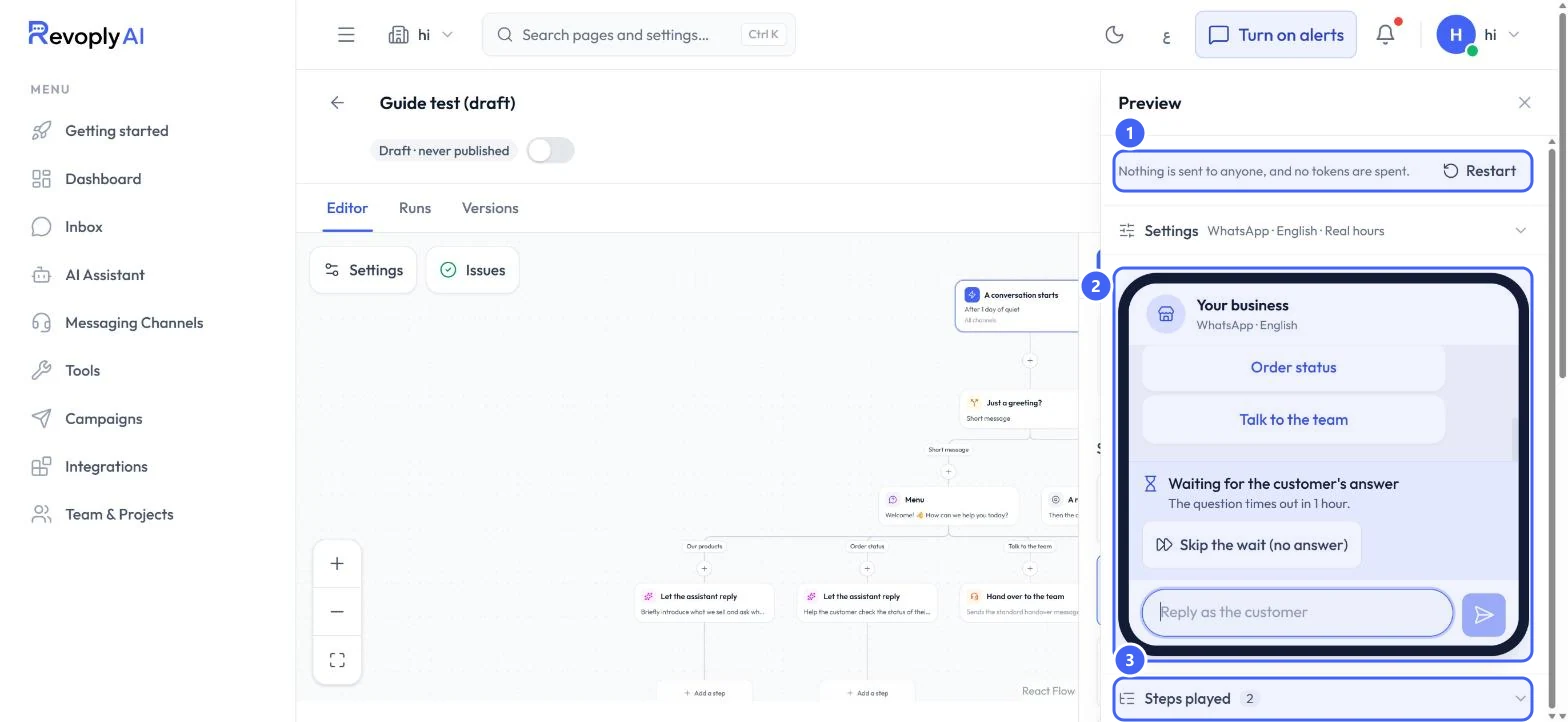
Select Preview. Nothing is sent to anyone and no tokens are spent 1. Choose the channel, the customer's language and business hours under Settings, then type the customer's first message. The phone 2 plays the automation: here the menu buttons, then Waiting for the customer's answer, which you can skip. Steps played 3 lists what ran. Restart starts over.
 Open full size
The preview after the customer wrote hi.
- 1Nothing is sent
- 2The conversation
- 3Steps played
Step 11: Publish
When Issues shows no errors, select Publish, then switch the automation on next to its state. Check that the Automations card in Tools is on too.
Expected result
Your automation runs whenever its trigger matches. Everything outside it is still answered by your assistant.
Troubleshooting
My automation does not run.
It starts switched off. Publish it, switch it on in the builder, and check that the Automations card in Tools is on.
Steps disappeared when I added one.
Hand over to the team, Go to step and End finish the path, so the steps below are deleted. Use Undo at the top of the builder.
A customer is stuck in the automation.
Add Exit words in Settings. A customer who sends one leaves the automation and your assistant answers them.
Still stuck?
A real person answers every message. Tell us the page you were on and what you saw.