Overview
An interactive message is a WhatsApp message with buttons or a list your customers tap. You decide what each choice does. Send it from the inbox, attach it to an instant reply, or let the assistant use it.
What you will achieve
- Pick the type: reply buttons, a list or a link button.
- Write the message and its options.
- Choose what happens when a customer taps.
Who this guide is for
Owners and admins on WhatsApp who want customers to tap instead of type.
Before you start
- The Pro or Business plan.
- A WhatsApp number, for the assistant to send it by itself.
Set up the message
Step 1: Start a new message
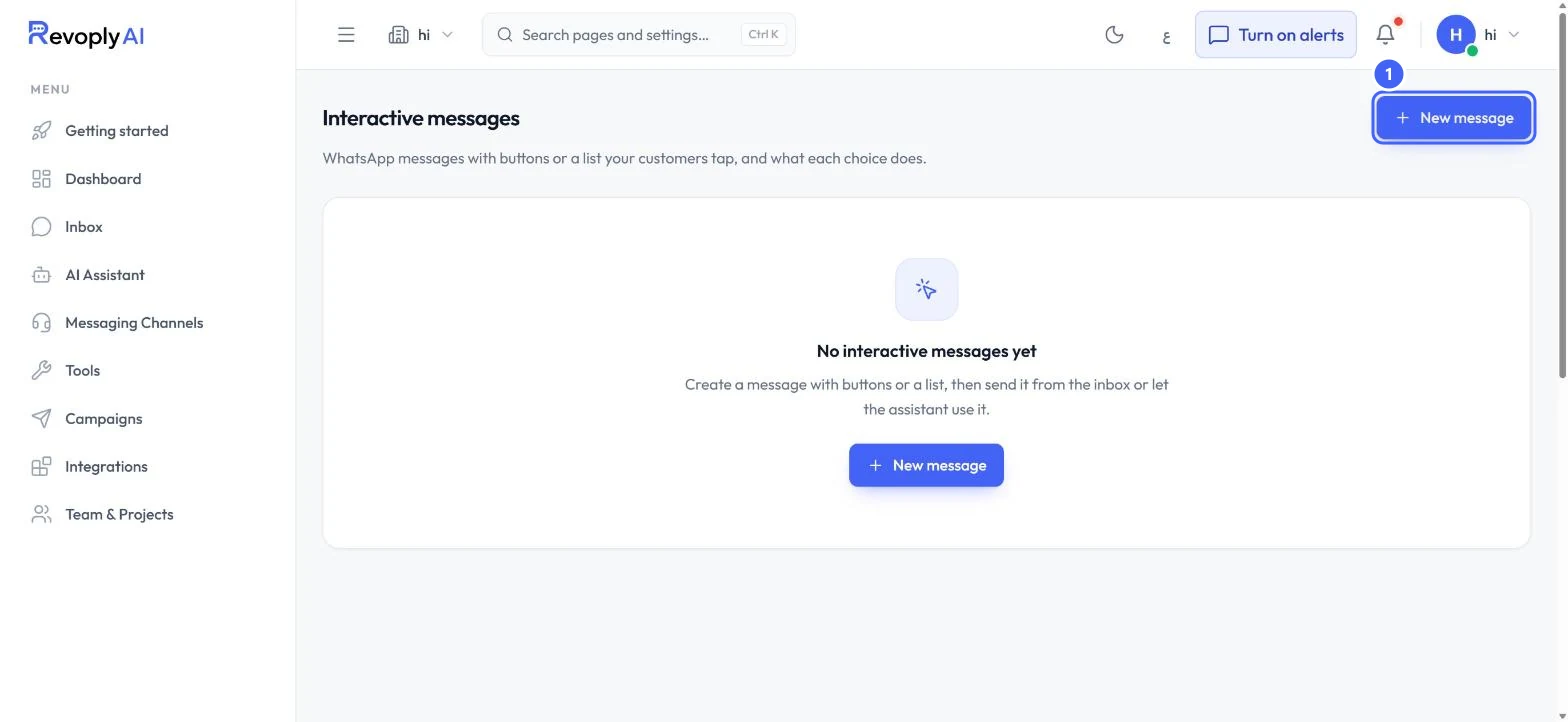
In Tools, select Open on Interactive Messages, then New message 1.
 Open full size
Interactive messages before the first one.
- 1New message
Step 2: Fill in the basics
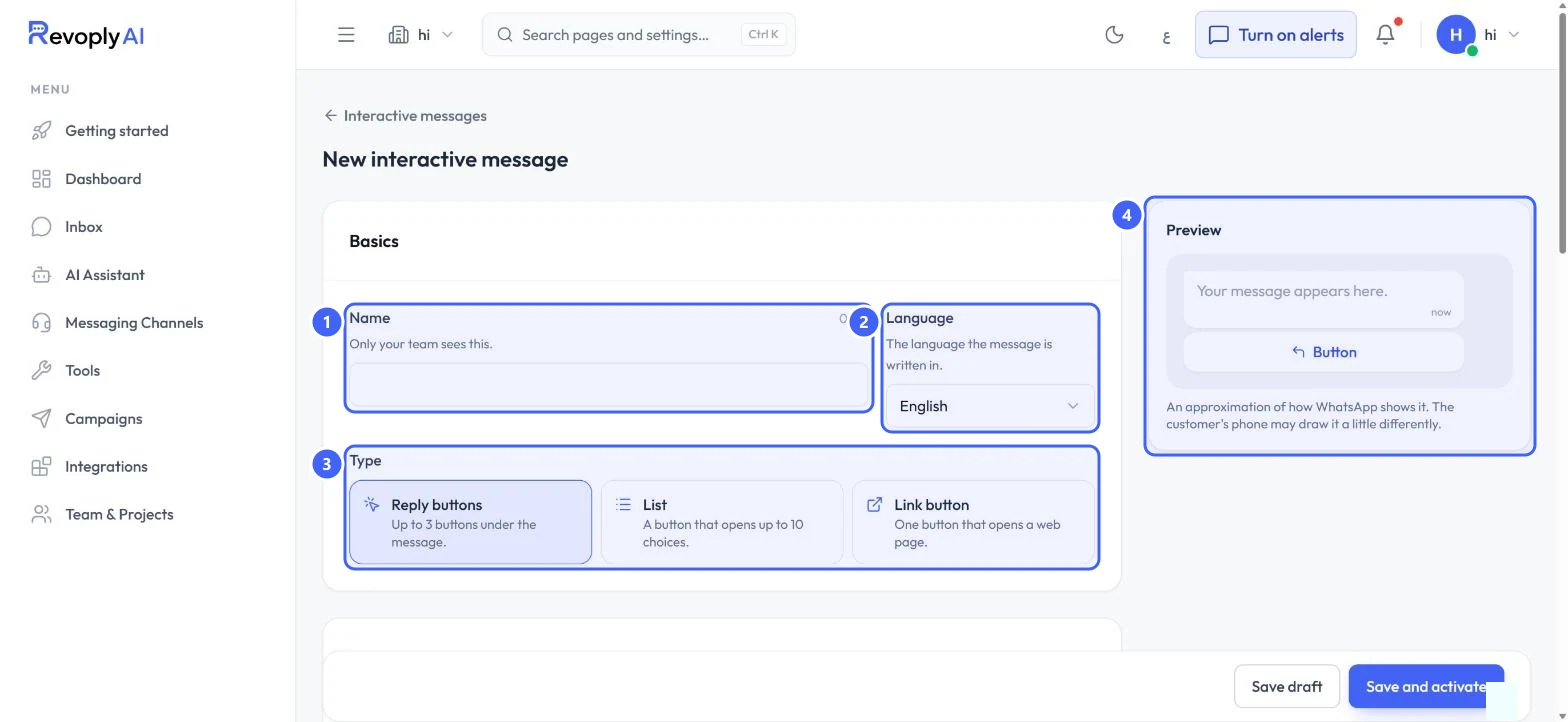
Give it a Name 1: only your team sees it. Pick the Language 2 it is written in. Under Type 3, choose Reply buttons (up to 3 under the message), List (a button that opens up to 10 choices) or Link button (one button that opens a web page). Preview 4 shows roughly how WhatsApp draws it.
 Open full size
Basics and the live preview.
- 1Name
- 2Language
- 3Type
- 4Preview
Step 3: Write the message
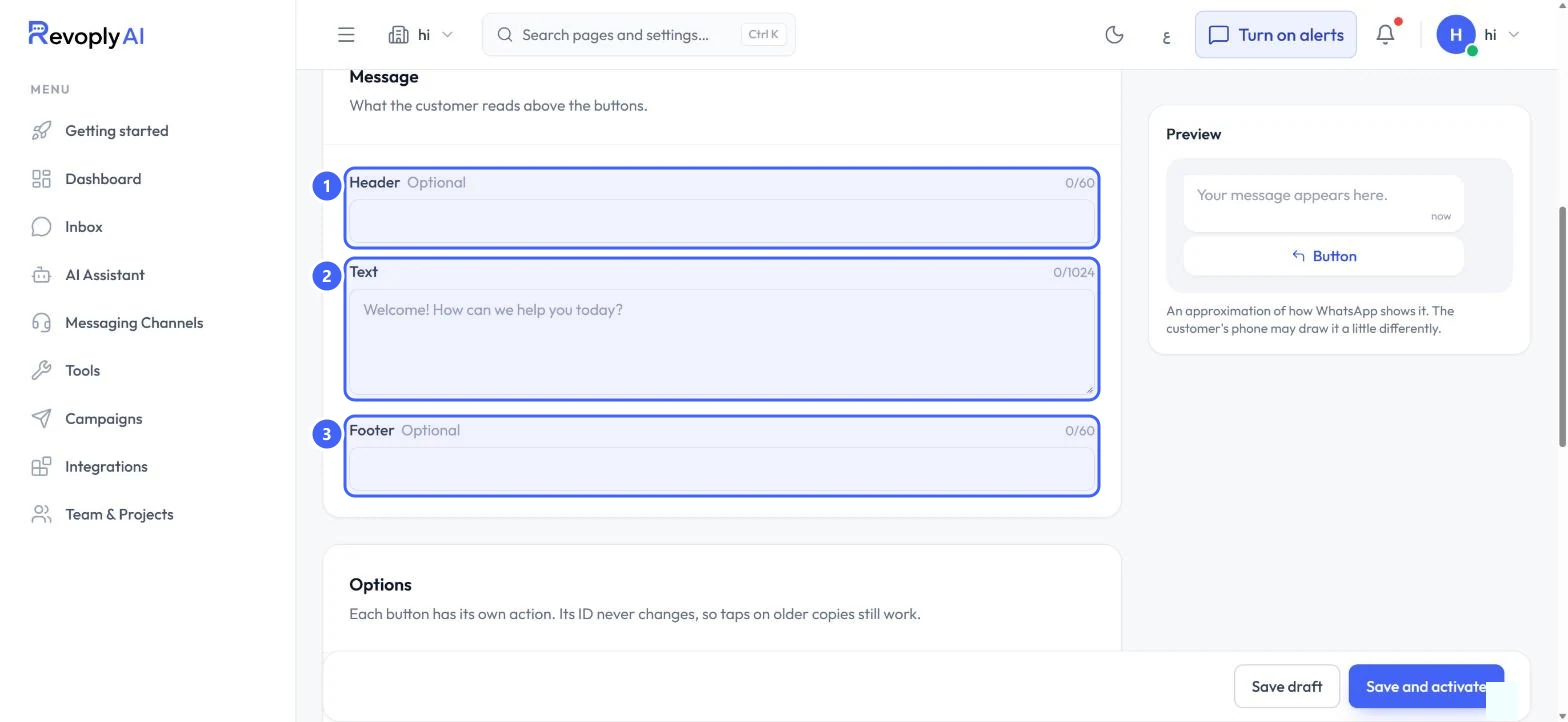
Header 1 is optional, up to 60 characters. Text 2 is what the customer reads above the buttons, up to 1024 characters. Footer 3 is optional, up to 60 characters.
 Open full size
Header, Text and Footer.
- 1Header
- 2Text
- 3Footer
Add the options
Step 4: Name each button and its action
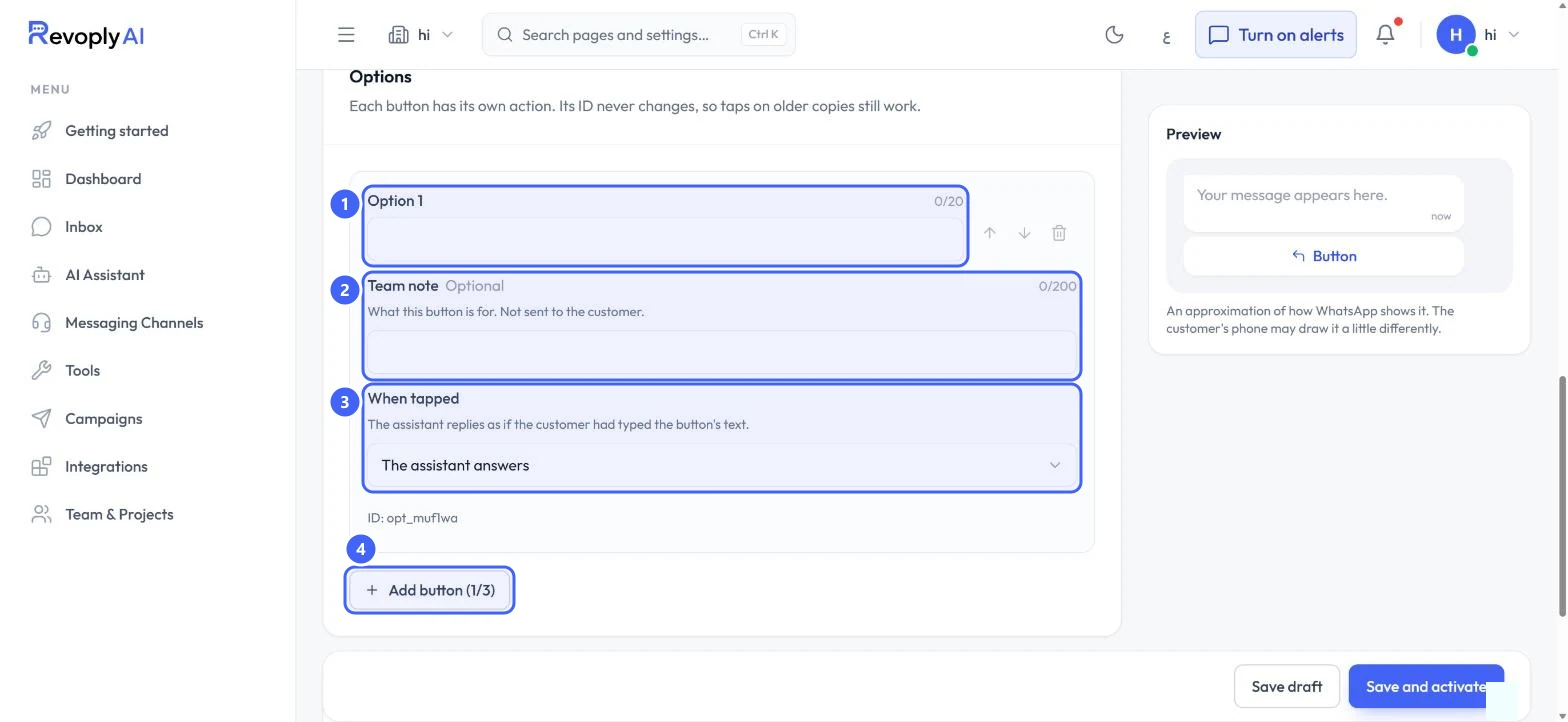
Type the button label in Option 1 1, up to 20 characters. Team note 2 is optional and never sent to the customer. Under When tapped 3, choose what the button does: The assistant answers, Show prices or information, Start an order, Track an order, Collect the customer's details, Hand over to the team, Send a fixed reply, Send another interactive message or Start an automation. Select Add button 4 for more.
 Open full size
An option and what it does when tapped.
- 1Button label
- 2Team note
- 3When tapped
- 4Add button
Each button has its own ID that never changes, so taps on older copies of the message still work.
Step 5: Let the assistant send it
Under The assistant, tick Let the assistant send this message 2 if it may send it by itself: only when it fits the conversation, and only on WhatsApp Business numbers. Then select Save draft or Save and activate 3.
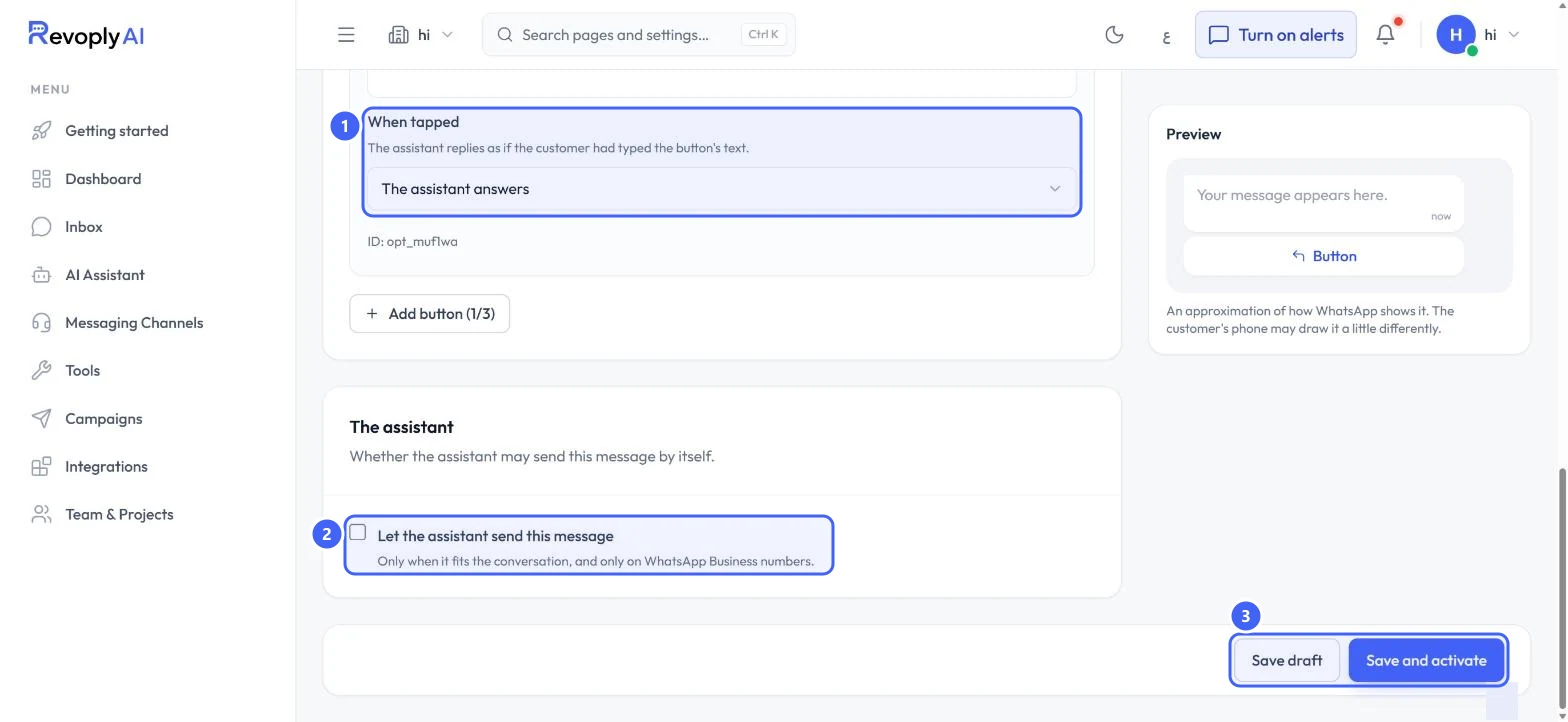 Open full size
The assistant option and the save buttons.
- 1When tapped
- 2Let the assistant send this message
- 3Save draft and Save and activate
Expected result
Your message is saved. Send it from the inbox, attach it to an instant reply, or let the assistant send it when it fits.
Troubleshooting
The assistant never sends my message.
Check Let the assistant send this message is ticked and the message is active. It only sends on WhatsApp Business numbers, and only when it fits the conversation.
The message looks different on the customer's phone.
The preview is an approximation. Each phone draws it a little differently.
Still stuck?
A real person answers every message. Tell us the page you were on and what you saw.