Overview
A broadcast sends one message to many contacts, paced over days so your number is not flagged. The page also shows how many broadcast messages your plan allows each day.
The test account had no channel connected, so the broadcast wizard itself could not be opened. This guide covers the steps up to that point.
What you will achieve
- Open Broadcasts and read your allowance.
- Know which channel a broadcast needs.
Who this guide is for
Owners and admins planning outbound messages.
Before you start
- The Starter plan or above.
- An active WhatsApp number (Business API, WhatsApp Business App coexistence or QR) or a Telegram bot.
Open Broadcasts
Step 1: Read your allowance
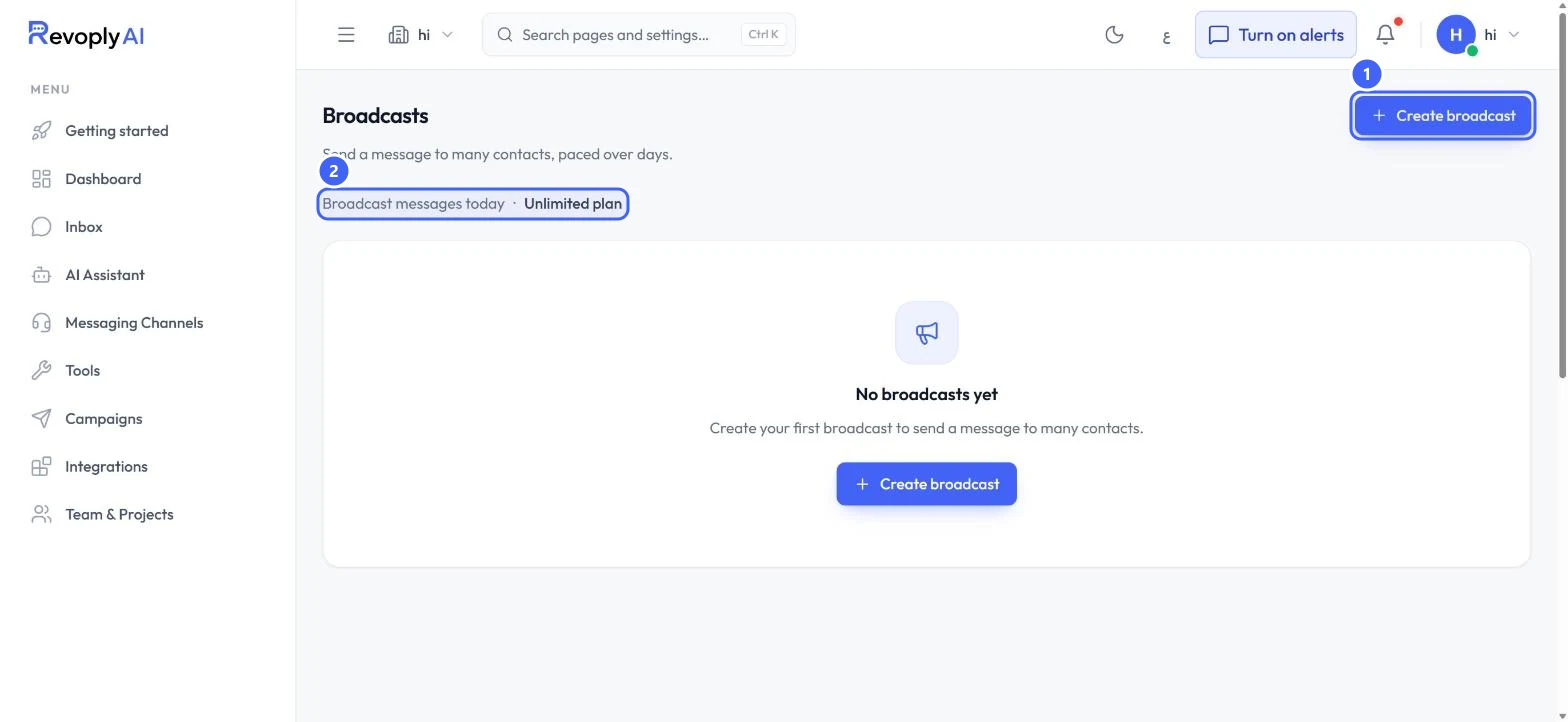
Open Campaigns and select Broadcasts. The line under the title 2 shows Broadcast messages today and your plan, here Unlimited plan. Select Create broadcast 1.
 Open full size
Broadcasts before the first one.
- 1Create broadcast
- 2Broadcast messages today
Step 2: Connect a channel first
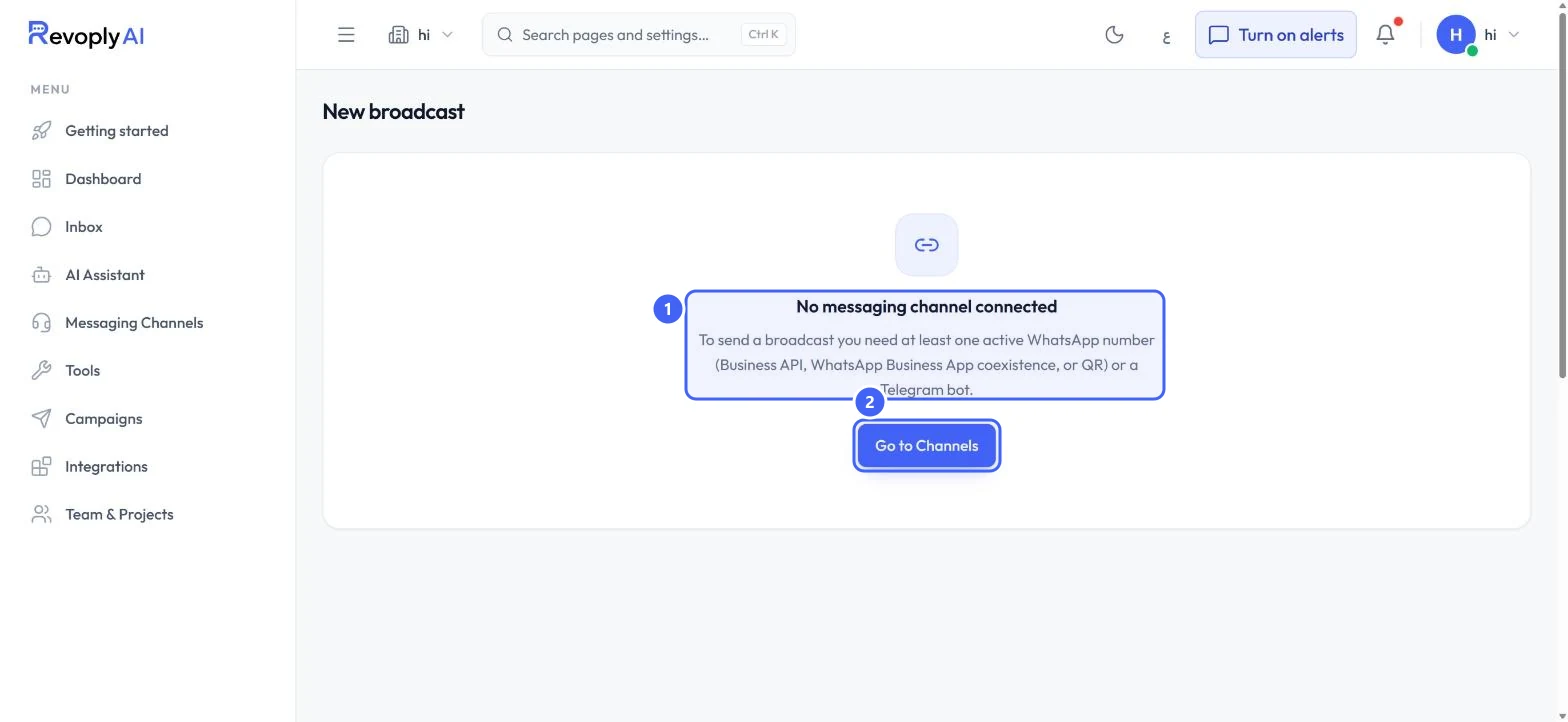
Without a channel, New broadcast says No messaging channel connected 1: you need at least one active WhatsApp number or a Telegram bot. Select Go to Channels 2 to connect one.
 Open full size
New broadcast with no channel connected.
- 1What is missing
- 2Go to Channels
Expected result
With a channel connected, Create broadcast opens the broadcast wizard.
Troubleshooting
Create broadcast shows No messaging channel connected.
Connect a WhatsApp number or a Telegram bot in Messaging Channels, then try again.
Can I send to WhatsApp customers who never wrote to me?
On the official WhatsApp Business API the first message must be a template WhatsApp has approved. See Find your way around Campaigns.
Still stuck?
A real person answers every message. Tell us the page you were on and what you saw.