Sep 25, 2026
AI Chatbot to Human Handoff: How It Works
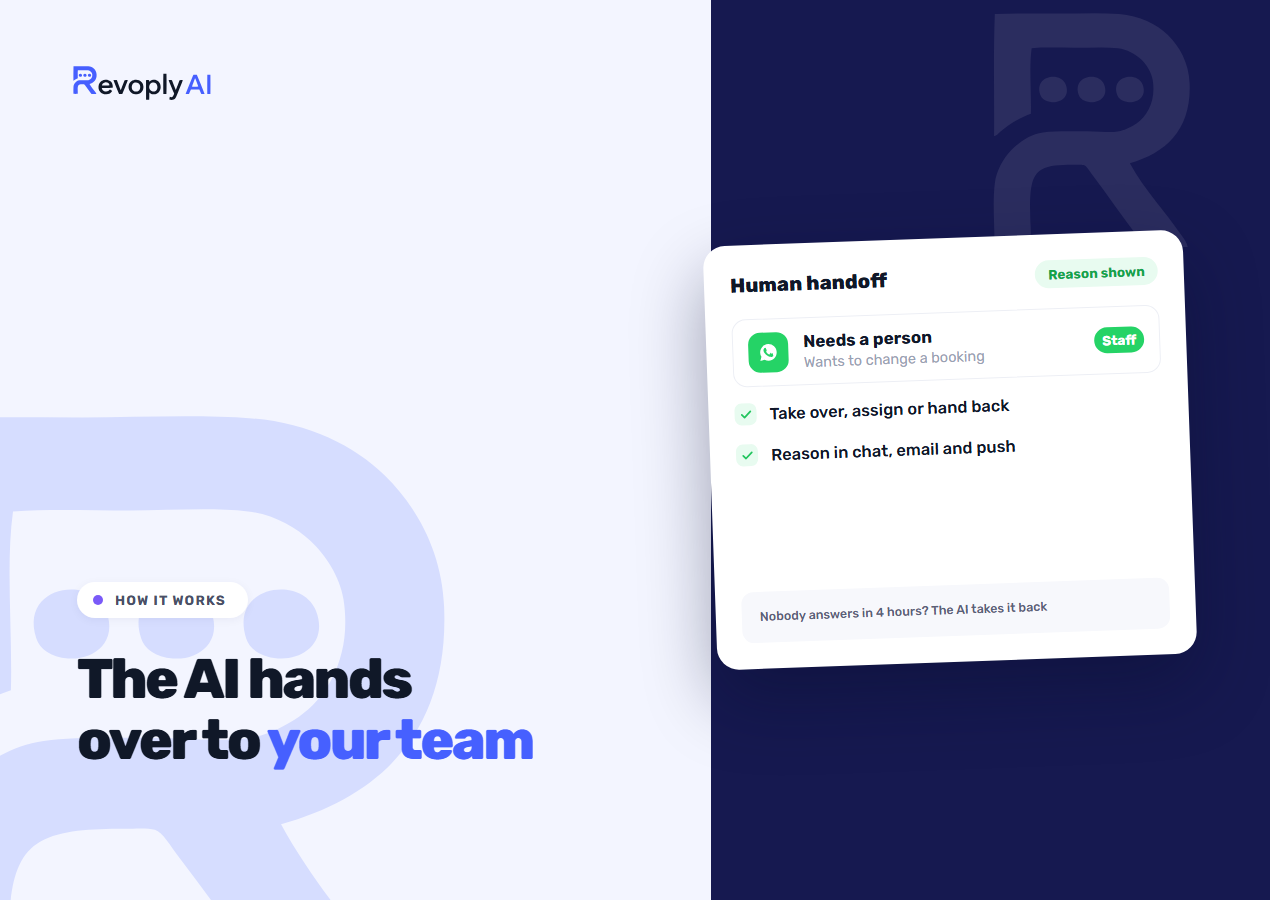
When a customer asks for a person, or the answer calls for something the assistant does not have, RevoplyAI's assistant passes the conversation to your team. It stops sending replies on that chat from that moment and reports to your team why it stepped aside. You decide how early that happens, and you can return the chat to it whenever you are finished.
No matter which channel you connect, the rules stay identical, whether it is automatic WhatsApp replies or the chat widget on your website.
When the assistant hands over
Every handover is logged with exactly one reason. Most of the time the assistant selects it on its own, at the point where it concludes a person should step in:
- The customer asked for a person. Tapping Talk to a person inside the website widget is recorded under this same reason.
- It did not have the information. The question falls outside what your knowledge base covers.
- Only your staff can do it. Refunds, cancellations, or a change to an order or a booking.
- The customer seems upset.
- Something else. Any other situation in which it judges that a person ought to take over.
The platform contributes a few reasons of its own, and these apply no matter what the assistant decided. When a reply promises that someone will follow up yet the assistant did not hand over, we pass the chat across anyway, so the promise is never left hanging. A message that is plainly angry can set off a handover by itself. Loop protection kicks in when a customer fires off many messages within seconds, or when a conversation reaches the cap on automatic replies. A run of messages containing no text does the same. And if you switch the option on, a photo the assistant could not read, a voice note too long to transcribe, a sticker or a file can trigger a handover too.
This fixed list of reasons went live on 17 September 2026. Until then, the inbox badge merely said a conversation needed a person, and the reason was a free-text note that nobody on your side ever saw.
What the customer is told
A handover nobody announces makes it look as if the assistant has gone silent, so the customer is always informed. Usually the assistant says so inside its own reply, in the customer's language. When the reply mentions no teammate, as happens when an angry message sets off the handover, we append a short line saying one will take it from here.
The reason itself never leaves your side. A widget visitor sees nothing beyond the fact that they are being passed to someone on the team, never wording such as "the customer seems upset".
What your team sees
One and the same handover reaches you in as many as four places, and each of them carries the reason.
| Where | What you get |
|---|---|
| Inbox | A Needs a person badge on the conversation, a filter that narrows the list to just those chats, and a line inside the thread explaining why the handover happened. |
| The reason on a line of its own, the five most recent messages, and a link that opens the conversation. It is written in your company's language, and for the same conversation it is sent at most once an hour. | |
| Push | An alert carrying the customer's name and the reason, on every device where you have enabled notifications. |
| Dashboard bell | A single entry for each conversation, once per day. |
Human escalations carry an urgent marking, so they skip quiet hours and are never batched. Should the email fail to be delivered, a WhatsApp message to your own business number is tried instead. You pick the channels for each category, and the notification settings walkthrough explains every switch.
Taking over, assigning and handing back
The moment anyone on your team replies, the badge disappears. Alongside replying, the conversation offers you these:
- Take over. From then on you are the one replying. The assistant keeps out of this conversation until you turn it back on.
- Assignee. Pass the conversation to a teammate. The assistant stays silent until someone hands it back.
- Internal note. Background for whoever picks it up next. Notes have no route by which they could reach the customer.
- Ignore. Meant for spam, or a chat that calls for no reply. The badge clears and the assistant answers the next message starting from a clean slate.
To return a conversation, switch on Let the AI answer this conversation inside the thread. The counters behind the handover are reset, so the following message does not send it straight back.
Answer a customer yourself through the WhatsApp Business app on your phone and the assistant pauses on that chat, so the two of you never talk over each other. The inbox displays the minutes remaining along with a Resume AI button. Running support for every channel from one shared inbox is covered in running support from a unified inbox.
Setting the rules
These settings live in your assistant's configuration, on the card named Handing over to your team. The first switch on it, Hand over to your team, decides whether the assistant may hand over at all. Turn it off and the assistant is told that handing over does not exist, while the widget hides its Talk to a person button.
With it on, How quickly to hand over offers three starting points:
| Preset | When it hands over | Automatic replies per 30 minutes | Messages with no text in a row |
|---|---|---|---|
| Hand over quickly | The instant it feels unsure, with no need to ask the customer first. Even mild annoyance is enough. | 8 | 2 |
| Balanced (default) | When it gets stuck it proposes a person and waits for the customer to agree. An unmistakably angry message triggers a handover as well. | 20 | 3 |
| Keep trying | Only if the customer asks for a person. The tone of a message sets nothing off. | 40 | 5 |
Base your choice on who is watching. Hand over quickly suits a team that always has someone on the inbox. Keep trying suits a business where nobody does: a handover with no one on the receiving end is simply a conversation that stops. Every company begins on Balanced.
Two settings related to these sit nearby. Pause AI when you reply from WhatsApp spans never up to four hours, with 30 minutes as the recommendation. On the Photos, files and voice notes card, Hand over messages the assistant can't read is switched off by default. Keep it off unless somebody will see those handovers, or a single sticker could end the assistant's part in a chat.
When nobody picks it up
A handover amounts to a promise, so it never stays open indefinitely. When no one on your team replies within four hours, it closes as unanswered and the assistant reclaims the conversation, so the customer's next message gets an answer rather than silence. If your team did reply and the chat then sits idle for 12 hours, it goes back to the assistant as well. People seldom remember to hand back a chat they have finished with.
A conversation you took over on your own, with no handover from the assistant first, remains yours until you switch the assistant back on.
Every missing answer becomes a to-do
The handovers worth studying are those caused by a missing answer. Whenever the assistant lacked the information, or promised a follow-up it could not deliver, the question lands on the KB gaps & analytics list with a Handed to a person mark. The reply your teammate writes in the inbox turns into the draft answer. Once an owner or admin approves it, the assistant knows it.
Refunds, upset customers, and people who simply wanted a person never appear on the list, because no knowledge base entry could have prevented them. The full routine is described in fixing wrong answers with knowledge gaps.
Voice calls follow the same rules
The AI voice agent, in beta on Business and beginning with the website widget, runs on the same escalation rules as chat. A call cannot yet be passed live to a person, so a handover on a call means a follow-up: the caller hears that someone will get back to them. The call is flagged in the call log, and a conversation opens in your inbox marked as coming from a voice call, with a link to it. Further detail is in our voice agent launch post.
What each plan includes
Handover carries no extra fee. Everything described above apart from voice runs on Basic (Free), exactly as it does on Starter ($9), Pro ($29) and Business ($59 a month). What the plan changes is how many people share the work: one team member on Basic, two on Starter, five on Pro, ten on Business. On Basic, every handover lands with you. The plan comparison covers the rest.