Sep 9, 2026
WhatsApp Coexistence: Connect Your Number, Keep the App
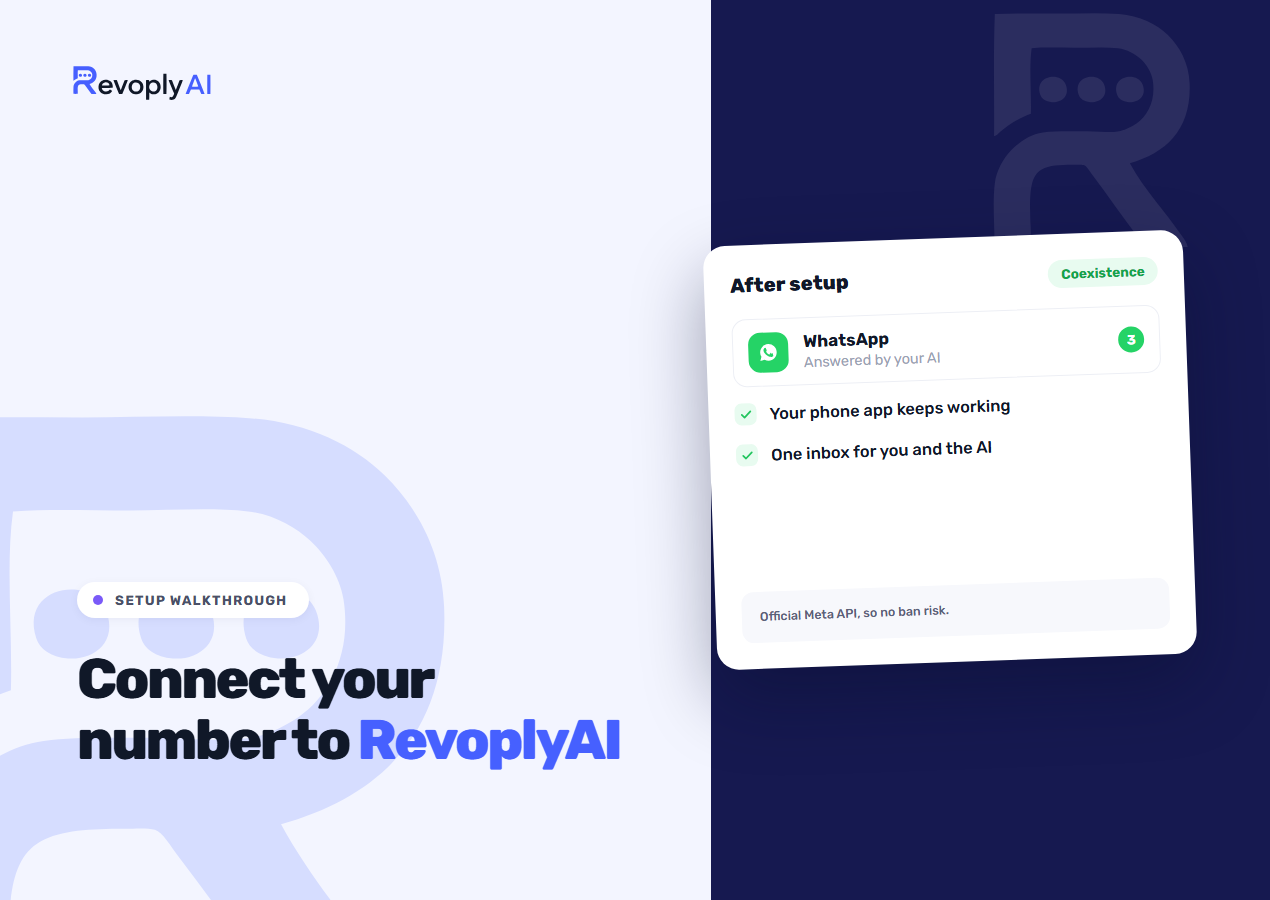
Linking your WhatsApp Business number to RevoplyAI takes a single pass through the Channels page: choose a method, log in via Facebook, and confirm from the app on your phone. When the number is already active inside the WhatsApp Business app, go with coexistence. The app on your phone keeps behaving exactly as it does today, while the same number runs on the official Meta API underneath.
What follows is that whole route, from the first click until the channel card reads Connected, then the details nobody brings up until afterwards: what the connection leaves behind, which app features fall silent, whether your number is put at risk, and how to reverse the setup.
Which route fits your number?
Go to Channels, locate WhatsApp, and press Activate. The opening screen asks how you would like to connect. Two of the cards handle genuine customer traffic, and the history of the number in your hand decides which of them is right for you.
| Card | Choose it when | What it requires |
|---|---|---|
| WhatsApp Business App (coexistence) | Your number is already registered inside the WhatsApp Business app, and the team still replies from the phone | The app installed on that phone, a Meta Business account, plus opening the app once every 14 days at a minimum |
| WhatsApp Business Platform (API) | The number is fresh, with no WhatsApp account tied to it, whether personal or business | Login access to your Meta Business Manager, together with your commercial registration for business verification |
A third card exists as well, offering a quick connect by QR, and the product marks it testing only for a reason you should read here rather than discover the hard way. This is no official Meta route. WhatsApp spots numbers linked through it and bans them for good, and neither we nor Meta can bring a banned number back. If you simply want to see the product in action, try it with a spare number. Never use it with the number your customers message.
For nearly everyone, coexistence is our recommendation, and the wizard flips to it automatically the instant you say the number lives on the Business app. Nothing is migrated, nothing goes offline, and not one customer has to store a new number.
Behind the clicks, coexistence (filed by Meta under onboarding WhatsApp Business app users and sold by some providers as "Quick Start") allows a single phone number to operate on both the WhatsApp Business app and the WhatsApp Cloud API simultaneously. Fresh messages sync both ways: whether a colleague types a reply on their phone or the assistant sends one through the API, both land in the same thread, so your customer faces one number and one unbroken conversation. The app is not reduced to a read-only mirror either. It goes on working precisely as it does today. Still weighing which tier your business needs in the first place? Our guide on WhatsApp Business app vs API explains the difference underneath. And if your number is genuinely brand new, turn to the API onboarding guide instead, since everything below assumes the app came first.
What do you need before you start?
- The WhatsApp Business app on your phone at version 2.24.17 or newer, with the number already registered inside it. Earlier builds never show the option, so run the update before starting instead of searching for a button that never existed.
- A Meta Business account that you can sign in to personally. Borrowing a colleague's login leaves you stuck at the Facebook window with nothing to press.
- A few uninterrupted minutes, phone in hand. One half of the process runs on a desktop and the other on the phone, and only minutes separate the two halves, not days.
Two facts deserve to be known up front rather than afterwards. Inside the product, coexistence still carries a beta mark, and Meta has not switched it on in every country. Should yours be among the unsupported ones, the Facebook window is where you will find out, so attempt the setup on a calm afternoon instead of thirty minutes before you need it live.
What does RevoplyAI ask before it hands you to Meta?
Deliberately, we place a short questionnaire ahead of Meta's window. Most of the failed connections we have observed were effectively settled before that window ever opened: another provider still held the number, or whoever was clicking lacked Business Manager access. After you enter Meta's popup, every failure belongs to Meta to display, and it displays them bluntly. Two questions on our side intercept most of those cases, phrased in our own words, where we can genuinely help.
Question one asks what condition your number is in, and each answer leads somewhere different:
- New, not linked to any WhatsApp account. You go directly to the API route, with nothing to untangle.
- Linked to a personal WhatsApp account. That account must be deleted from the app beforehand. Take a backup of the chat history first, since deletion cannot be reversed.
- Linked to the WhatsApp Business app. At that point the wizard drops the migration talk and presents coexistence instead. Most people land here, and it is the good outcome.
- Registered with another provider. Request that they open a migration request, and return after the number is freed. Allow one to three business days.
- No number available. During setup you may claim a free virtual number from Meta, or supply one of your own.
Question two covers your Meta Business Manager access, since creating a WhatsApp Business Account calls for four items you might have to hunt down: the business name customers know you by, your legal company name, your official business address, and your commercial registration. Before Meta verifies the business, you may message at most 250 new customers a day. That allowance feels generous while you are testing, yet it becomes a ceiling you will want raised ahead of any campaign. Clearing it happens through the very verification that leads to a verified business profile on WhatsApp.
A Skip eligibility check link sits under both questions, placed there for people who already understand their situation. It is not an escape from a genuine problem, though: bypassing a gate you ought to have answered simply relocates the failure into a window we cannot explain on your behalf.
How do you connect it, step by step?
In RevoplyAI
Head to Channels, pick WhatsApp, then press Activate. Select WhatsApp Business App (coexistence). The disclosure screen shows two short lists under the headings Before you connect and After you connect; read both, because together they form the candid summary of everything that follows. Press continue, and our final screen passes you over to Facebook.
In the Facebook window
Log in if you have not already, select the WhatsApp Business number you wish to connect, and continue. Meta validates the number, then places a QR code on your desktop screen. Keep that window open right where it sits, because you are about to aim a phone camera at it.
On your phone
- Launch the WhatsApp Business app. Inside the chat list, a message from Facebook Business ought to be waiting.
- Within that message, tap Connect, followed by Connect to Business Platform.
- Decide whether or not to share your existing chats; Meta offers up to six months. Before concluding that this choice matters, read the next section.
- Aim the reader that opens toward the QR code on your desktop, then wait.
Should the Facebook Business message never show up, the camera button on the app's main screen performs the same task and scans the same code.
Back in the dashboard
Seconds after the scan, the phone shows a confirmation, and the desktop follows suit. Confirm, then finish, and the channel card ought to read Connected. Press Settings on that card and compare the phone number it lists against the one you intended to connect. That single check pays for itself: a business holding two numbers can link the wrong one and stay oblivious until a customer asks why nobody answered.
What does coexistence not bring across?
During setup Meta proposes syncing as much as six months of chat history, and the majority of guides end their explanation there. The part that concerns you is this: that history lands in your WhatsApp Business Account, and it never shows up in the RevoplyAI inbox. Your existing contacts do not either. The inbox begins at the instant you connect and accumulates from that point onward.
- Conversations from before the connection remain in the phone app, exactly where they already sit. Nothing disappears. It simply never gets imported.
- Anything sent through WhatsApp for Windows or from a WearOS watch never reaches the RevoplyAI inbox. Messages from the phone app do arrive. Those from the desktop client do not.
- Treat the 14 day rule as a countdown, not a gentle reminder. Leave the app unopened beyond that limit and the channel drops.
Nothing here breaks, yet day one looks barer than most people anticipate, and any team that lives in the WhatsApp desktop client has to build a different habit. Putting the dashboard on their phones is usually the simpler half of that conversation, as it also lands escalations on the lock screen.
What changes inside the app after you connect?
Several WhatsApp Business app features switch off on a coexistence number, simply because the API has no way to represent them. Once you see the reason, none of them is surprising, yet this is precisely the list that spawns support tickets whenever it goes unread beforehand.
- Leave the app installed, and open it on a regular basis. Removing it severs the connection, and letting it stay unopened for more than 14 days does the same.
- Disappearing messages and view-once media cease to function on that number. Each relies on the message vanishing, and an API-side copy defeats exactly that.
- Live location sharing gets switched off, because a position that updates continuously has nothing it could sync against.
- Group chats remain inside the app. The API offers no access to them whatsoever, so they never appear in the dashboard, and you carry on using them from the phone.
- Broadcast lists are effectively retired. Bulk sending shifts to the platform side, where template rules govern it and careless use invites ban risk. RevoplyAI's broadcasts run on a coexistence number exactly as they do on a migrated one: pick the number, pick an approved template, and the campaign is paced out over the days you set. Before your first campaign, our guide on sending bulk WhatsApp messages without getting banned deserves a read.
- The blue Official Business Account badge cannot be obtained on coexistence numbers. When that badge is a firm requirement, coexistence is not the route to take.
- Throughput sits below the ceiling a fully migrated API number can reach. Providers report differing limits, so verify yours before scheduling a large campaign. At everyday support volumes the cap never shows.
None of it touches what matters most in daily work: the team goes on answering from the phone, and the number holds on to its identity, its history, and its customers.
Coexistence or full migration: which should you choose?
| Coexistence | Full migration | |
|---|---|---|
| The phone app on that number | Carries on working, unchanged | Ceases working on that number |
| Chats you already have | Remain readable inside the app and can sync to your WhatsApp Business Account during setup, though neither route places them in the dashboard inbox | Stay behind in the app |
| Service interruption | Practically zero | A gap while the switch happens |
| Upper limit on throughput | Limited | The complete API rates |
| Broadcasts from the RevoplyAI dashboard | Yes, with an approved template | Yes, with an approved template |
| The blue OBA badge | Unavailable | Obtainable if you meet the criteria |
| Suited to | Smaller teams that want automation on a number they already manage manually | Senders at high volume who operate wholly from a desktop inbox |
Most small and medium businesses should hear the plain recommendation: start with coexistence. You can reverse it by disconnecting from the app's own settings, so trying it costs almost nothing, and should you outgrow it, migration stays open as a later option.
Does this risk getting my number banned?
No, though the reason deserves precision, since the underlying fear is generally well founded. The overwhelming source of WhatsApp bans is unofficial automation: altered clients, scraping bots, and tools that operate the consumer app through a back door. That is precisely why the QR card carries its warning. Coexistence stands at the opposite pole: a first-party Meta feature, linked through the official Cloud API, with the connection approved from your own phone. You are taking the permitted action by the permitted method.
Restrictions can still be triggered by behaviour: contacting people who never opted in, firing off templates that draw reports, or letting a slipping quality rating go unnoticed. Whether you migrate or coexist, that risk is identical, and it hinges on the way you message rather than the door you entered through.
What if it does not connect?
Almost every case we encounter falls into three failure types, and not one of them calls for a support ticket.
- The app receives nothing. Normally the Facebook Business message is the path, with the camera button as backup. When both fail, the app is almost certainly older than 2.24.17.
- The number is rejected by Facebook. Something still holds it: a provider that has yet to release it, or a personal WhatsApp account occupying the same number.
- Weeks later the channel fails. Access tokens expire on Meta's side, and someone tidying up permissions can unshare an account in Business Manager. A Reconnect WhatsApp button sits on the card, so press that instead of disconnecting and running the whole flow from scratch.
After the card reads Connected, the number is live on the official API, and the assistant replies from your own knowledge base inside the very thread your team can see. Should the number have never carried genuine volume, warm it up before you send at scale instead of afterwards.
Frequently asked questions
Can I really use the WhatsApp Business app and the API on the same number?
Yes, and serving that purpose is precisely why coexistence exists. Both operate on one number simultaneously, new messages sync in either direction, and your team answers from their phones while the assistant takes care of everything else over the official API.
What happens if I uninstall the WhatsApp Business app?
It breaks the connection. Coexistence requires the app to remain installed on the phone holding the number, and the channel disconnects once the app goes unopened for more than 14 days. When you truly no longer want the app, a full migration is the correct alternative.
Can I undo it?
Yes. Disconnection is available from the WhatsApp Business app's own settings, inside the account's Business Platform section. Being reversible in this way is a major reason coexistence counts as a low-risk opening move.